
VideoProc Converter AI is generally described as an all-in-one multimedia tool that combines fast video processing with increasingly capable AI features. It brings together AI-powered upscaling, frame interpolation, stabilization, and image enhancement with everyday functions like video conversion, DVD ripping, downloading, compression, editing, and screen recording, making it suitable for users who want both AI enhancement and traditional media workflows in a single, easy-to-use application.
This review evaluates how well it performs in real-world use, focusing on both AI capabilities and core functions. The goal is to clarify where the software excels, where it falls short, and which types of users benefit most from it.
VideoProc Converter AI - Chosen by Over 5.2 Million Users
- All-in-one multimedia toolkit for videos, DVDs, audio, and images.
- Serves as an AI enhancer, video/audio/DVD converter, downloader, and editor.
- AI tools: Super Resolution, Frame Interpolation, Stabilization, Image AI, and Audio AI.
- Full Hardware Acceleration and real-time rendering for fast processing.
- Friendly to beginners and pros. Update consistently to keep up with new techs.
 Excellent

How I Test VideoProc Converter AI
To assess VideoProc Converter AI objectively, this review is based on hands-on testing, structured evaluation criteria, and cross-checking with real user feedback.
To improve reliability, the evaluation follows a consistent approach:
- Hands-on testing: Core AI features such as upscaling, frame interpolation, and stabilization were tested on real-world video samples with varying resolutions and quality levels.
- User feedback reference: Public reviews and ratings from mainstream software review platforms were reviewed alongside hands-on results to avoid relying on a single perspective.
- Comparative perspective: Key aspects such as AI output quality, processing speed, feature coverage, and pricing were compared with established competitors.
All tests were conducted in the following environment to ensure reproducibility and transparency:
Test Environment:
- Operating System: Windows 10 (64-bit)
- CPU: AMD Ryzen 5 5600X (6 cores)
- GPU: AMD Radeon RX 6700 XT (8GB VRAM)
- RMA: 64GB
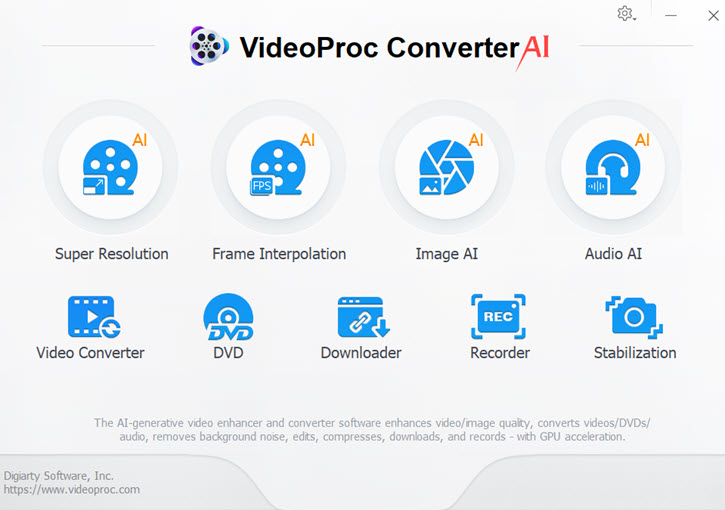
1. AI Features of VideoProc Converter AI
Artificial intelligence is the headline feature of VideoProc Converter AI, and for good reason. It uses well-trained deep learning models for all its video AI, image AI, and audio AI features.
The focus is on how its AI video enhancement features perform in practice, whether the results match the product's claims, and how it compares with well-known alternatives in terms of quality, speed, and overall usability.
The latest versions support the latest NVIDIA RTX 50 series graphics cards (such as 5060, 5070, 5080, and 5090) for the ultimate AI processing speed, and add MKV output format to preserve all subtitle tracks from the original video for multilingual videos, movie clips, and professional editing purposes.
1.1 Super Resolution – Upscaling Videos with Different AI Models
Super Resolution is arguably the most impressive AI tool in VideoProc Converter AI. It can upscale old footage from 240p, 480p, or 720p into sharp 1080p or even 4K, without creating that plasticky or over-smoothed look common in basic upscalers.
- Use cases: Restoring VHS videos, upscaling DVD collections, making old clips watchable on modern screens.
- How it works: Instead of guessing pixels, the AI model rebuilds details and textures based on millions of trained footage samples.
- Real-world advantage: Unlike manual editors, it reduces compression blocks, mosquito noise, and jagged edges intelligently and automatically.
VideoProc Converter AI provides multiple AI Super Resolution models optimized for different content.
| Model Name | Best For | Key Strengths | GPU/CPU Requirements |
|---|---|---|---|
Gen Detail V3 (Suggested) |
General-purpose video enhancement | Fastest model; adds fine detail, clarity, and sharpness; ideal for most footage | NVIDIA: GTX Titan X, GTX 980 Ti, GTX 980, GTX 970, GTX 960 or higher Intel: Haswell (4th-gen core) HD Graphics or higher AMD: Radeon R9 390(X), R9 395X2 or higher Must meet DirectML or TensorRT acceleration |
Real Smooth V3 (Suggested) |
Restoring smoothness in motion-heavy scenes |
Reduces flaws and artifacts while preserving natural fidelity and smoothness |
|
Anime |
Cartoons, animations, anime footage |
Maintain the original style and color of anime. Optimized for clean outlines and textures. |
NVIDIA: GeForce GT 630 or higher Intel: HD Graphics 2000 or higher AMD: Radeon HD 7700 series (VCE 1.0) or higher Vulkan ≥ 1.2.X |
Zyxt |
Real-world photography and realistic videos | Legacy model tuned for natural appearances in reality footage |
I tested the modles individually on a low-resolution (720x346) video upscaled by four times.
👉 Source video details:
- Format: MP4 (AVC)
- Width: 720 pixels
- Height: 346 pixels
- File size: 1377 kbps
👉 My settings:
- High Quality Mode
- Scaling: 4X
Then, I compared the original video with outputs processed by different Super Resolution models in VideoProc. Below are the comparisons between the original quality and the Gen Detail and Real Smooth models.
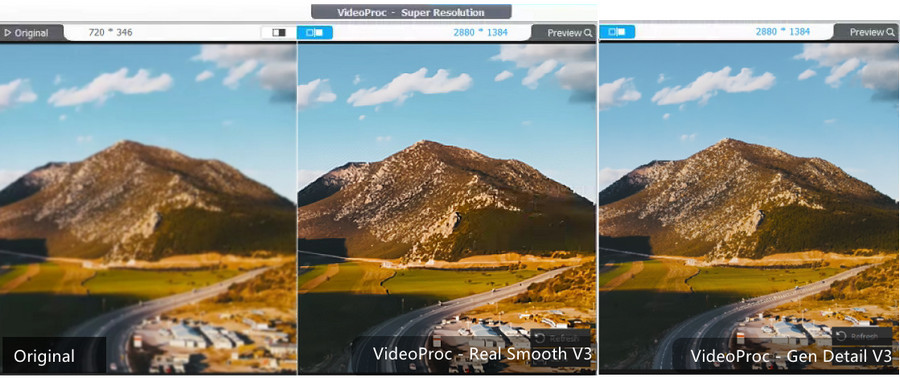
👉Overall, I found the Gen Detail and Real Smooth models to give the clearest results for old DVDs and low-resolution videos. The differences in the results of these two models are slight: Gen Detail output shows more details and lower saturation, while Real Smooth delivers a bright color.
The Anime model is a clear win for animation fans since it maintains a natural look for anime and cartoons;
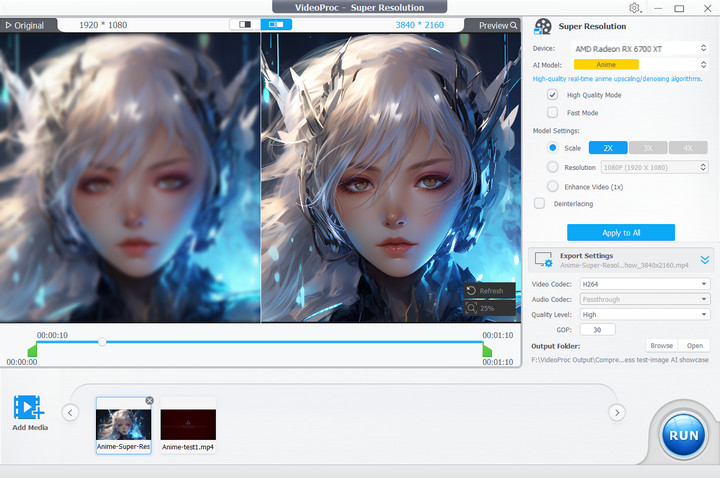
Zyxt is the alternative only if your computer is too old to support Gen Detail and Real Smooth.
When you first use this feature, the AI models may take some time to download. Compared with images, videos take longer to load and process with AI. It's also normal that the visual quality improvements in video enhancement are less noticeable than in image enhancement.
"I use Heygen.com AI avatar to create videos and the videos created are 1080p. I use your software to upscale to 4K and it does an amazing job. Thanking you all for the hard work that you've put on to create such a great piece of software. " — Feedback from a user via email
1.2 Image AI – Enhancing Photos in Multiple Ways
Besides video, VideoProc includes an Image AI module for enhancing any photo and image, which I tested across its main functions:
- 1x Enhancing: Applied natural sharpening and noise reduction to a blurry or noisy photo. Good for quick touch-ups when you don’t want to increase resolution.
- 2x–4x Upscaling: A 2x upscale worked best—image became clearer, and edges sharper without looking artificial. At 4x, details were still improved, though the result looked flatter in complex textures and human faces.
- Face Restoration: On a scanned old portrait, this feature noticeably recovered facial features like eyes and lips, giving a more lifelike look without the uncanny effect sometimes seen in other AI tools.
- Colorizing: Converted a black-and-white aged photo into color. You can choose to upscale and restore details while colorizing. The result was impressive enough for casual sharing or archiving.
👉 Showcase: colorized a monochromatic 1920x1080 picture.



"I would like to thank you for the awesome software for editing photography. I used it to edit an old black-and-white photo created around the year 1920, and it is a picture of my grandmother. Thanks a lot. You have done a great job." — Feedback from a user via email
1.3 Frame Interpolation – Smoother Playback at 60fps
For motion tests, I took a 24fps sports clip and used the frame interpolation feature to convert it to 60fps.
- Before: Fast-moving scenes (like a soccer ball in motion) looked choppy, especially on a high-refresh monitor.
- After: The AI interpolation added fluidity without introducing noticeable ghosting or weird artifacts. The ball movement appeared smoother, and panning shots looked closer to broadcast-level quality.
"This feature works well. FPS really increases and the picture becomes smoother. Thanks to the developers! " — a User comment from YouTube
1.4 Stabilization – Fixing Shaky Footage
I also tested the built-in video stabilization tool using a handheld 1080p travel clip.
- Before: The video had distracting shakes during walking shots.
- After: With stabilization enabled, the motion was noticeably smoother and easier to watch. It didn’t completely remove all jitters like high-end editing suites, but for casual fixes and quick YouTube uploads, the results were effective without introducing warping.
1.5 Audio AI – Smarter Sound Processing
VideoProc Converter AI isn't just about fixing visuals — it also introduces AI-driven audio tools that proved surprisingly useful in my tests.
Vocal Remover – Isolating Vocals and Instruments
I tested the new AI Vocal Remover on two audio files:
- A pop song downloaded from online
- A live instrument practice recording of my own, which has unwanted speaking sounds
- After: The Vocal Remover separated the voice and instrumental tracks. On the studio song, the instrumental was clean enough to use as a karaoke backing track. In the live recording, background chatter was successfully removed, and the vocal extraction was clear enough for me to share on social media.
Compared to cloud-based vocal splitters, I liked that VideoProc did this locally — no upload delays, no privacy worries.
Noise Suppression – Cleaning Up Background Distractions
For noise tests, I recorded a short clip in a busy café with background chatter and AC hum.
- Before: The voice was buried under constant low hum and bursts of clattering dishes.
- After: With Noise Suppression enabled, the hum was almost completely gone, and the voice stood out much clearer. Some background chatter was still faintly audible, but far less distracting.
This feature makes VideoProc practical not only for restoring old media but also for podcasters, vloggers, and online lecturers who often deal with imperfect recording environments.
While not as advanced as dedicated DAWs or studio plugins, the Vocal Remover and Noise Suppression add a lot of real-world value. They make VideoProc Converter AI a more complete editing toolkit, covering both video and audio restoration in a single app.
2. Traditional Strengths Still Going Strong
Although its AI innovations are in the spotlight, VideoProc Converter AI is still firmly rooted in the traditional strengths that built its reputation. Core features like high-speed video conversion, DVD ripping, and video downloading remain the backbone of the software — delivering speed, stability, and versatility powered by GPU acceleration and an all-in-one design.
2.1 High-Speed Video Conversion with GPU Acceleration
VideoProc Converter AI supports over 370 container formats and codecs, including MP4, MKV, MOV, HEVC, AV1, and more. Hardware acceleration is available across Intel, NVIDIA, and AMD GPUs, which makes a real difference in processing speed.
👉 Test Result: I converted a 4K HEVC video (1.5GB, 12 minutes) to H.264 MP4. With GPU acceleration enabled, the process finished in just under 2 minutes, compared to nearly 10 minutes on CPU alone. Batch conversions also ran smoothly without throttling system resources.
👉 User Feedback: Many long-term users highlight conversion speed as one of VideoProc’s strongest points, especially for creators who need to reformat multiple files quickly.
2.2 DVD Ripping and Backup
VideoProc Converter AI can rip both commercial and homemade DVDs, handling encryption, region codes, and aging discs. You can also increase the resolution and reduce interlacing artifacts in combination with its AI features mentioned above.
👉 Test Result: A feature-length DVD (2 hours) was converted to MP4 in just under 5 minutes on my system.
👉 User Feedback: This feature is especially praised by archivists digitizing personal collections, as it provides a straightforward way to preserve old libraries without requiring technical know-how.
2.3 Video Compression
The Version 8.6 introduces a fully refactored Compressor in the main UI, designed for streamlined and batch video compression. This built-in video compressor helps you shrink file sizes for easier storage or sharing. You can choose between preset modes (e.g., compress to 90% of original size) or manually adjust bitrate, resolution, and codec.
👉 Test Result: Compressing a 1GB 1080p MP4 to around 400MB reduced size by 60%, while still keeping acceptable quality for playback on a laptop screen.
👉 For detailed usage, see the Video Compressor Guide
2.4 Other Utilities
Beyond AI and core processing, VideoProc Converter AI bundles several extras that make it a handy Swiss Army knife for media work:
- Video Downloader: Save videos and audio from YouTube, Facebook, and 1000+ sites.
- Basic Editing: Cut, crop, rotate, merge, and adjust clips without needing a separate editor.
- Screen Recorder: Capture desktop, webcam, or both simultaneously — useful for tutorials or streaming prep.
- Subtitle Support: Add or extract subtitles, handy for foreign films or accessibility needs.
3. Pros and Cons
From my own testing, VideoProc Converter AI feels like a one-stop hub that saves me from jumping between different apps for editing, converting, and enhancing videos. Most tasks I threw at it, whether AI upscaling, DVD ripping, or quick format conversion, worked smoothly in a single workflow.
Pros
- All-in-one toolkit – VideoProc combines video conversion, DVD ripping, downloading, and AI enhancement, reducing the need to switch between different programs.
- Strong AI performance – The video AI and Image AI models noticeably improve low-res and low-quality footage and photos, making them practical for real-world use.
- Fast with GPU acceleration – Large files process much quicker compared to CPU-only tools, which is valuable for 4K and batch tasks.
- User-friendly interface – Despite its wide feature set, it remains straightforward to navigate and easy for both beginners and advanced users.
- Handy extra tools – Features like the video downloader and editing tools add extra value beyond the core conversion and enhancement functions.
Cons:
- Hardware demand for newer AI models – Like other AI tools, to get the best out of the latest AI models, a capable GPU is required; older systems may struggle.
- Limited platform support – Currently available for Windows and macOS, with no support for Linux, iOS, or Android.
4. VideoProc Converter AI vs Other AI Video Enhancers
Below is a streamlined overview of how VideoProc stacks up against major AI video/image enhancers. Each brief summary includes a clear highlight and a link to a full comparison page for readers who want to dive deeper.
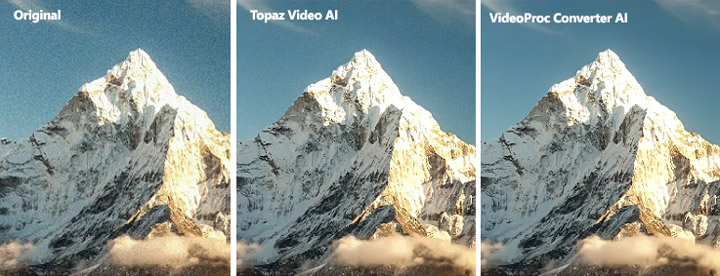
4.1 VideoProc vs Topaz Video AI
Summary: VideoProc delivers fast Super Resolution, motion interpolation, conversion, and recording in one lightweight app, while Topaz is laser-focused on premium upscaling with production-grade AI models. VideoProc is more budget-friendly and broader in scope; Topaz may appeal more to professionals chasing top-tier restoration.
Full comparison here: VideoProc vs Topaz Video AI
4.2 VideoProc vs Aiarty Image Enhancer
Summary: Aiarty excels as a dedicated image enhancer with advanced models for detail and restoration, and VideoProc offers similar AI image capabilities plus comprehensive video, audio, downloading, editing, and recording tools — all for a significantly lower one-time price ($45.95 vs $85/year or $155 lifetime).
Full comparison here: VideoProc vs Aiarty Image Enhancer
4.3 Topaz Bloom & Topaz Photo AI vs VideoProc
Summary: Topaz’s tools are tailored for high-quality photo enhancement. VideoProc covers middle-ground video enhancement plus comprehensive video/audio handling—making it more practical for creators needing an all-in-one solution.
Full comparison here: Topaz Bloom & Photo AI vs VideoProc
5. Pricing & Licensing: Which Plan Fits You
Choosing the right license for VideoProc Converter AI involves balancing cost, usage needs, and device count. Here's a breakdown of the current official options:
| Plan | Cost | Devices Covered | Term | Key Benefits |
|---|---|---|---|---|
Premium 365 |
$34.95/year | Up to 3 PCs/Macs | Annual subscription | Includes all AI + core features, updates, instant license key, 30-day money-back guarantee |
Lifetime (1-PC) |
$54.95 one-time | 1 PC/Mac |
Lifetime access |
Full features forever, no recurring cost, same guarantee |
Family Lifetime |
$79.95 one-time | Up to 5 PCs/Macs | Lifetime access | Best value for multi-device households or small teams |
Flash Deal Option
Right now, you may snag a 62% off lifetime discount through the official VideoProc offer page—dropping the price to $39.95 (1-PC).
Free Trial or Giveaway
Want to dip your toes in first? A free trial is available—no credit card required—with basic access to all features (limited by runtime or watermarking). There’s also an occasional giveaway, offering a free lifetime license, though it's for limited-time compatibility and doesn’t include updates or support.
Final Verdict
After testing both the AI enhancements and the traditional multimedia functions, it’s clear why VideoProc Converter AI has earned a strong following.
- AI Features: From Super Resolution, Frame Interpolation, and Image AI to Audio AI tools like Vocal Remover and Noise Suppression, the software delivers reliable, hands-on results. It's especially appealing for users who want fast, local AI processing without subscription-heavy alternatives.
- Traditional Strengths: High-speed video conversion, DVD ripping, video downloading, and lightweight editing remain the foundation of the software. These practical tools are fast, stable, and versatile—making VideoProc more than just an AI toy.
- Ease of Use & Value: A clean interface, one-click AI tools, and GPU acceleration make it accessible for beginners while still powerful enough for pros. Budget-friendly lifetime and family licensing options provide excellent long-term value.
Bottom Line: VideoProc Converter AI is a reliable, efficient, and cost-effective choice for anyone looking to enhance, convert, and manage video and audio content in one package.
FAQs
1. Is VideoProc Converter AI Trustworthy?
VideoProc Converter AI is generally considered a legitimate and trustworthy video software. It is developed by Digiarty Software, a long-established software company with a large global user base. According to publicly available information, Digiarty products have been used by hundreds of millions of users worldwide.
VideoProc Converter AI has received reviews and recommendations from numerous independent technology websites and holds an average rating of around 4.1 on Trustpilot. User feedback commonly highlights its ease of use, fast performance, broad feature set, and relatively affordable pricing.
👉 Learn about the trustworthiness and safety of VideoProc
2. How to Use VideoProc Converter AI?
You can use VideoProc Converter AI after downloading it to your PC or Mac. You can start by selecting a feature, loading your video, audio, DVD, or image, and following the on-screen steps. The program is beginner-friendly, and there are detailed tutorials to guide you through AI enhancement, conversion, downloading, editing, and more.
👉 VideoProc AI Tutorials & Guides
3. What's the System Requirement of VideoProc Converter AI
VideoProc Converter AI runs on Windows 7/8/10/11 and macOS 10.13+ (AI features require 10.15+ or macOS 13+ for CoreML). AI functions like Super Resolution, Frame Interpolation, and Stabilization need a capable CPU/GPU, with NVIDIA, AMD, or Intel hardware meeting DirectML, TensorRT, or Vulkan requirements. Apple Silicon (M1/M2/M3) is fully supported.
For full specs and detailed AI requirements, please head to:
4. Is VideoProc Converter AI free to Use?
VideoProc Converter AI offers both free trial and paid versions. The free trial lets you test most features with some limitations. The paid options include annual subscription (Premium 365), one-time Lifetime license for 1 PC, and Family Lifetime license for up to 5 PCs, which unlock all AI and traditional features with updates and support.
5. Is VideoProc Converter AI worth it?
Yes, VideoProc Converter AI is widely considered a worthwhile option. Compared with many standalone AI video enhancement tools, which are often expensive and limited to a single function, VideoProc Converter AI offers a broad, all-in-one feature set. Users can access AI upscaling, frame interpolation, stabilization, and image enhancement alongside video conversion, downloading, compression, editing, DVD ripping, and screen recording, all within one application.
From a pricing perspective, it is generally seen as more affordable than comparable AI-focused tools, allowing users to solve multiple video and media tasks for roughly the cost of a single-purpose AI enhancer. In addition, VideoProc Converter AI provides multiple licensing plans, including one-time purchase options that allow users to pay once and use the software long term, which further increases its overall value.
6. Does VideoProc Converter AI support 4K video?
Yes. VideoProc Converter AI fully supports 4K video across both its traditional processing tools and AI-powered features. It is designed to handle 4K input and output throughout video conversion, compression, downloading, editing, and screen recording. In addition, its AI functions, such as upscaling, frame interpolation, stabilization, and image enhancement, also support 4K resolution, allowing users to process high-resolution footage without downscaling. As a result, VideoProc Converter AI is generally considered well-suited for working with 4K content, whether the goal is enhancing quality, optimizing playback, or preparing videos for modern displays and platforms.