
 VideoProc Converter AI
 New AI features are available



 Listed in
 In this Topaz Bloom review, I dive into Topaz Labs' new creative AI upscaler and how it's shaking up the world of AI image generation. Just when we were getting excited about tools like Kontext Flux pushing the boundaries of image editing, Topaz Labs dropped what feels like a couple of bombshells: two web-based AI tools – Bloom for creative image upscaling, and Astra for remastering old video.
Many of us who use Topaz Photo AI likely got the email announcement, and you can't scroll through AI art communities without seeing discussions and impressive before-and-after examples using Bloom. The good news? You can currently try it out for free on up to 10 images without any watermark. Naturally, I had to jump in and test this creative AI upscaler myself!
So in this review, I won't just go over the basics you can find on the official site - like use cases, AI models, and limitations, but I'll also share my hands-on results with comparison images, plus what other users and pros are saying about Bloom.
What is Topaz Lab Bloom
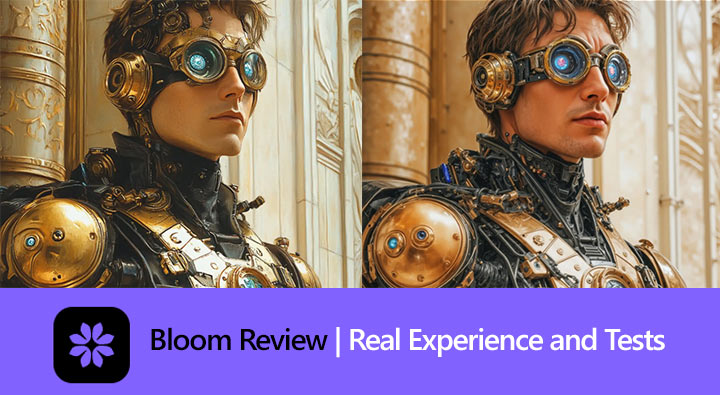
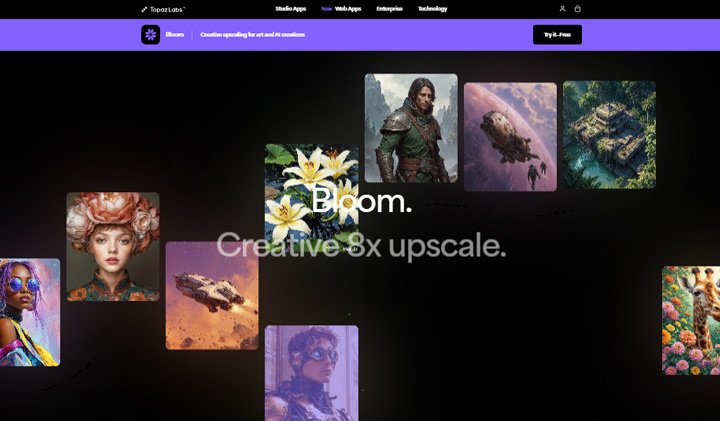
Topaz Bloom is the latest AI image enhancement and upscaling web tool from Topaz Labs. Unlike their desktop applications, Bloom runs entirely in your web browser, leveraging powerful GPU clusters in the cloud. Using cutting-edge AI models, Bloom offers "creative image upscaling" that goes beyond simple resizing. It's designed to upscale images up to 8x while intelligently adding greater detail and texture that feels relevant to the original image or prompt. Primarily built for individuals and professionals working with AI art, CG renders, and illustrations, Bloom aims to transform low-detail generated images into high-quality, detailed artwork.
Topaz Lab Bloom Key Features
Topaz Bloom is packed with features designed specifically for enhancing AI-generated images and digital art. Here are some of its core capabilities:
1. Creative AI Upscaling
Go beyond standard resizing. Bloom uses advanced AI models to intelligently add new, relevant details and textures as it upscales your images up to 8x, aiming for richer, more lifelike results.
2. Multiple Creativity Levels
Control how much the AI reinterprets your image. Choose from Subtle, Low, Medium, High, and Max levels to fine-tune the balance between faithfulness to the original and creative enhancement.
3. Optional Prompting
Guide the AI's creative process by adding a text prompt. Describe the details or style you want Bloom to emphasize, especially when using higher creativity settings.
4. Multiple Output Variations
Generate up to four different versions of your upscaled image simultaneously. This makes it easy to compare results and find the perfect interpretation.
5. Remixing Capability
Use a previously generated Bloom output as the source for a new upscale. This allows for iterative enhancement and deeper creative exploration.
6. Creativity Boost
Available for 4x or greater upscales, this toggle adds an extra layer of recursive detail for even more pronounced creative results.
Topaz Bloom Pricing
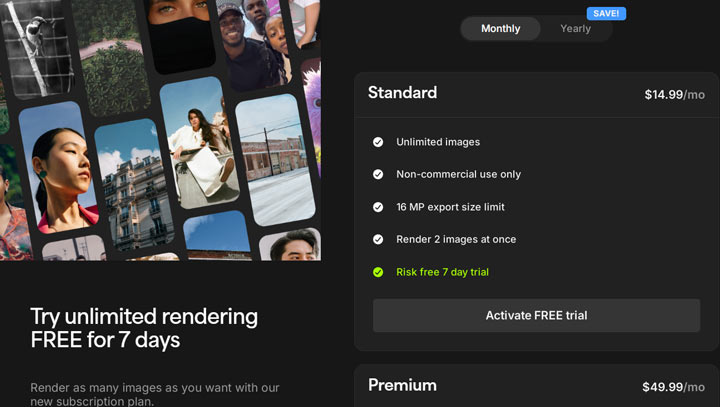
Topaz Bloom operates on a subscription model, similar to other Topaz Labs software. It offers two main plans: Pro and Personal. If you're looking for additional AI video and image enhancement tools, you can also purchase Topaz Studio, which includes Topaz Bloom. Here’s a breakdown for clarity:
| Feature | Personal Plan | Pro Plan | As Part of Topaz Studio |
|---|---|---|---|
| Monthly Price | $39 | / | $69 |
| Annual Price | $229 | $490 | $399 |
| Image Usage | Unlimited | Unlimited | Unlimited |
| Commercial Use | Limited | Full | Limited |
| Export Size Limit | 32 MP | 100 MP | 32 MP |
| Concurrent Renders | 2 images at once | 4 images at once | 2 images at once |
| Trial | Risk-free 7-day trial | Risk-free 7-day trial | No available |
As you can see, the Personal plan is more budget-friendly, especially if you pay annually, but it's strictly for non-commercial use and has that 32 MP export limit. If you need to use Bloom for your business or require higher resolution outputs, the Premium plan is necessary. However, it comes at a significantly higher price point.
Testing Topaz Bloom: A Practical Look at Creative Upscaling
Based on the official documentation, Topaz Bloom is designed for "creative upscaling" of AI-generated images, illustrations, and CG renders, adding detail and texture while allowing for reinterpretation guided by creativity levels and prompts. It's explicitly not recommended for standard photographs where strict fidelity is needed.
I conducted several tests to see how Bloom performs under different settings, focusing on its core features: creativity levels, prompt influence, and the creativity boost.
Test 1. Basic Upscale - Medium Creativity, No Prompt
Settings Used: 2x upscale, medium creativity level, no prompt, no creativity boost.



Observations: The image was successfully upscaled, and Bloom added a significant amount of detail. However, some of the added details appeared unnatural. For instance, two elements resembling planets in the upper right of the original cat image were transformed into shapes resembling gourds after upscaling.
Takeaway: Bloom actively adds details, which can enhance the image but also risks hallucinating or misinterpreting existing elements in unexpected and sometimes unnatural ways.
Test 2: Basic Upscale - Medium Creativity, No Prompt
Settings Used: 2x upscale, medium creativity, no prompt, no creativity boost.
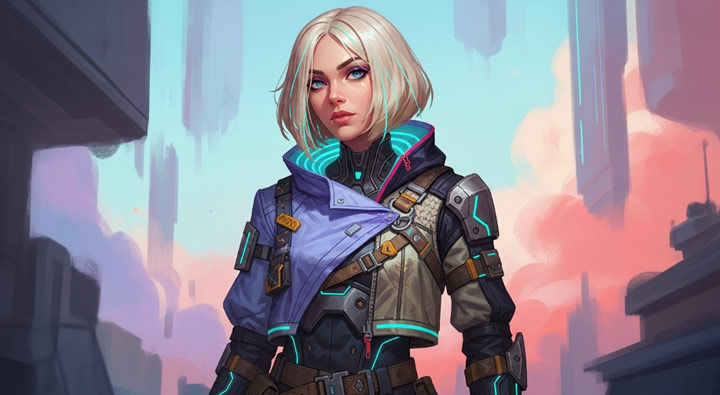
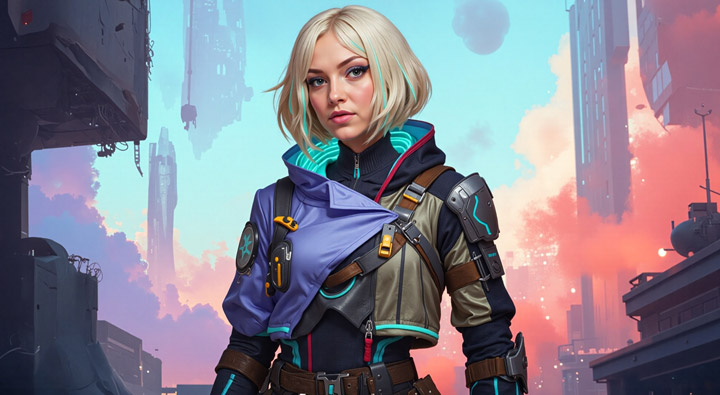
Observations: The result looked noticeably more realistic with enhanced details. Specific areas like the face's skin texture, the fabric of the clothing, and a metal zipper showed improved realism and detail. The background also received a significant amount of added detail.
Takeaway: Medium creativity without a prompt worked well to add realistic textures and details to the image.
Test 3: Basic Upscale - Max Creativity, No Prompt
Settings Used: 2x upscale, max creativity, no prompt, no creativity boost.
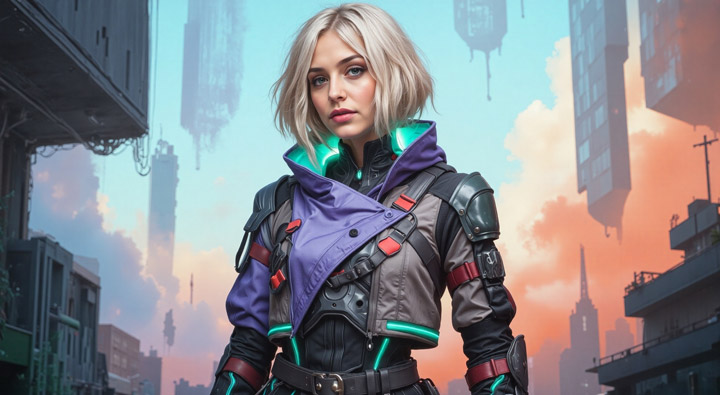
Observations: The output showed even more details compared to the Medium creativity test. There were also more significant changes and reinterpretation of the original image.
Takeaway: Max creativity pushes the detail addition and reinterpretation further than Medium, even without prompt guidance. This is in line with the Topaz Lab's official documentation's point that Max creativity allows for significant changes, making the output less predictable but potentially more transformative.
Test 4: Prompt Influence - Medium Creativity
Settings Used: 4X upscale, medium creativity, no creativity boost. Prompt: Transform her into a more mysterious figure by darkening the overall color scheme. Use deep violet and emerald tones for the suit's glowing accents, with a background of a shadowy, ominous futuristic city. Add a heavy contrast between light and dark to emphasize her powerful silhouette, making the glowing details pop.
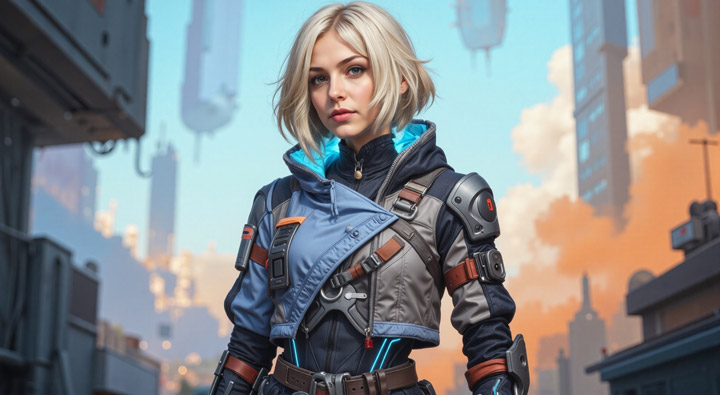
Observations: I observed some changes that aligned with the prompt, particularly in the background, which started to resemble a shadowy, ominous futuristic city. However, the extent of the transformation towards the full prompt description (color scheme change, glowing accents, silhouette emphasis) was limited.
Takeaway: At Medium creativity, a detailed prompt can influence the output, especially for environmental or atmospheric changes. However, it may not fully execute complex transformations or incorporate all specific details mentioned in the prompt. Prompt influence is present but potentially limited at this level.
Test 5: Prompt Influence & Subject Distortion - Medium Creativity
Settings Used: 2X upscale, medium creativity, no creativity boost. Prompt: winter, snowy, more details.
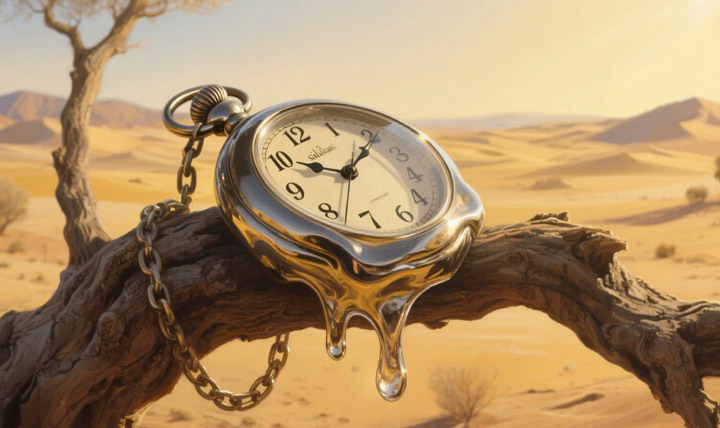
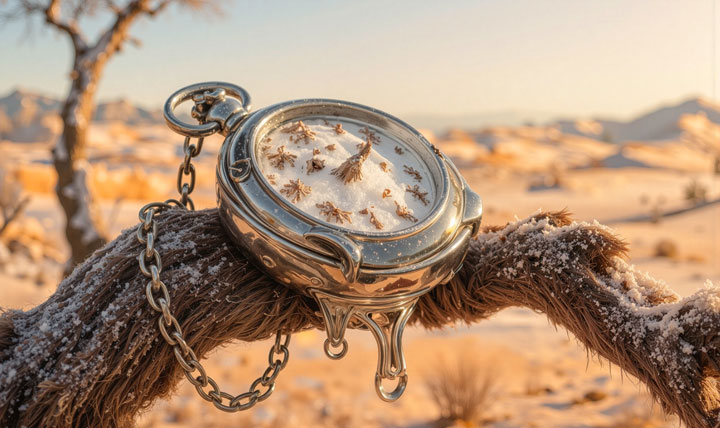
Observations: The outcome was not satisfactory. The main subject, the melted pocket watch, was completely changed into something unrecognizable and strange. Surrounding elements like branches also appeared distorted and weird. The desired snowy winter atmosphere was not effectively achieved, and the focus shifted entirely away from the original subject.
Takeaway: This test highlights a significant risk: even at Medium creativity, a prompt intended to change the atmosphere or add details can cause Bloom to drastically alter or destroy the main subject, especially if the subject is unique or complex. Simple atmospheric prompts might not work as intended and can have negative side effects on core image elements.
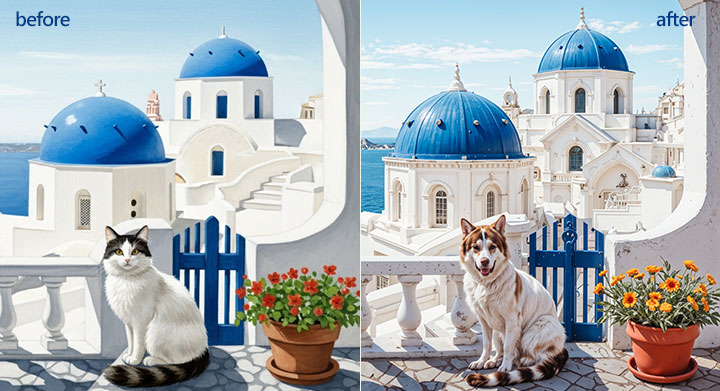
Test 6: High Settings & Subject Change - Max Creativity, 4x Upscale, Boost, Simple Prompt
Settings Used: 4x upscale, max creativity, boost creativity. Prompt: realistic.
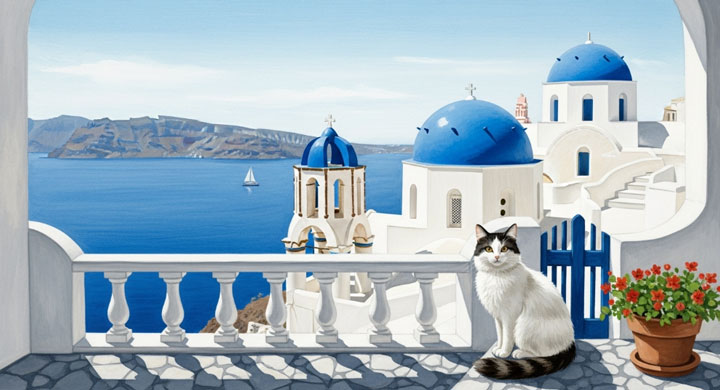
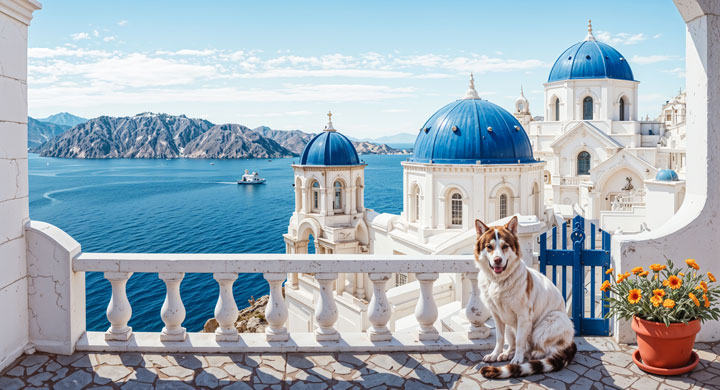
Observations: The overall output was visually impressive and highly detailed. Environmental elements like buildings, ships on the water, railings, and flower pots were rendered with excellent detail and realism, largely retaining their original structure. However, the main subject was drastically changed from a cat into something resembling a dog with a cat's tail.
Takeaway: Combining Max creativity, 4x upscale, and Creativity Boost results in phenomenal detail and realism, particularly for background and structural elements, which are often preserved well. However, this combination significantly increases the likelihood of the main subject being completely transformed or misinterpreted, even with a simple guiding prompt like "realistic." This confirms the "wild" potential of Max creativity mentioned in the documentation.
Test 7: High Settings & Style Prompt - Max Creativity, Style Prompt
Settings Used: 4X upscale, max creativity, no creativity boost. Prompt: cyberpunk style, snow leopard, dark.
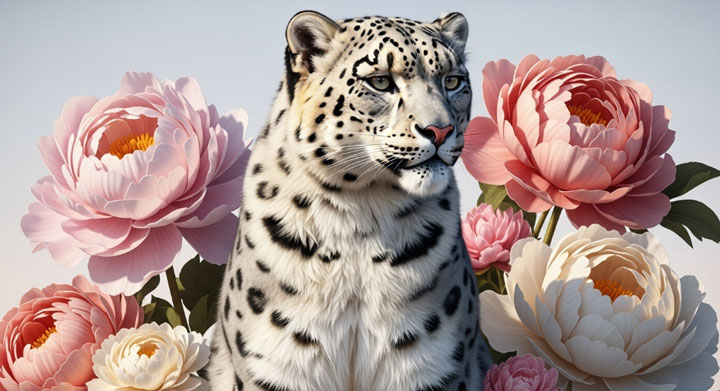
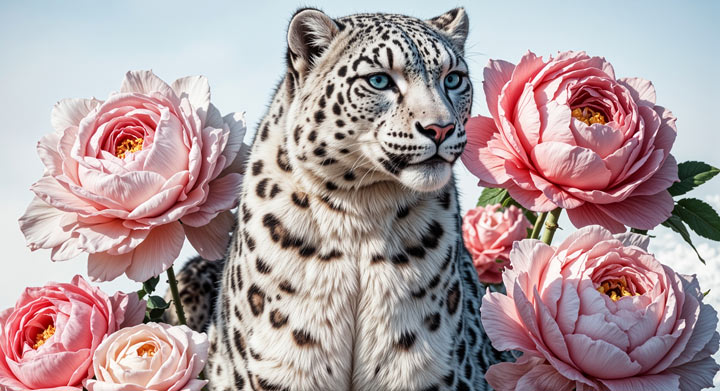
Observations: The result was decent. Bloom successfully changed the subject from a tiger to a snow leopard as requested. The overall mood leaned towards "dark." However, the "cyberpunk style" aspect was not strongly evident; the overall style wasn't distinctly cyberpunk.
Takeaway: At Max creativity, prompts are effective at guiding subject changes (Tiger -> Snow Leopard) and influencing the mood (dark). However, achieving a specific, complex artistic style like "cyberpunk" might require more precise prompting or might not be fully realized by the model, even at the highest creativity level. Prompting helps steer the "wildness" but doesn't guarantee perfect adherence to complex style requests.
Observed Strengths and Weaknesses of Topaz Bloom
Based on these tests, here's a summary of Bloom's performance:
Topaz Bloom AI: Where it Excels
- Exceptional Detail & Texture: Delivers a noticeable boost in visual quality and realism, especially for AI-generated art.
- Impressive Environmental Rendering: Handles backgrounds, architecture, and natural elements like water with impressive realism-often maintaining the original scene's layout.
- Granular Creativity Control: Gives you the option to make subtle tweaks or completely reimagine your image, depending on your chosen creativity level.
- Prompt-Responsive Output: Allows effective prompts to influence output, guiding atmospheric shifts, subtle subject modifications (at higher creativity), and specific detail introduction, though caveats apply.
- Creativity Boost with 4x Upscale: Combining 4x upscaling with the "creativity boost" setting pushes both detail and transformation to a whole new level.
Topaz Bloom:Understanding its Limitations
- Significant Risk of Subject Distortion: At Medium and Max creativity levels, the main subject is frequently altered or completely transformed, even with prompts. This inherent unpredictability makes it a challenging tool if preserving the original subject's identity is crucial.
- Prone to Unnatural Details and "Hallucinations": Without robust prompt guidance – and sometimes even with it – details can be introduced that appear unnatural or misinterpret existing elements. I've personally seen it turn planets into gourds, highlighting its tendency for bizarre outcomes.
- Limitations in Prompt Effectiveness: While prompts can guide, they aren't a panacea. Simple atmospheric prompts might not only fail to achieve the desired mood but could also negatively impact other parts of the image. Complex stylistic prompts are often not fully realized; Bloom often has its own interpretive leanings.
- Not for High-Fidelity Preservation: It's not designed for scenarios where the original content, particularly the main subject's form or identity, must be strictly maintained.
Who Bloom Is Really For
After testing Bloom hands-on, it's clear this tool is built for a very specific type of creator. If you work with AI-generated art from platforms like Midjourney, Stable Diffusion, or ChatGPT, Bloom has a lot to offer. Its creative upscaling feels fresh, giving your images more texture, polish, and visual weight - especially when combined with prompts and higher creativity settings. Artists, illustrators, and concept designers who like to iterate and explore variations will probably enjoy what Bloom brings to the table.
But it's not for everyone. Photographers or professionals who need to preserve realism or exact details might find Bloom a bit too unpredictable. The results can be hit-or-miss with real faces or traditional photos, and being web-based means slower rendering and no offline work. If you need strict control, consistency, or photo-realistic enhancement, Topaz Photo AI or VideoProc Converter AI are better options.
Topaz Lab Blook: User Feedback
Many users are intrigued by the core idea behind Topaz Labs Bloom - an AI-powered image upscaler with a creative twist. Its potential is especially appealing to artists and creators working with AI-generated content. However, in its current state, Bloom feels more like a beta release, with several rough edges that impact the overall experience.
👍 What Users Like
1. Unlimited Renders: Upscale as much as you want with the standard plan.
"You pay the listed price for the month and can upscale as much as you want!" – @Artforartsake99 from reddit.com
2. Effective Subtle Mode: Lowest creativity setting gives cleaner, more faithful results.
"I had great success with 'subtle' which is the lowest creativity setting. it kept 2/4 generations truer to the source, with notable improvements vs. a straight up gigapixel/photo ai processed result." – @Sad_Duty3026 from reddit.com
👎 Common Complaints
1. Web-Only: No desktop version, which many users dislike.
"I might have considered this but only if it was Local. I don't mind paying but you don't get my images also. If they want to train on my stuff they can discount this thing. And can they 100% guarantee that my images won't get lost to the web if they ever had a data breach." – @6Y3ts_32a from reddit.com
2. Inconsistent Output: Often alters images too much, especially realistic ones.
"The first photo was pretty terrible, I'd say it ruined the photo and all 4 outputs were just instant throwaways. The second photo did much better, I liked what it did with my photos." – discussion on reddit.com
"Bloom is great for fixing AI generated people, but a big problem - it brightens the image overall, overexposing faces." - @csfotografie.cz from community.topazlabs.com
3. Similar Woman Fac: Upscaling brings the same generic AI woman face.
"Is there any way you can avoid "typical StableDiffusion woman face". Note how all upscales result in pretty much same woman's face, no matter how the original face looked like" - @nhoeskape from X
4. Clunky UI: Lacks organization tools and batch downloads.
"A clusterfuck and has no way of organizing stuff yet." – @susne from reddit.com
5. Pricey Pro Plan: Feels overpriced and separate from tools users already own.
"Why couldn't this be part of Gigapixel, which I paid for?" – @jippalippa
"I admire the sheer nerve of corporate greed. Why bundle all features in one product when you can chop it up, charge for each bit, and hide the good stuff behind a subscription that stops if you don't keep paying? – @stupidity_incarnate from reddit.com
6. No Commercial Use: Standard plan restricts usage for paid work.
"I was interested in Bloom until I read that I don't have commercial rights. Not that I sell my stuff, but that means I don't own the end product and am restricted on how I use it." – @ejda Emilio D'Alise from community.topazlabs.com
How to Use Topaz Bloom for Creative Upscaling
Ready to give your images a creative boost with Bloom? Here's how you can do it.
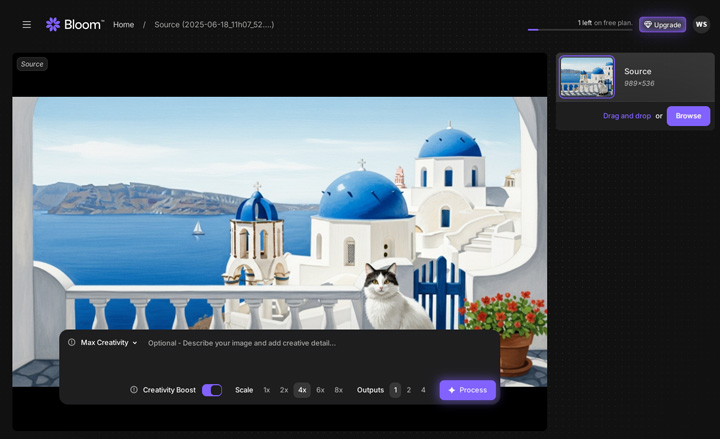
Step 1. Upload Your Image
Head over to the Topaz Bloom website. You'll see an "Browse" button; click that to bring in your AI-generated image. Bloom supports both JPG and PNG formats.
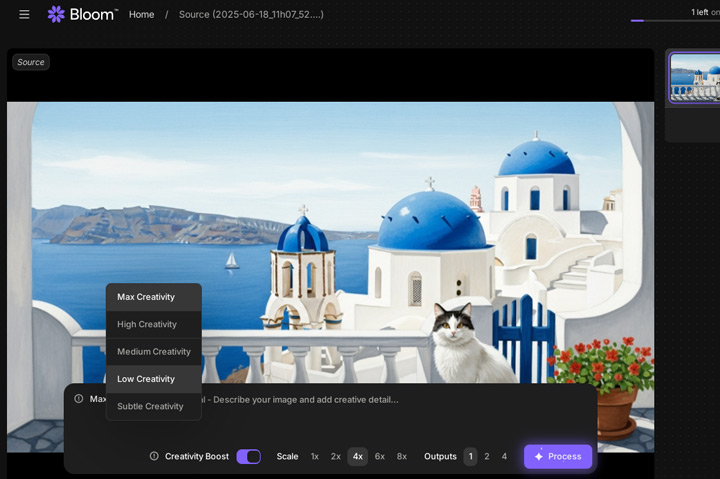
Step 2. Choose the Creative Levels
On the bottom, you'll find 5 levels of creation available to choose.
- Subtle: Keeps the image close to original with refined detail
- Low: Adds minor texture/detail, light reinterpretation
- Medium: More noticeable variations, prompt has stronger influence
- High: Big changes, like changing seasons or colors
- Max: Wild, bold reimagining of your image
Step 3. Choose the Upscale Ratio
Choose 2x, 4x, 6x, or 8x enlargement. At 4x and above, you can enable "Creativity Boost" for even more variation.
Step 4. Optional Prompt
Describe the image you want. This guides Bloom to add relevant details or textures, especially useful at higher creativity.
Step 5. Upscale Your AI Art
Select how many versions (1–4) you want Bloom to generate at once. Bloom runs on the cloud, so it may take a few minutes, depending on load and your settings. Want to refine further? Pick a result and click "Remix" to run it through again with the same or adjusted settings and prompt.
Step 6. Download and Share
Once rendered, download your image. You can also share a public link showing the before/after and prompt used.
The Best Topaz Bloom Alternative
Topaz Bloom is great for upscaling AI art, but its creative style often changes the original too much. That's a problem if you're working with real photos or have carefully crafted an AI image and want to keep its exact look - not have it changed drastically. Topaz does offer Photo AI for more detail-preserving enhancement, but it's a separate tool that costs $199 - and it comes with its own limits (see my Topaz Photo AI review). This makes the Topaz ecosystem feel fragmented and pricey, forcing users to pay more for tools that still might not meet all their needs.
If you're looking for something more affordable, flexible, and detail-friendly, VideoProc Converter AI is worth checking out. It can upscale images to up to 10K while preserving and naturally enhancing the original details. Even better, it comes with a full suite of AI tools - you can colorize old photos, restore faces, upscale videos to 4K, and even boost low frame rate videos to smooth 120fps or 240fps. On top of that, you get a complete digital toolbox: rip DVDs, edit, convert, compress, and download videos all in one place.
Topaz Bloom vs Topaz Photo AI vs VideoProc Converter AI
Category |
Topaz Bloom |
Topaz Photo AI |
VideoProc Converter AI |
|---|---|---|---|
Platform |
Web-based |
Windows & Mac |
Windows & Mac |
Price |
$39/month (the personal plan) |
$199/year (the personal plan) |
$34.95/year or $54.95 lifetime |
Best for |
AI art, stylized images |
All kinds of images |
AI-generated art, anime/cartoon images,
|
Image Upscaling |
|
|
|
Image Enhancing |
|
|
|
Video Upscaling |
|
|
|
Video Enhancing |
|
|
|
Extra Features |
|
|
|
 (detail changed)

Conclusion
Topaz Bloom carves out a niche for itself as a powerful, specialized tool for creators working with AI art and digital renders. Its ability to not just upscale, but creatively enhance details, can genuinely elevate the quality of generated images, making them suitable for higher-resolution uses. If your workflow heavily involves AI art and you need the best possible output quality from your renders, and you have the hardware to support it, Bloom is definitely worth considering.
However, its highly specialized nature means it's not a general-purpose tool. It won't help you with traditional photography or, crucially, video content. For users whose needs lean towards video processing, conversion, or AI enhancement for footage, a tool like VideoProc Converter AI offers a completely different, video-centric solution with robust features and impressive hardware acceleration. Ultimately, the choice depends entirely on the type of media you work with most and the specific enhancement tasks you need to perform.
FAQs
Is Topaz Bloom free to use?
Bloom offers a limited free plan that includes up to 10 image upscales per month, without watermarks. It's more of a trial than a fully free tool - for ongoing use, especially at higher resolutions or for commercial projects, you'll need to upgrade to a paid plan.
Does Bloom work well with real photos?
It can process real photos, but that's not where it shines. Bloom is designed for enhancing AI-generated images and digital art, so when used on real-life portraits or photography, it often takes creative liberties that can alter faces or textures in unnatural ways.
Can I use Bloom on mobile?
Yes - since Bloom runs entirely in your browser, it works on mobile devices too. That said, the interface is much more comfortable to navigate on desktop, especially when previewing multiple outputs or adjusting creativity levels.