
 Upgraded AI Performance in V8
 Listed in
 HandBrake is a free and open-source video converter widely used to transcode videos. Besides this, it's well-regarded as one of the best free DVD rippers for general use.

HandBrake can readily convert non-encrypted DVDs out of the box. With a small extra step, you can also use HandBrake to decrypt and rip many standard encrypted DVDs as well.
This guide will cover how to rip DVD with HandBrake, adjust quality settings, and address common issues and limitations.
How to Rip DVD with HandBrake
Step 1. Prerequisite: Install HandBrake and libdvdcss
Download and install HandBrake, then install libdvdcss if you plan to rip commercial DVDs.
Here's a step-by-step guide:
- Go to handbrake.fr and download the latest version of HandBrake.
- Follow the prompts to install HandBrake.
- Install libdvdcss to your device.
- Windows OS: Compile libdvdcss yourself or download a compiled libdvdcss file, then drop it into the Handbrake installation folder.
- mac OS: Use a downloadable installer package (.pkg) or the terminal.
- Debian and Ubuntu: install libdvdcss via libdvd-pkg helper package.
- HandBrake will load encrypted discs successfully if everything is set up.
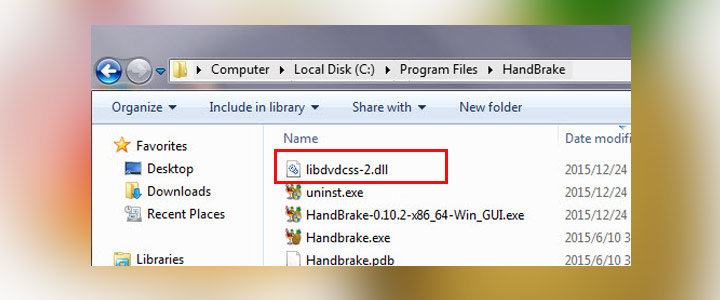
HandBrake is safe as long as you get it from the official website. After installation, HandBrake alone can rip DVDs that are not copy-protected, which is fine for personal or burned DVDs.
To rip protected DVD with HandBrake, you need to install libdvdcss, a third-party library that allows HandBrake to read DVDs encrypted with CSS (Content Scramble System). Read our detailed guide on How to Install Libdvdcss for HandBrake here.
💡 Notes: While libdvdcss cannot crack more advanced DRM schemes such as Sony ARccOS or Disney X-project protection, this covers a large number of DVDs, especially older and many regular movie DVDs.
Step 2. Launch HandBrake and Load the DVD
Insert the DVD you wish to rip into your computer's DVD drive. Open the HandBrake app, and select your DVD drive as the source on the Source Selection screen. HandBrake will then scan the DVD and list the titles if the disc is unencrypted or libdvdcss is working properly.

Step 3. Select the Title and Chapters to Rip
DVDs often contain multiple titles, such as the main feature, bonus materials, episodes, etc. HandBrake will automatically select what it thinks is the main title, typically the longest one. You can verify this in the Title dropdown at the top.
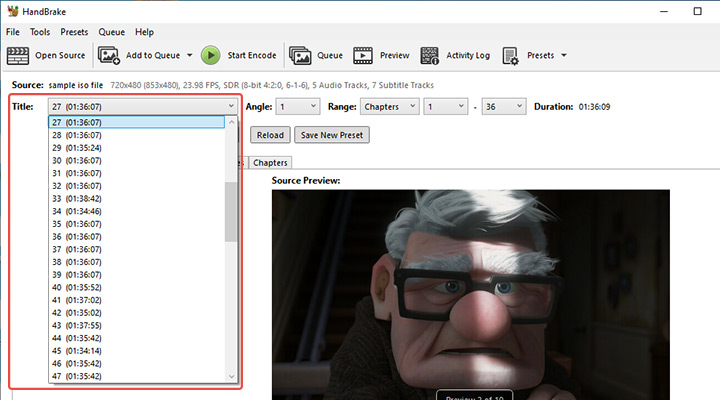
By default, all chapters of the selected title will be ripped. If you only need a specific portion of a title, say you want a particular scene or segment, you can adjust the "Range: Chapters" setting or select a custom start and end time.
HandBrake also supports batch ripping. If you have multiple titles to rip, such as a DVD set of episodes, you can use the "Add to Queue" button after setting up each title. This way, HandBrake will process them one after another automatically when you start the queue.
Step 4. Choose an Output Preset
Pick a preset appropriate for DVD resolution and your quality needs. This will quickly give you a usable output video of reasonable quality and file size.
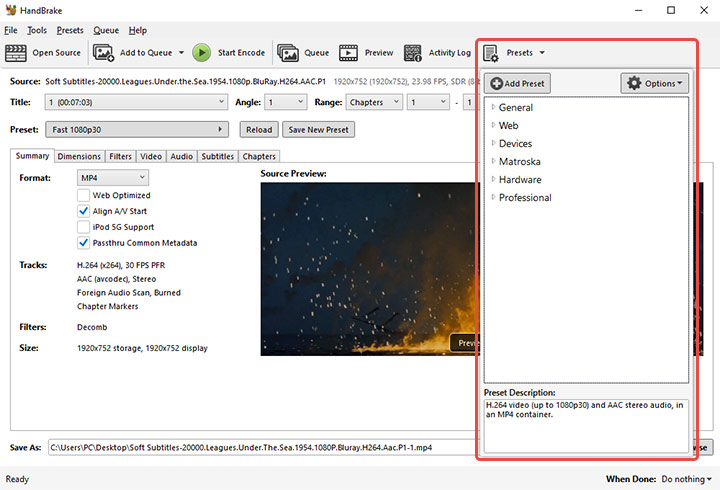
For DVD ripping, the Fast 480p30 for NTSC or Fast 576p25 for PAL presets are ideal for standard-definition DVDs. You could also choose HQ or Super HQ variants if you want better video quality, or a Very Fast variant for quicker encoding with slightly lower quality.
Do not select a preset higher than the DVD's native resolution, as this upscaling in HandBrake won't improve quality and only makes the file larger.
Step 5. Adjust Video Settings (Optional)
HandBrake allows fine-grained control. If you are unsure about video parameters, the default options or the recommended settings for the chosen preset are usually sufficient. If you do want to further customize the ripped DVD video, here are some settings you might want to check or adjust before ripping.
Video Settings
The preset already sets things like encoder, framerate, and quality. Here are some other settings you may want to confirm:
- Framerate: Same as Source
- Quality: Constant Quality
- RF value: 18 ~ 22 (lower RF number = higher quality)
Audio Tracks
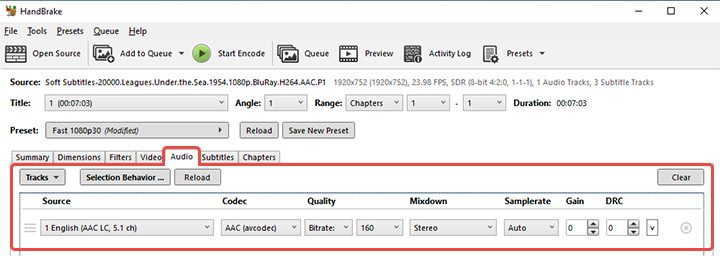
The Audio tab offers options of the available tracks on the DVD, and you can pick which to include and in what format.
- Check all audio tracks in Tracks > Add All Remaining Tracks
- Delete any unwanted audio track using X
- Choose an output audio codec with the Codec option
- Set bitrate, quality, samplerate, and gain
- Retain surround sound or mix it down to stereo
Subtitle Tracks
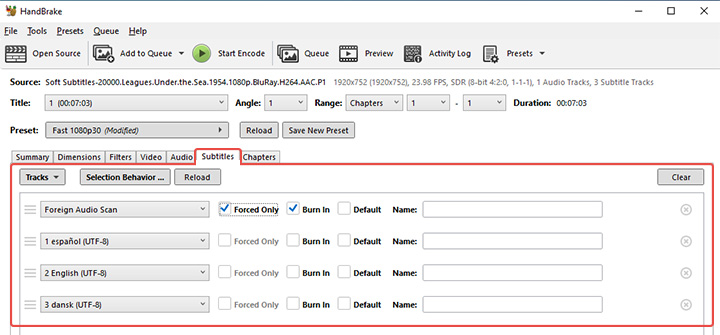
If you want to set subtitles, go to the Subtitles tab. Here's what you can do:
- Add All Remaining Tracks to see all subtitles
- Drag to set the order of multiple tracks
- Check Burned In to ensure that subtitle track always show
- Import an external subtitle file if you have one
- Let HandBrake attempt to scan for Closed Captions/Subtitle tracks on the DVD
Filters (Deinterlace/Decomb)
Many DVDs, especially older ones or TV recordings, are interlaced. You might notice comb-like lines (interlacing artifacts) in motion scenes if interlacing isn't handled.
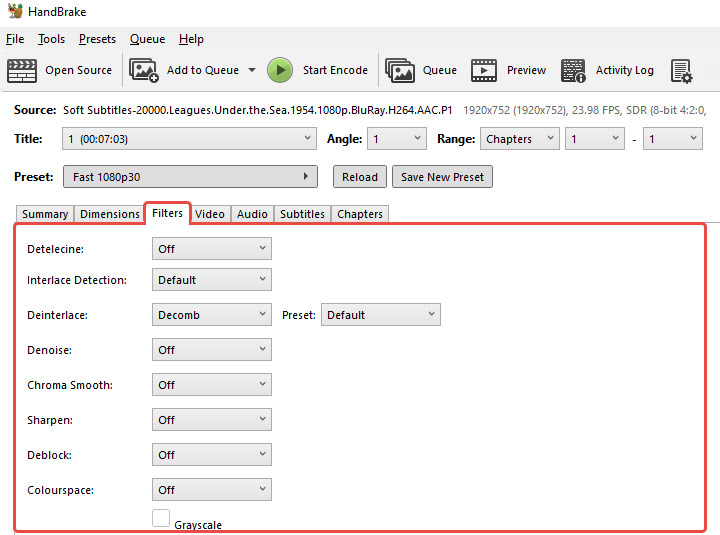
By default, HandBrake's presets usually enable a Decomb filter to automatically clean up interlacing when needed. If you know your source is interlaced and want to be safe, you can enable the Deinterlace filter or leave Decomb on. You can also set Detelecine (for telecined sources), but for most DVD content, the default auto settings are fine.
Step 6. Select Destination and File Name
Click Browse and choose a folder on your hard drive to save the ripped video file, and give it a sensible name. It's wise to save to your computer's local drive first and later move the file if needed.

Ensure you have sufficient disk space. A typical two-hour DVD rip to MP4 might result in a file anywhere from ~700 MB to 2 GB or more depending on quality settings.
Step 7. Start Ripping
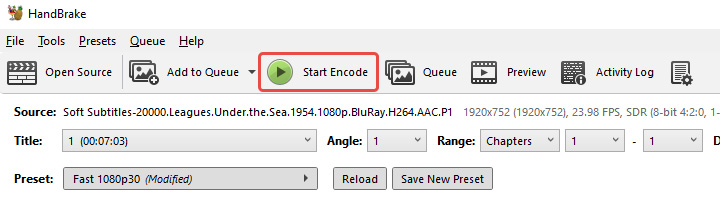
Click the green Start Encode button or the Start Queue button on the top toolbar. HandBrake will begin ripping the DVD content.
You'll see a progress bar at the bottom showing the status, including percentage done, elapsed time, and estimated time remaining. DVD encodes can take some time, depending on your computer's speed and the chosen settings.
Troubleshooting Common Issues and Limitations
1. HandBrake Won't Rip DVD
As emphasized earlier, HandBrake with libdvdcss can only handle CSS encryption and region codes. Many newer DVDs and almost all Blu-rays use stronger DRM. HandBrake will either error out or produce faulty rips.
If you have a problematic DVD, you'll need to use a dedicated DVD ripping software that handles copy protection as a first step. Some popular options include MakeMKV and VideoProc Converter AI. Essentially, HandBrake is not a one-stop solution for heavily-protected discs.
Here's a detailed guide to fix HandBrake won't rip DVD.
2. No Valid Source or Titles Found
This is a common error when HandBrake fails to read the DVD at the initial scan.
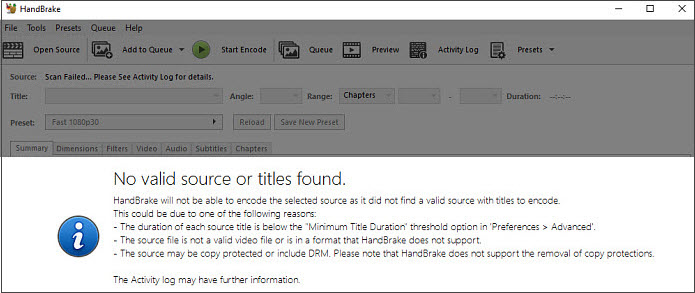
The most likely cause is the DVD is encrypted and HandBrake doesn't have access to libdvdcss or the encryption is beyond libdvdcss's capability.
To solve this, first you'll want to ensure that libdvdcss is correctly installed. If you already did that and still see the error, the DVD might have a protection scheme that libdvdcss can't handle. In this case, consider using an alternative DVD ripper like VideoProc Converter AI or MakeMKV.
Check our detailed guide on HandBrake no valid source found.
3. Subtitles or Audio Missing
If you expected subtitles or a certain audio track and don't see it in the output, you might have forgotten to set it in HandBrake. Unlike some DVD rippers, HandBrake does not automatically carry over all subtitle tracks or all audio tracks. You must specify which ones to include.
4. Video is Distorted or Jerky
If the ripped video plays but has issues like severe artifacts, blocky or scrambled image, or choppy playback, chances are you are using incorrect settings.
Ensure you use appropriate presets (stick to 480p/576p for DVDs) and set the framerate to the Same as source. Do not manually change the aspect ratio or pixel aspect ratio unless you know what you are doing.
HandBrake Alternative for DVD Ripping
HandBrake is a capable DVD ripper, but it comes with its fair share of trade-offs. It relies heavily on CPU power, often maxing out system resources for hours during encoding. The interface, while flexible, can feel overwhelming for beginners who are unfamiliar with video encoding concepts. And when it comes to commercial DVDs, HandBrake struggles with common copy protection methods unless you install extra libraries, and even then, it may fail with certain discs. That's why you need a friendlier HandBrake alternative.
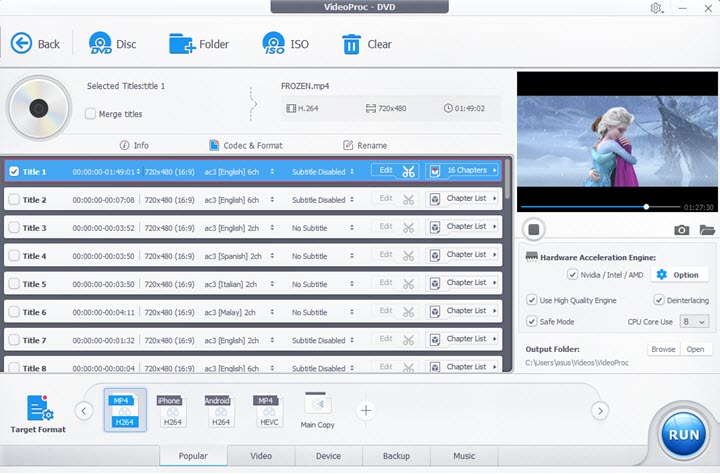
VideoProc Converter AI an easy-to-use one-stop video toolbox with a powerful DVD backup module. It works with homemade or commercial discs, handling CSS encryption, region codes, and other tricky protections out of the box.

VideoProc Converter AI - Friendly & Capable HandBrake Alternative
- Handle homemade or commercial discs with mainstream or rare protections
- Auto‑detect the main title and suggest the best preset; Deinterlace if needed
- Clone a disc 1:1, remux without re‑encoding, or transcode for smaller file size
- Support 420+ formats and device profiles, ISO, VIDEO_TS, MKV, MOV, AVI, etc.
- Safe Mode to minimize errors; Hardware Acceleration for faster and less taxing ripping
- All-in-one: AI enhances old videos, convert, compress, download, record, etc.
The software has a clean interface with ready-made profiles. You don't have to fuss with complicated settings. Whether you want to copy DVDs to a USB, save them as MP4, or transcode them to over 420 formats and device profiles, VideoProc Converter AI handles it in just a few clicks.
Whereas HandBrake leans on your CPU, VideoProc Converter AI off‑loads the heavy lifting with the unique level-3 hardware acceleration, making the ripping process far faster and less taxing on your computer.

Conclusion
HandBrake is a powerful tool for ripping DVDs to digital video files, provided you understand its capabilities and limits. By installing the libdvdcss library, you empower HandBrake to handle the majority of standard CSS-encrypted DVDs, allowing you to convert your DVD collection into formats playable on modern devices.
For those who want a smoother, faster, and more beginner-friendly experience, VideoProc Converter AI is worth considering as a complement or alternative to HandBrake. It comes with built-in support for a wide range of DVD protections and uses advanced GPU acceleration to dramatically speed up conversions while keeping CPU usage low.