
By Farrah Penn - Last Updated:
Contact Author
[Verified Fix] VLC Cannot Play a Non-UDF Mastered DVD
 Want to Stick to VLC to Play Non-UDF DVD? Jump to try the easiest solution.
Quick Summary:
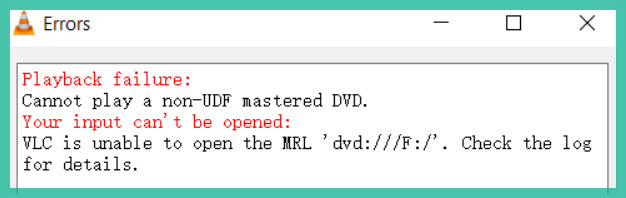
It's frustrating when you are ready to enjoy an old DVD but VLC throws the error:
"Cannot play a non-UDF mastered DVD. You input can't be opened: VLC is unable to open the MRL dvd:///F:/."This error has something to do with the file system of your disc. While UDF is the standard format for DVDs now, its precedent ISO9660 is a tough work for VLC.
- • Root Cause: The error indicates the DVD uses an older file system standard, typically ISO-9660 (sometimes identified as CDFS in disc properties), instead of the modern standard UDF (Universal Disk Format) which VLC expects for standard DVD playback and navigation.
- • VLC Limitation According to the VideoLAN wiki, while underlying libraries like libcdio might support ISO-9660, VLC itself currently lacks the necessary "access plugin" to properly interpret and navigate these non-UDF DVDs directly via its standard disc playback function. It expects the UDF file system to find and parse DVD structures.
- • Affected Discs/ISO Images: This often happens with older DVDs, educational discs, discs created with older mastering software, or potentially discs with non-standard/proprietary formats. It can affect both physical discs and ISO images created from them.
Quick Fix: Converting and ripping the DVD content to standard video files (like MP4, MKV) or playable ISO are reliable solutions, using VideoProc Converter AI.
Analysis: VLC Cannot Play a Non-UDF Mastered DVD
There are plenty of situations in which your VLC media player have DVD playback errors.
One scenario is you've got a Non-UDF DVD on hand and you attempted to play it with your newly downloaded free media player VLC. Naturally, you have followed the user's guide of VLC by clicking the menu "Media > Open disk..." from the player or "Play with VLC media player" from the context menu. However, what turned up on your screen was only an error prompting "Cannot play a non-UDF mastered DVD".
Other situations could be:
1. There is no sound or the audio is out of sync with the video.
2. There's lagging or choppy video playback.
3. VLC skipping your Non-UDF DVD files.
Don't know what to do in such situations? Before diving into the solutions, little background knowledge on UDF and Non-UDF DVD would be helpful.
What is Non-UDF mastered DVD? Why VLC DVD Playback Failed?
UDF is short for Universal Disc Format. It uses the standard Packet writing technology (PW, Packet Writing) to treat CD-R as hard disk which allows users to modify and delete files on the disc.
A typical non-UDF format usually refers to ISO 9660 which was the first worldwidely adopted disk file system preceding UDF. ISO9660 restrict filenames to 8 characters or 11 with extension Joliet, and uppercase is mandate. Plus, long path is not allowed, i.e. no deeper directories. For ISO9660/Joliet, file size should be less than 4GB, and Unicode is not allowed, with a limited character set of 110.
While for UDF, Unicode and long path is supported. Plus, many other restrictions imposed on ISO9660 are removed, making UDF more compatible for various situations. However, the trade off is that, UDF has problem to keep consistency with older systems that simply don't understand UDF.
To sum up, UDF is the standard format for DVDs now, and the old one was ISO 9660. Also, you can have multiple file systems on DVD i.e. ISO9660/UDF disk, in order to make it most compatible. If your disk is written with ISO9660 only, then this non-UDF mastered DVD will cause error in VLC playback.
Tested Methods to Fix VLC Cannot Play Non-UDF Mastered DVD
Drawing inspirations from discussion on Reddit and StackExchange, I go through all the possible fixes and round up workable solutions below.
1. Rip Non-UDF DVD to VLC Compatible Formats with Dedicated DVD Ripper
VideoProc Converter AI can convert DVDs to MP4, MOV, AVI, WMV, MPEG Videos, and best part is that, it supports various types of DVDs whether encrypted or not. This software can also automatically detect the disc file system and its right title to transcode DVD at full speed to any format supported by VLC media player.
You Can Stick to VLC with the Help of VideoProc Converter AI
- Full GPU accelerated to convert DVD for VLC playback
- Extract the ISO image from DVD files of any kind
- Support ripping scratched DVD, 99-titled DVD
- Fine-tune media tracks to avoid A/V out of sync


Follow the steps below to convert MOV to Adobe Premiere Pro/Elements supported video format without damaging the original quality
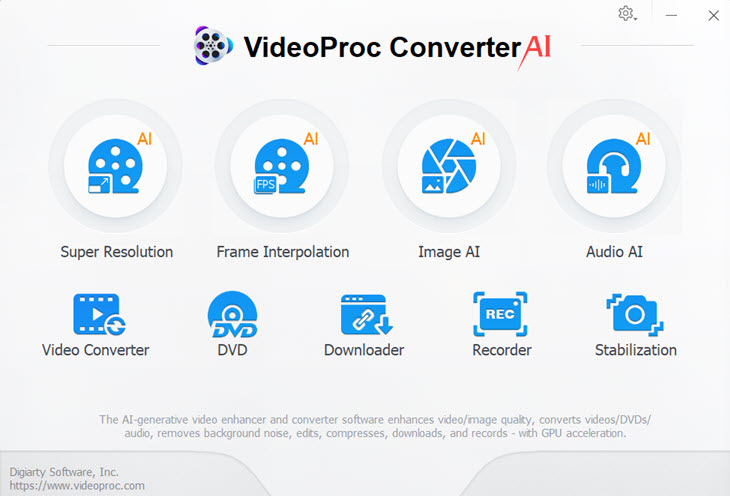
Step 1. Insert DVD and launch VideoProc Converter AI. Click the DVD icon on the interface.
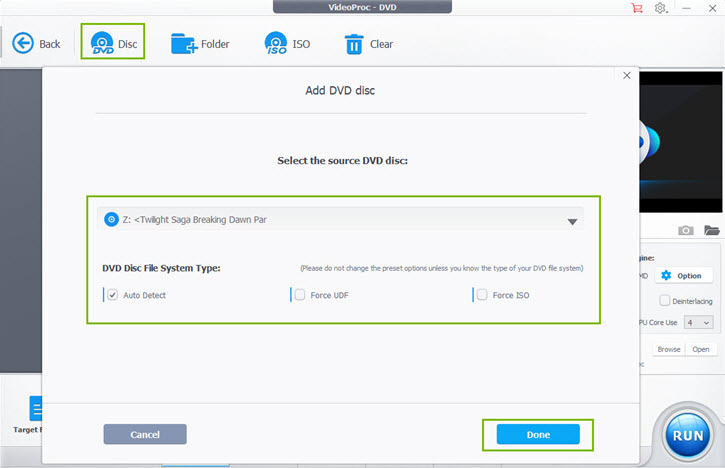
Step 2. Click the DVD disc button. VideoProc Converter AI will auto-detect your DVD, hit Done.
Step 3. Choose target format at bottom and hit Run to convert DVD to VLC friendly format.
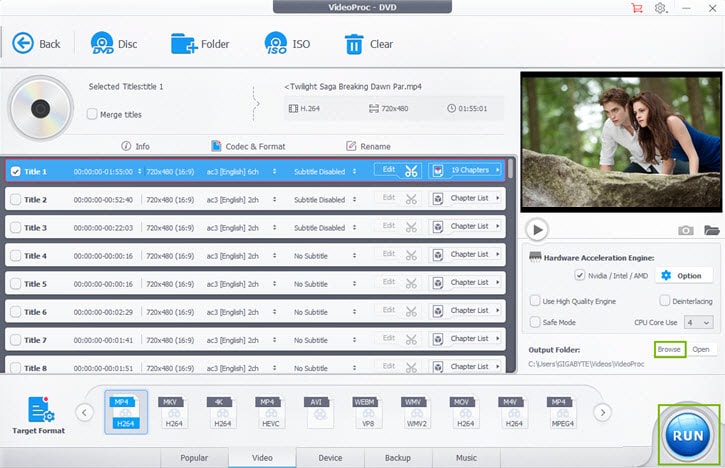
• You can choose MP4 as it's widely supported with various players, platforms and devices.
• Or you can go to back up tab in target format, choose ISO to clone DVD to ISO image.
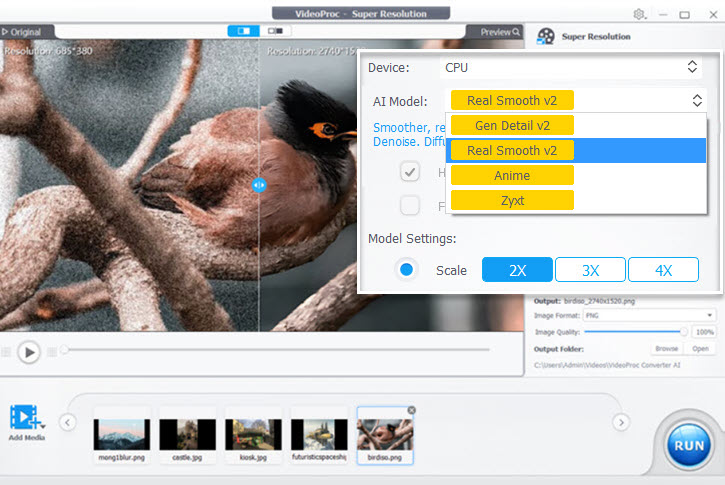
Pro Tips: VideoProc Converter AI now has AI-powered features to enhance video quality. After you digitized DVD, you can use the Super Resolution tool to enhance video quality, fix grainy DVDs, denoise, and upscale old DVD to 1080p/4K high-res. The details are stunning and lifelike.
2. Reset VLC or Install Libdvdcss for Playing NON-UDF DVDs
Hint: If your disc is ISO9660 only (as opposed to UDF or UDF/ISO9660 bridge), then there is no luck with VLC at this time. According to VideoLAN wiki updated in 2019, although libcdio supports ISO9660 image reading, VLC have no access plugin to use it. This mostly happens with old DVDs, and you can jump to next solution to rip non-UDF DVD for successful VLC playback.
If you are uncertain whether "IOS9660 only" complaint DVD caused this error and prefer to troubleshoot VLC, update VLC to the lasted version (menu > help > Check for updates) and read on.
Install Libdvdcss in VLC to Fix DVD Playback Error
Libdvdcss is a free DVD playback library designed by VLC to access DVDs without bothering about decryption. You can install it to solve some DVD won't play in VLC error. For ISO9660 however, you have to either use another player like WMP or rip and convert DVD for successful playback.
Step 1. Download Libdvdcss from VideoLAN resources, and install it. The latest version of Libdvdcss is 1.4.1.
Step 2: To successfully install it, you must do as follows:
• Open the libdvdcss
• Find & enter the subdirectory libdvdcss
• Execute the command via Ubuntu shell
./configure
make
make install
3. VLC Workaround: Open the VIDEO_TS Folder Directly
Instead of using "Media > Open Disk...", use "Media > Open Folder..." and navigate to the VIDEO_TS folder located on the DVD drive (or mounted ISO image).
If accessing the VIDEO_TS folder directly from the physical disc is problematic (due to drive firmware, errors, etc.),
Step 1. Create an ISO image of the DVD using software like VideoProc Converter AI or ImgBurn.
Step 2. Mount the ISO image and point VLC's "Open Folder..." to the VIDEO_TS folder within the mounted drive.
Windows 10 and later can auto-mount ISO natively.
Note: While this often allows playback of the main video content, DVD menus may not display correctly or might be invisible.
However, the button locations might still be clickable "blindly". Basic controls like selecting language/subtitles can usually still be managed via VLC's own menus (Right-click > Audio/Video/Subtitle Track).
Playing individual .VOB files by browsing the disc is another way to access content but sacrifices menus and proper navigation entirely.
4. Use Alternative Media Players
Several alternative players are reported to handle these non-UDF discs successfully.
- KMPlayer: Specifically mentioned as capable of playing these discs, possibly by opening the VIDEO_TS.IFO file directly from the VIDEO_TS folder.
- Windows Media Player: Reported to work where VLC failed. Note: Newer Windows versions might require separate codec installation for DVD playback.
- GOM Player: Reported to play a problematic non-UDF disc that even copying tools struggled with.
- MPC (Media Player Classic - HC/BE): If you still have access to the classic MPC, you can use it as an alternative.
5. Troubleshooting and Other Considerations
Check Disc Condition: Before assuming a format issue, inspect the disc for scratches, dirt, fingerprints, or other damage. This is crucial if only one disc in a set fails or if discs that previously worked suddenly stop. Disc degradation over time is possible.
Test on Multiple Devices: Try the problematic DVD in a different computer drive and/or a standalone DVD/Blu-ray player. Some hardware is more tolerant of older formats or minor errors than others.
Installing Libraries (libdvdcss, libdvdnav): While often recommended for general DVD playback issues in VLC (especially encrypted discs), installing these libraries (as attempted in Thread 1) does not fix the core non-UDF file system incompatibility issue. They are primarily for handling CSS decryption.
Proprietary Formats: Be aware that some discs might not follow standard DVD-Video structures at all, especially older interactive/data discs or those with custom autorun.exe players. These may require specific software or be difficult to access conventionally.
Final Words:
As the best VLC companion, VideoProc Converter AI is not simply a converter, but also excels at all facets of video processing, such as cutting, cropping, merging, adding effects etc. Free download VideoProc Converter AI to rip DVD for VLC.