
 Upgraded AI Performance in V8
 Listed in
 Windows 11 is the most modern version of Microsoft's desktop operating system, but it arrives without the ability to play a DVD out of the box. Microsoft removed Windows Media Center and native DVD playback as part of Windows 8 and 10, and this continues in Windows 11. As a result, when you insert a DVD disc, nothing happens.
So, how to play DVD on Windows 11? If you still have a collection of DVD movies or educational discs, this guide explains why playback fails by default and what you can do about it. Follow the guide below to enjoy your discs on Windows 11.
Why DVDs Won't Play Natively on Windows 11
- No built-in player: Windows 11 ships without a DVD decoder.
- Hardware requirements: Many modern laptops don't include an optical drive.
- Driver or hardware issues: Windows might not recognise an external drive.
- Region codes and copy protection: DVDs are locked to specific regions. Standard players may reject discs from another country or those with copy protections.
Stop relying on discs and struggling with various issues. Create a digital copy and access your favorite content on any device, anywhere, without any problems.
VideoProc Converter AI can rip your DVD collection into digital formats, such as MP4, WMV, AVI, MKV, and more, so you can play them on any device. This eliminates the need for a physical drive and bypasses region codes or disc damage. Both homemade and copy-protected discs are supported.

What You Need to Play DVDs
If your DVD is a data disc, you do not need special playback software. Windows 11 can read data DVDs directly using File Explorer.
If your DVD is a video DVD, the built-in system support will not be sufficient. To play a video DVD, you'll need a DVD drive and DVD-playback software.
- A DVD drive: either an internal optical drive or an external USB drive will do. Plug the external drive into a powered USB port and ensure the disc spins without unusual noise. If Windows doesn't detect the drive, reboot and check the cables.
- DVD-playback software: search the Start menu for "DVD" or "Movies" to open the pre-installed software. Otherwise, you'll need a DVD player for Windows 11.
Play DVD on Windows 11 with VLC Media Player
Thankfully, there are many free DVD player programs that fill the gap left by Windows. VLC Media Player is a highly popular open-source media player that can play DVDs among many other formats.
VLC has built-in support for DVD videos, including encrypted or region-coded discs with the libdvdcss library. It supports DVD menus, multiple audio and subtitle tracks, chapter navigation, and more. Here's how to play a DVD on Windows 11 with VLC Media Player.
- Download and install VLC media player from its official website.
- Place the DVD into your computer's optical drive.
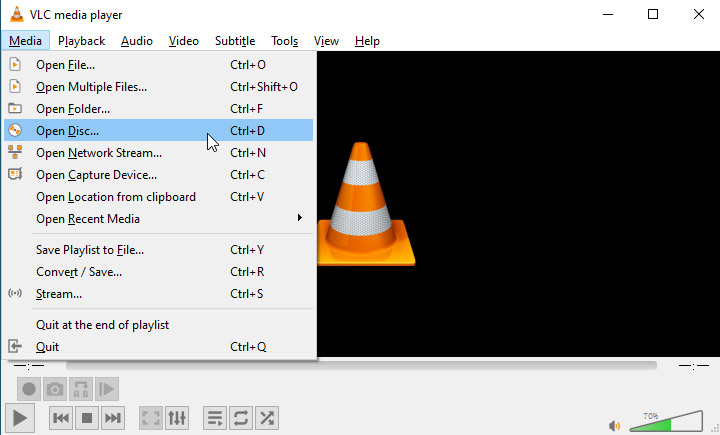
- Open VLC and click Media > Open Disc from the top menu bar.
- Choose the correct drive and leave other settings at default in the "Open Media" window.
- Click Play, and VLC will start the movie.
Pros:
- Completely free with no ads or spyware.
- Plays virtually any media file or disc.
- Runs well even on modest hardware.
Cons:
- Utilitarian interface can be overwhelming for beginners.
- Certain heavily copy-protected DVDs might not play on VLC.
Troubleshooting DVD Playback Problems on Windows 11
Even with the right software and hardware, you might encounter some issues when trying to play DVDs on Windows 11. Here are common problems and how to address them.
1. DVD Drive Not Detected
If your DVD drive doesn't show up in File Explorer at all, first restart the computer. Next, check the connections: for an internal drive, ensure the SATA cable is firmly connected. If you are using an external drive, try a different USB port and ensure the cable isn't faulty.
2. No DVD Decoder
If you try to play a DVD and get an error or nothing happens, it's likely because Windows 11 lacks the MPEG-2 codec and DVD navigator by default.
To solve this, you can either install a codec pack with the needed codecs or any capable DVD player, which will usually allow playback immediately. The latter option is usually simpler and less risky.
3. Region Code Mismatches
DVDs are often encoded with region codes and DVD drives themselves have region settings. A disc won't play if the region code doesn't match your drive.
To solve this, you can change your DVD drive's region to match the disc. However, be careful to use this only as a last resort, as you only have limited changes. If you frequently need to play DVDs from multiple regions, it's better to use region-free software or drives.
4. DVD Copy Protection
Beyond region codes, commercial DVDs have DRM in the form of content encryption and other copy protection mechanisms. In most cases, you won't notice this. The movie just plays. But sometimes in tough cases, using a ripping tool to create a cleaned ISO for playback might be needed.
Consider Ripping DVDs to Digital Files
Instead of relying on discs, you can also choose to rip your DVDs and convert them into digital formats. This can help ensure trouble-free and smooth DVD playback without a physical drive.
VideoProc Converter AI is a popular option for this. It features a DVD backup module to digitize your DVD discs to MP4, WMV, AVI, MOV, or other compatible formats. In addition to this format conversion, you can also create digital copies in 1:1 quality ISO images, VIDEO_TS folders, or MKV files.
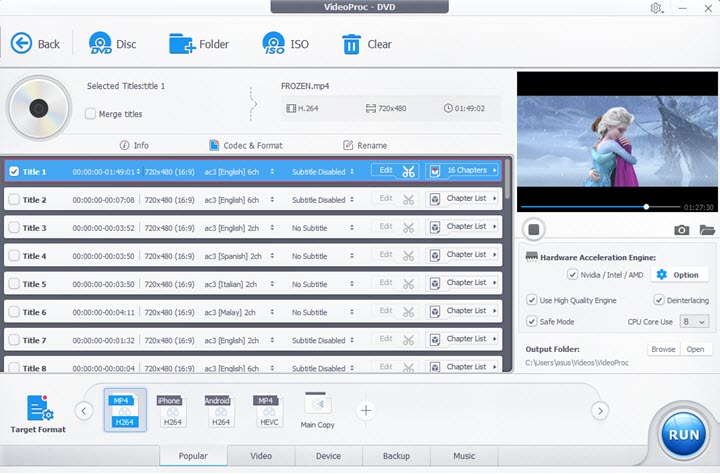
VideoProc Converter AI delivers incredibly fast batch processing speeds with its unique level-3 hardware acceleration. Just use the physical drive once, and you can create digital copies of your DVD collection and watch them anytime.

VideoProc Converter AI - Watch DVD without Errors on Windows 11
- Convert DVD to MP4, MKV, AVI, MP3, and more for smooth playback
- 1:1 Digitize DVD to ISO image, VIDEO_TS folders, or MKV files
- Support old, new, homemade, commercial, and region-coded DVDs
- 47x real-time faster DVD backup boosted by hardware acceleration
- All in one: AI restore and enhance, convert, compress, subtitle, deinterlace...
Attention: Always respect copyright laws and avoid ripping discs you don't own.
Final Thoughts
Although physical discs are becoming less common, many of us still own films, TV box sets, or educational material on DVD. Windows 11 drops native support for disc playback, but you can still enjoy your collection. The question of how to play DVD on Windows 11 can be as simple as installing a free program and popping in your disc.
If you prefer not to rely on physical media, consider converting your discs to digital files with VideoProc Converter AI. This way, you can watch on any device while preserving the original disc in your collection.
FAQ
Does Windows 11 have a built-in DVD player?
No. Windows 11 excludes native DVD playback and Windows Media Center. Microsoft's Windows DVD Player is a paid app from the Microsoft Store.
What other free DVD player software is there for Windows 11?
For most users, VLC media player offers the best balance of compatibility and features for DVD playback on Windows 11. Other good free DVD players include 5KPlayer, PotPlayer, and GOM Player.
How do I troubleshoot DVD playback issues in Windows 11?
Common playback issues include region-code mismatches, undetected drives, lack of compatible software, and scratched discs. Installing a third-party player, such as VLC, usually resolves software issues. For hardware problems, you might want to restart your PC, try another disc, or an external drive.