
 Upgraded AI Performance in V8
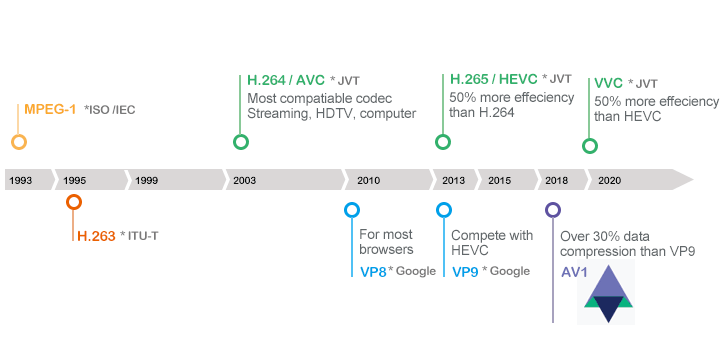
For those familiar with HandBrake, the 1.6.0 update brought a compelling new option to the world of video compression: AV1. A royalty-free codec finalized by the Alliance for Open Media (AOMedia) in 2018, AV1 promises up to 30% better compression than its predecessor, HEVC/H.265, without sacrificing quality. This is precisely why major streaming platforms like YouTube, Netflix, and Twitch have already made it a cornerstone of their services. These explain my more and more users select AV1 for their video output in HandBrake.
⚠️ However, while its potential is clear, the path to mastering it can be challenging. Many users run into familiar problems: slow encoding times, a lack of noticeable compression gains, or simply not knowing where to start. This guide will help you navigate those issues, demystify AV1 encoding in HandBrake, and show you how to achieve the best possible results.

What Is AV1 and Why Choose It
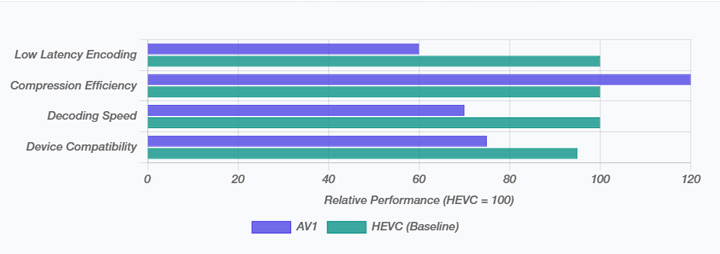
AV1's key advantage is its superior compression efficiency. Officially, it's claimed to be 30% more efficient than HEVC/H.265, meaning a 10 GB H.265 file can be reduced to about 7 GB without compromising quality. This makes it particularly useful for those who want to save storage in large 4K video libraries or stream high-definition content with minimal bandwidth.
While AV1 support is expanding, it's still not universally available on all devices. However, it's supported on mobile devices like the Google Pixel series and consoles like PlayStation 5 and Xbox Series X/S. Many modern smart TVs from LG and Sony also support AV1. The codec is also integrated into Windows 10/11, and browsers like Google Chrome, Mozilla Firefox, and Microsoft Edge provide compatibility for AV1 playback.
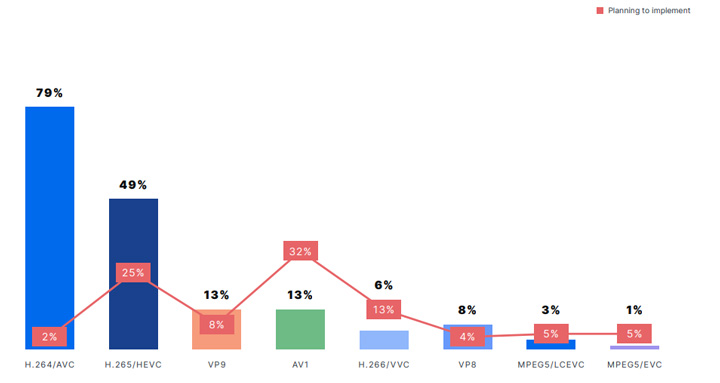
AV1 vs. H.264 vs. H.265
To understand AV1's position, it's helpful to see how it stacks up against the current mainstream codecs:
File Size: At a given quality level, AV1 creates the smallest files. Compared to HEVC/H.265, it achieves the same visual result at a bitrate that is up to 30% lower. This advantage is even more pronounced against H.264, where AV1 can often achieve the same quality at half the bitrate or less.
Encoding Speed: This is AV1's main drawback. Its software encoding is significantly slower, often taking 5 to 10 times longer than H.265 on a similar CPU. This is due to its more complex algorithms, which analyze a wider range of data to find the most efficient compression.
Quality: At the same file size, AV1 typically delivers superior visual quality. This is particularly noticeable in scenes with fine detail, complex textures, or gradients where AV1 avoids the artifacts that older codecs might introduce.
How to Start with AV1 in HandBrake
Enabling AV1 in HandBrake is straightforward. Simply go to the "Video" tab and select AV1 (SVT) or AV1 (AOM) from the "Video Encoder" dropdown menu. If your hardware supports it, you can also choose the corresponding hardware-accelerated encoder. Check below steps:
Step 1. Download and Install HandBrake
Go to the official site of HandBrake to download t it to your computer. To get the best performance, always use the latest version of HandBrake. Additionally, if you're a Windows user, HandBrake requires the Microsoft .NET Desktop Runtime 8.0. If you don't have it installed already, you'll need to install it before using HandBrake.
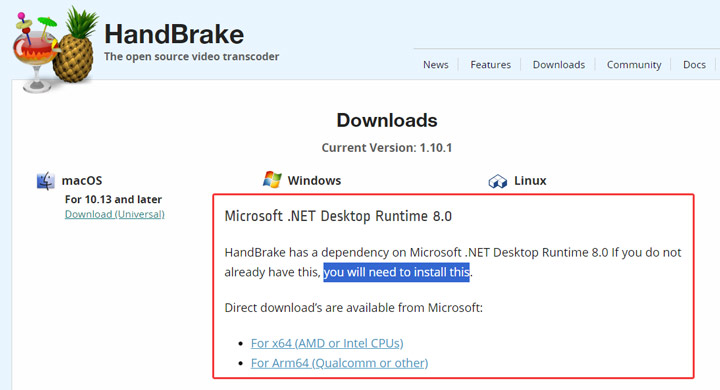
⚠️ Note:
For optimal performance, always use the latest version of HandBrake. Versions before 1.6.0 do not support AV1 encoding at all. Subsequent versions, like 1.10, introduced key improvements in speed, quality, and added features such as VideoToolbox AV1 hardware decoding and DirectX-based AV1 decoding for ARM devices on Windows. Using the most recent release guarantees the best possible experience.
Step 2. Import Videos to HandBrake
Launch HandBrake and drag and drop your source video into the program. The file loading process might take several minutes, depending on your system built and your source file size.
Step 3. Choose AV1 Encoding Preset
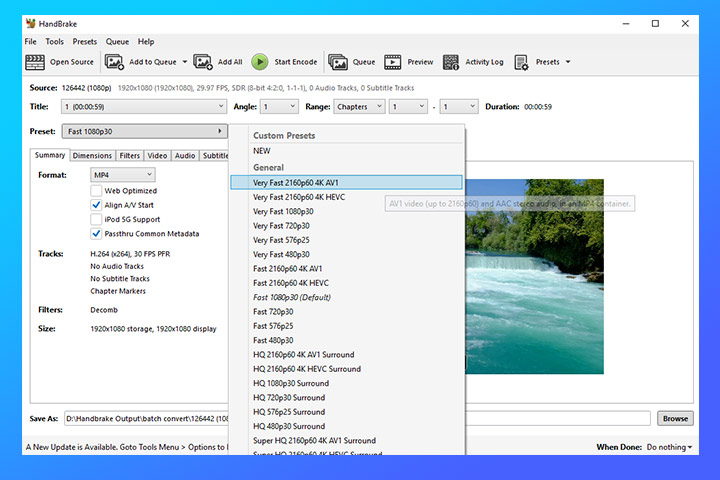
Go to the Preset dropdown and select an AV1 preset. You have options like Very Fast 2160p60 4K AV1, Fast 2160p60 4K AV1, and HQ 2160p60 4K AV1 Surround. If you need to manually adjust the encoding settings, follow the next sections to learn how to configure AV1 in HandBrake.
Step 4. Click the Browse button to select an output folder. Once everything is set, click Start Encode to begin encoding your video with AV1.
⚠️ Note:
Some users have reported issues like encoding finishing instantly, extremely slow performance, or other errors. If you encounter such problems, check our troubleshooting section for solutions. Alternatively, you can try a hassle-free solution to convert videos to/from AV1 with just a few clicks. (Jump to hassle-free solution)
What Are the Best Settings for AV1 Output in HandBrake
When using HandBrake to encode videos to AV1 format, there are several settings you can adjust to get the best balance of quality and compression efficiency. Here's a quick guide to help you get started:
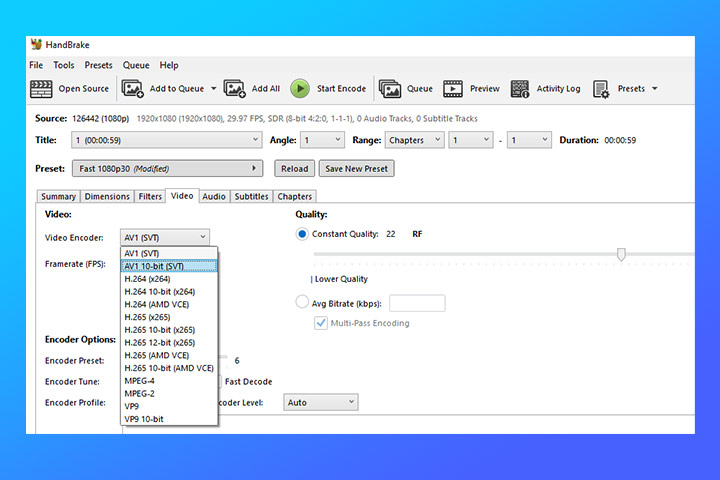
1. Encoder: AV1 (SVT) and AV1 10bit (SVT)
If you're encoding standard content like YouTube videos or non-HDR material, AV1 (SVT) (8-bit) is the better choice, offering good quality with smaller file sizes and faster encoding times.
However, if you're working with high-quality content, particularly HDR videos or content requiring precise color accuracy and smoother gradients (like movies or professional footage), then AV1 10bit (SVT) is the way to go. The 10-bit depth ensures better color precision and finer details in complex scenes but comes at the cost of slightly slower encoding and larger file sizes.
2. Encoder Preset
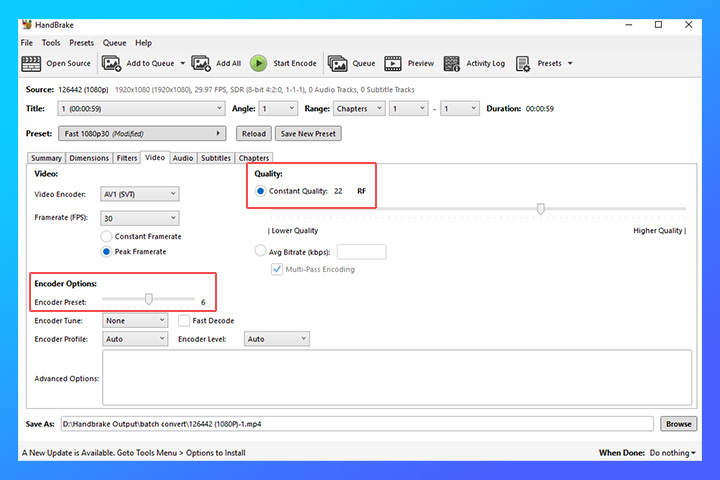
The SVT-AV1 encoder presets are designed to strike a balance between encoding speed and video quality. HandBrake doesn't provide specific explanations for each preset, but here's a simplified breakdown based on the official documentation. You can refer to the full details here for a more thorough explanation.
- Presets 1-3: These presets are for extremely high efficiency, prioritizing compression and quality over speed. They’re ideal when you need the best quality and smallest file size possible, but can tolerate long encoding times. These are often used for archiving or situations where quality is paramount.
- Presets 4-6: These offer a good balance between quality, file size, and encoding speed. They’re typically used by enthusiasts or home users who want solid quality without the extremely long encoding times of presets 1-3.
- Presets 7-12: These are designed for faster encoding, making them suitable for real-time encoding or when you need results more quickly. The trade-off is that they won’t offer the same level of compression or quality as the slower presets, but they are significantly faster.
- Preset 13: The fastest preset, used for scenarios where speed is crucial, such as video-on-demand (VOD) applications. It’s not intended for normal video encoding, as it sacrifices quality for speed.
3. Quality
HandBrake provides recommended CRF (Constant Rate Factor) settings for the SVT-AV1 encoder, which depend on the resolution of the footage you're working with:
- ✔️ For 480p/576p (Standard Definition), use RF 22-32. Lower CRF values give better quality but larger file sizes.
- ✔️ For 720p (HD) and 1080p (Full HD), use RF 25-35. This range strikes a good balance between quality and file size.
- ✔️ For 2160p (4K UHD), use RF 25-40. This range results in smaller file sizes while keeping good quality for 4K content.
4. Frame Rate (FPS): Same as Source
For most use cases, it's best to leave this at "Same as Source." HandBrake will automatically match the input frame rate to the output. If you want a fixed frame rate, you can set it manually, but keep in mind that changing the frame rate may affect quality.
5. Audio Settings: Codec
Set to AAC or Opus for audio. Although AV1 itself handles video encoding, you can choose an appropriate audio codec, with Opus offering good compression and quality at lower bitrates.
6. Advanced Options (optional)
Enable VAAPI or QSV for Hardware Encoding (if supported):
If you're on a system with hardware acceleration support for AV1 (e.g., Intel Arc or newer NVIDIA cards), you can enable this to speed up the encoding process. However, keep in mind that software encoding (using libaom-av1) tends to give better quality, so use hardware encoding if speed is more important than quality.
7. Two-Pass Encoding (optional)
This isn't a default for AV1 in HandBrake but can be helpful if you want to achieve more precise control over the file size and quality. However, it will increase the encoding time significantly. If you're targeting a specific file size, this can help you get closer to your goal.
8. File Format: MP4 or MKV
Both MP4 and MKV containers are fine for AV1 video. MKV is often a better choice for modern codecs like AV1, but MP4 offer better compatibility with older devices or players.
Common HandBrake AV1 Problems and Solutions
1. Why Is My AV1 Encoding So Slow?
AV1's high compression efficiency is a direct result of its intense computational complexity. This process, carried out by software encoders like SVT-AV1, demands immense CPU power, making it slower than H.265.
2. Encoding Failed: Why Did the Queue Finish Instantly?
Some users encounter an AV1 encoding failure issue in HandBrake, where clicking Start Encode causes the queue to immediately show "Finished." One common cause of this is that your GPU does not support AV1 encoding.
This issue is often seen with older GPUs, such as the NVIDIA RTX 30 series or AMD RX 6000 series, as these models lack AV1 hardware encoding support (they can only decode AV1, not encode it). As a result, HandBrake is unable to start the encoding process.
Tips:
In some cases, users with multiple GPUs, such as systems with two Intel GPUs, may encounter this problem because only one of the GPUs supports AV1 encoding. If HandBrake selects the wrong GPU, encoding will fail. To resolve this, you can manually select the correct GPU by adding "gpu=n" in the advanced options, where n is the GPU number you want to use.
3. HandBrake Not Encoding Videos with Certain Preset
"Handbrake is not encoding videos when I choose preset as "Super HQ 2160p60 4K AV1 Surround". It is just taking up 2GB RAM and there is 0.00% progress even after 5 minutes. Last time when I tried to encode the whole video, my system got unstable, so I tried to encode a small part and this happened." - @ sad_truant from reddit.com
When selecting a high-quality preset like the "Super HQ 2160p60 4K AV1 Surround" in HandBrake, some users find that the encoding process doesn't start at all. This issue is often caused by insufficient available RAM. SVT-AV1 encoding requires significantly more memory, especially for high-resolution videos like 4K.
To resolve this, try lowering the resolution (e.g., encoding at 1080p instead of 4K) to reduce memory usage. You can also close unnecessary applications to free up more RAM. If you regularly encode high-resolution videos, upgrading your system's RAM may help manage the higher memory demands of SVT-AV1 encoding.
4. Is AV1 Really More Efficient? Why My AV1 File Is Bigger Than My H.265 One
This is a common misconception. While AV1 is generally more efficient than H.265, different encoders (like SVT-AV1 and x265) use different quality scales, making direct comparisons difficult. The best way to assess efficiency is by looking at the quality-to-file size ratio. After encoding both formats, check them side-by-side. The encoder that produces the smaller file while maintaining comparable quality is the more efficient one.
A Hassle-free Alternative Way to Convert Videos from/to AV1
Installing HandBrake can be tricky, particularly with versions 1.4.0 and above, as you first need to install Microsoft .NET Framework. On top of this, many users have reported issues related to AV1 encoding on platforms like Reddit, ranging from failed encodes to extremely slow performance. Additionally, customizing AV1 encoding settings in HandBrake can be complicated for beginners, as it involves dealing with many technical terms that aren't always explained clearly. Given these challenges, we highly recommend trying a user-friendly, faster, and more stable alternative for decoding, transcoding, and encoding AV1 files – VideoProc Converter AI. Here are some of its key features:
- No learning curve: Convert videos to/from AV1 with a single click.
- Top-notch quality with support for the High Quality Engine and 2-Pass Encoding.
- Complete control over quality, bitrate, frame rate… all in an intuitive interface.
- Supports 370+ formats incl. AV1, HEVC, and VP9, converting to over 420+ others.
- Process multiple videos at up to 47x faster speeds, powered by full GPU acceleration.
- Feature-rich: AI-driven media enhancement, quick edits, online video downloads…
Step 1. Download and install VideoProc Converter AI on your Windows or Mac.
Step 2. Select AV1 as the output format from the format selection menu.
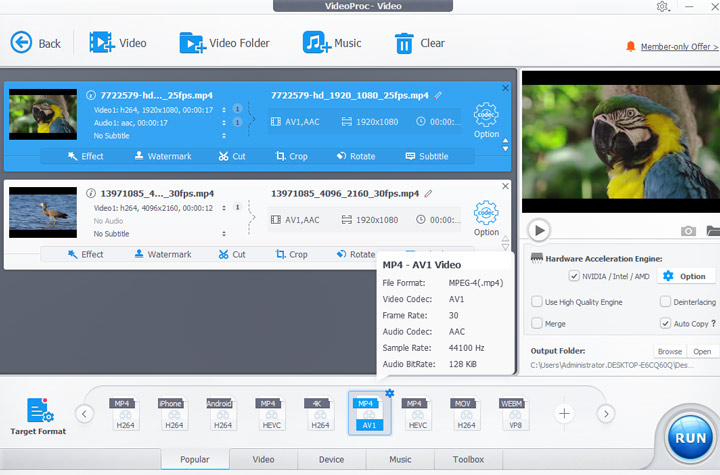
Need to explore more format options? Simple click on Target Format.
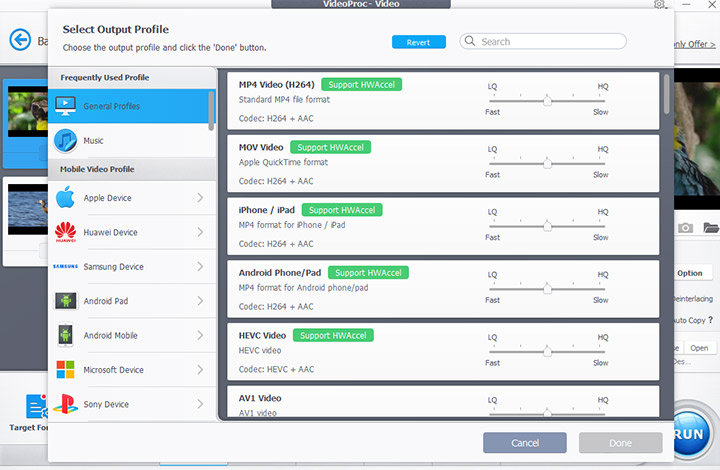
Step 3. Click Browse to choose a destination folder, if needed. Then, click RUN to start converting your video to AV1.