
 Upgraded AI Performance in V8
 Listed in
 Tried uploading an animated WebP to Reddit only to see it rejected? Or downloaded a meme in WebP format and found that Premiere Pro won’t import it? Even in 2026, many popular platforms and video editors still don’t fully support animated WebP files, which is why converting WebP to MP4 has become a common workaround.
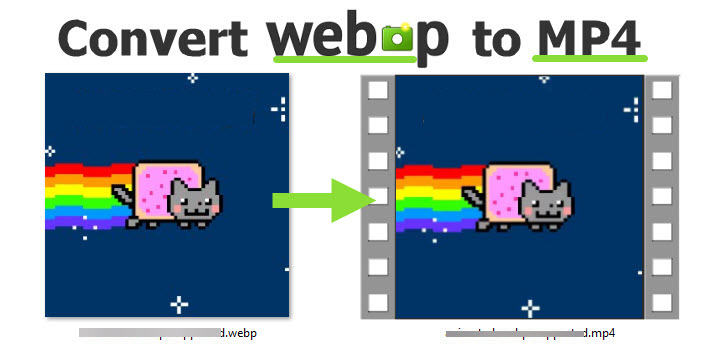
WebP was developed by Google to deliver high-quality images at significantly smaller file sizes. Compared with PNG and JPEG, WebP can maintain similar visual quality while reducing storage usage. It also supports animation and transparency, making it a modern alternative to GIF on the web.
However, support for animated WebP remains inconsistent across social media platforms, mobile devices, and editing software. If a WebP file won’t upload, import, or play properly, converting it to MP4 is often the most reliable solution. Below, 6 practical ways are shared to convert WebP to MP4.
Convert WebP to MP4 with VideoProc Converter AI
Struggling to upload an animated WebP to SNS platforms, or found that your video editor won’t recognize the file? VideoProc Converter AI is a desktop solution that makes converting WebP to MP4 straightforward and reliable. It’s not just for WebP – you can handle videos, GIFs, and over 420 formats with ease, all in one program.
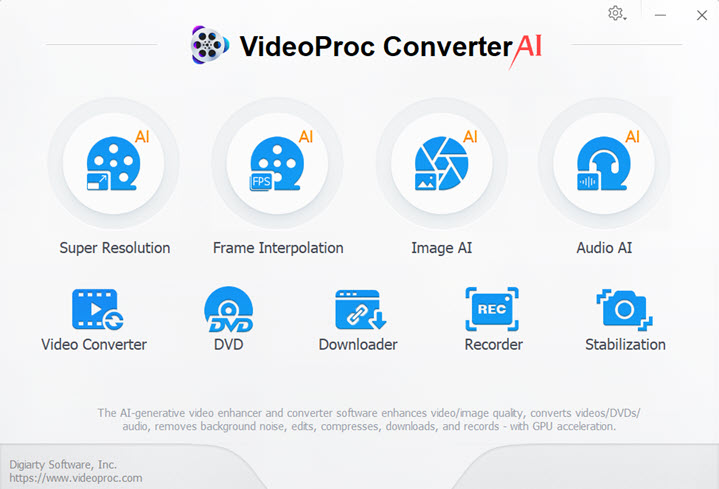

Steps to Convert WebP to MP4:
Step 1. Free download and launch VideoProc Converter AI on Windows or Mac computer.
Step 2. Go to the conversion module by clicking the Video icon from the main interface.
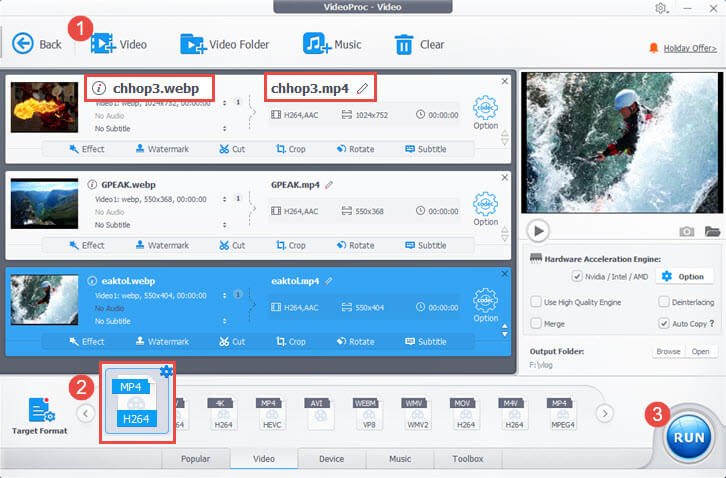
Step 3. Add WebP file into the software, and choose MP4 as the target format at the bottom section.
Now you can choose the output path and click Run to start converting WebP to MP4.
Byond WebM to MP4 Conversion - VideoProc Converter AI Is a Complete Video to Video/Audio Toolbox!
Pro Tips for Animated or Multiple WebP Files
1. If your WebP loops endlessly, standard online converters may lose the loop. VideoProc lets you record the animation into MP4 while keeping it looping as long as you need.
2. Have several WebP files? Want a GIF-style video compilation? Use VideoProc Vlogger. Simply drag your WebP files into a project, adjust timing or add background music, and export as a single MP4 video ready for social media or sharing.
Step 1. Download VideoProc Vlogger for Windows or for Mac.
Step 2. Create a new project, and set the resolution the same as the WebP image (you can also change it later inside the program).
Step 3. Drag and drop multiple WebP files into media library, and then drag them into the timeline.
In the same way, you can import music and add the audio as background music for the video.
Step 4. Click Export and select MP4 as output format.
Now your WebP images are converted into one MP4 video. In similar easy ways, VideoProc Vlogger also helps you to turn GIF into a video.
Convert WebP to MP4 Online with Free WebP Converters
Here are 4 reliable online converters you can use to turn WebP files into MP4 quickly, free, and without installing software.
#1 OnlineConverter.com – good for quick small files (<200MB)
Online Converter is a versatile online media conversion service, and it even supports convert unit. In terms of media, it allows users to convert one video format to another, audio to audio, change image format, and convert digital books and documents.
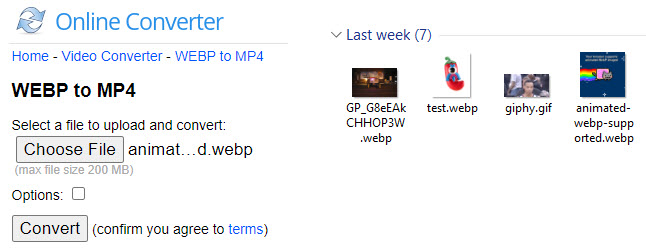
It offers a dedicated page for the WebP conversion. You can upload animated WebP or still images to be converted.
As with other online converters listed here, the converted MP4 will be 00:00:00 seconds and plays quite fast. For animated WebP (which can loop forever like GIF), the converted MP4 will lose the looping effect.
If you want to keep the looping effects after converting animated WebP to MP4, learn how to loop a video here.
Step 1. Go to the WebP to MP4 online converter page https://www.onlineconverter.com/webp-to-mp4
Step 2. Click the Choose File button, and go to the folder you store WebP files to add it.
The maximum file size supported by OnlineConvert is 200 MB. If your file exceeds the size, you can either compress the file before uploading, or use the desktop converter in method 1 that doesn't impose such limitations on your file.
Step 3. Click the convert button and wait for the server to process your file.
If you want to cut video clip or change its resolution, you can tick the box next to Options.
Step 4. Once the WebP to MP4 conversion is completed, you can click the Download Now text to save the file to the local storage.
Note:- Watch out for misleading ads—always click the blue anchor text for downloading.
- Pop-ups may appear after clicking Download; simply close them.
- WebP files with alpha (transparent) backgrounds will convert to MP4 with a white background.
#2 EZGIF – best for GIF-style WebP and minor edits
As suggested by its name, EZGIF is built to offer easy solutions for GIF related processing, such as making animated pictures, or converting animated files to video. Primarily an online GIF maker, this site also offers tool to convert WebP to MP4, including still picture and animated WebP.
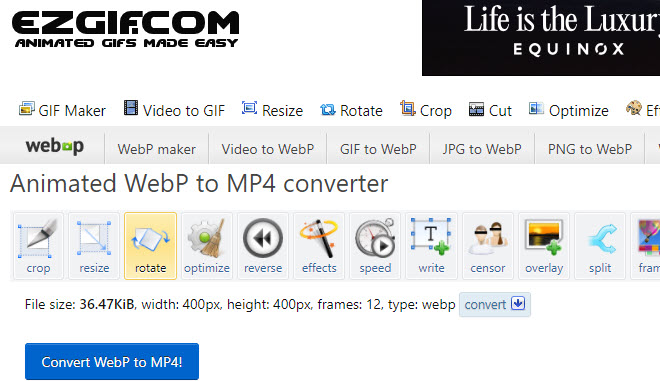
Step 1. Visit the WebP to MP4 online converter page on EZGIF.
Step 2. Drag and drop the WebP picture or animation into the uploading box area.
- If your WebP file is from online resources, and you still have the link (such as those memes from Giphy.com), then you can copy and paste the link in EZGIF.
- Make sure the WebP file size is under 50MB when uploading to this online converter.
Step 3. Click Upload button to confirm sending the WebP file to the online server.
Step 4. EZGIF offers simple editing tools before the conversion. You can click respective button to apply edits.
Step 5. Once you are happy with the settings, click the Convert WebP to MP4 button.
If your WebP has an alpha channel, the converted MP4 will have black background by default.
#3 mp4.to – large file support (up to 2GB)
mp4.to is another online converter that truly support WebP to MP4 conversion online. You can upload animated WebP and download it as MP4 to playback without error.
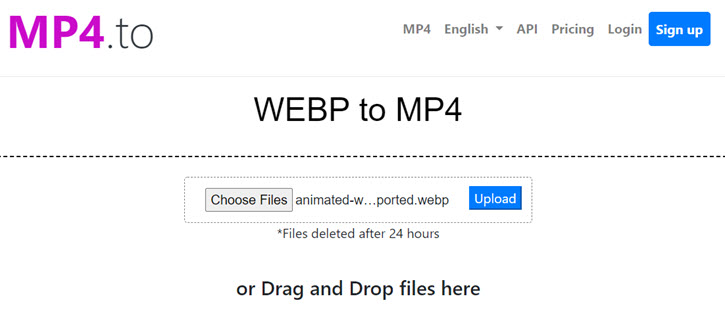
Step 1. Select the WebP image on your computer to add it to the online tool.
Step 2. Click the Upload button and wait for the conversion progress.
If you want to convert WebP to MP4 in batch, credits are needed to upload multiple files at once.
Step 3. Click the generated MP4 to download.
According to mp4.to, every user can convert files up to 2GB for free, but the uploading is limited to one file per time. Therefore, even if all the WebP files are under 2GB, you still need to convert WebP to MP4 one by one.
#4 MConverter – simple upload, but Windows Media Player may not play
MConverter allows for 200MB WebP files per time to convert to MP4. You can add animated WebP or still images. Once the WebP file is uploaded, make sure to select MP4 as the output format.
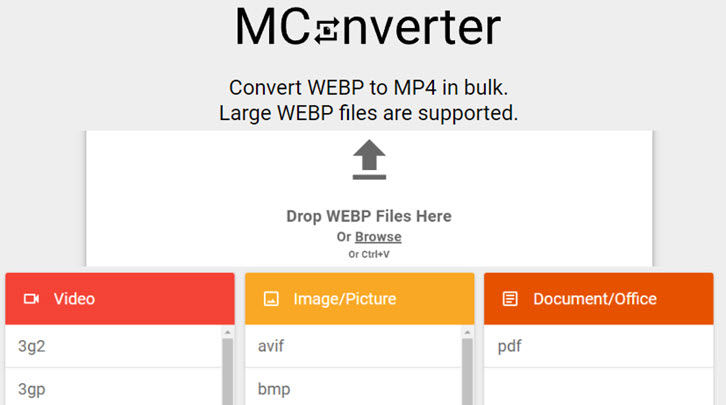
One thing to notice is, it seems the converted MP4 file cannot be played by Windows Media Player, which says the format is not supported. However, you can play WebP converted MP4 in VLC media player.
Convert Animated WebP to MP4 with A Script
If you have multiple animated WebP files to convert, running a Python script can save you a lot of time.
The videoconvert.py script processes files in bulk, preserves animations better than some online tools, and has been confirmed by Reddit users to work smoothly on both Windows and Mac.
Bonus features include cutting clips, combining multiple WebPs into one MP4, and adjusting playback speed or FPS using simple command-line arguments.
Step 1. Make sure Python 3 is installed on your computer.
Step 2. Download the script from GitHub: https://github.com/Dunttus/webptomp4.git
Step 3. Place videoconvert.py in the same folder as your WebP files.
Step 4. Open a terminal (or command prompt) and navigate to that folder.
Step 5. Run the script using a command like:
videoconvert.py --fps 16
python3 videoconvert.py --fps 16
--fps set the new frame rate.
For advanced features like video cutting or combining, you can refer to the script's documentation on its GitHub page.
FAQs
Why is the converted MP4 showing 0:00 seconds?
This usually happens when the converter doesn’t properly read animated WebP frames. Some tools export an MP4 container without actually encoding the image sequence into video frames, which results in a 0-second file. Try using a dedicated WebP-to-video converter instead of a basic media converter.
Why does my animated WebP play too fast after converting to MP4?
Animated WebP files rely on frame timing data. If the converter ignores the original frame delay, the resulting MP4 may play much faster than expected. To fix this, use a tool that allows you to set or preserve the original FPS before exporting.
Can VLC convert WebP to MP4?
Technically, VLC lets you attempt the conversion through Media → Convert/Save. However, in many cases the exported MP4 file is not playable because VLC does not properly decode animated WebP frames. Even if no error appears during export, the resulting file may fail to open in media players.
Does FFmpeg support WebP to MP4 conversion?
Support depends on your FFmpeg build and version. Some older builds cannot properly decode animated WebP files and may trigger errors such as “image data not found.” If you're comfortable with command-line tools, make sure your FFmpeg version includes WebP decoding support before attempting conversion.
Will I lose transparency when converting WebP to MP4?
Yes. MP4 (H.264) does not support alpha channel transparency. If your original WebP has a transparent background, it will typically turn white or black after conversion. To preserve transparency, you would need a different video format that supports alpha.
Why won’t Reddit or Instagram accept my WebP file?
Many social platforms still prioritize MP4 for animated content. Even if WebP works in browsers, upload systems may reject it. Converting animated WebP to MP4 is often the most reliable way to ensure compatibility across social media platforms.