
 Upgraded AI Performance in V8
How do I softcode subtitles onto a video?
How to set up HandBrake to hard-burn subtitles and nothing else? What's the best way to set up HandBrake to encode subtitles into an MKV file?
We see people asking a lot about HandBrake and subtitles. HandBrake, the popular open-source video transcoder, offers robust support for subtitles. You can add closed captions, burn subtitles into the video, or remove them from a video.
In this guide, we'll walk you through everything you need to know about HandBrake subtitles.

HandBrake Subtitle Formats
HandBrake can read and include various subtitle types in source videos or from external files. These include:
- Bitmap subtitles: e.g. DVD VobSub (SUB/IDX) and Blu-ray PGS subtitles
- Plain text subtitles: e.g. SubRip SRT files or closed captions, such as CEA-608/708
- Styled text subtitles: e.g. anime subtitles with styling like SSA or ASS
HandBrake outputs subtitles in two ways: soft subtitles and hard subtitles.
Hardcoded subtitles are permanently rendered onto the frame. These cannot be toggled off during playback. They are not separate tracks but part of the picture, so you can use them with any supported output format in HandBrake.
Soft subtitles, on the other hand, can be enabled or disabled by compatible players. They are included as separate tracks in the output file, so you'll need to consider the container support for subtitle tracks.
- The WebM container in Handbrake does not support using soft subtitles.
- The MKV container supports virtually all subtitle formats. HandBrake allows pass-through of multiple subtitle tracks in MKV without burning.
- The MP4 container only supports text-based subtitles like SRT or SSA. Image-based tracks like DVD VobSub or Blu-ray PGS cannot be kept as soft tracks in MP4. HandBrake can only burn in one such track into the video if needed.
How to Add Subtitles in HandBrake
HandBrake features a Subtitles tab, allowing you to add subtitle tracks to your encode. Follow the steps below to add subtitles with HandBrake.
Step 1. Open HandBrake. Drag and drop your video onto the interface to import.
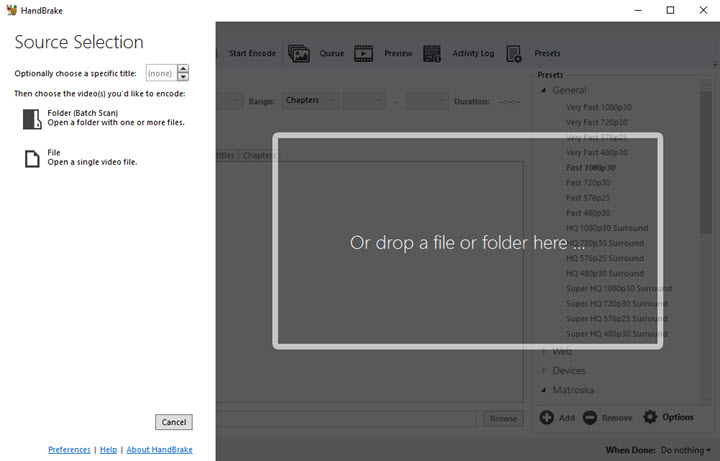
Step 2. Go to the Subtitles tab. HandBrake will list the subtitle tracks if the source already contains any.
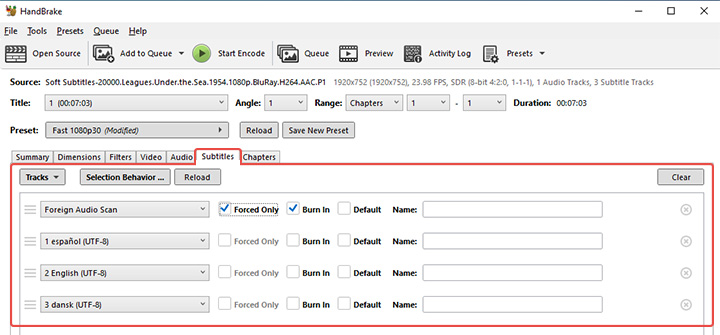
Step 3. Configure how you want to add subtitles.
To burn in subtitles, select the track and check the "Burn In" box. This ensures the subtitles are rendered into the video frames.
To add soft subtitles, make sure "Burn In" is unchecked for those tracks.
To add multiple subtitle tracks, click "Tracks > Add External" and select your subtitle file. You can mark a track as "Default" to automatically display it during playback.
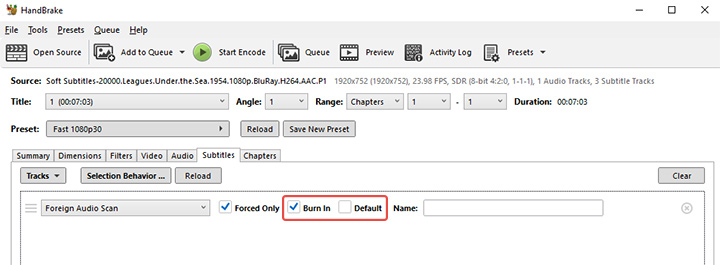
Step 4. Ensure the language tag for each track is correct. If needed, tweak the Offset to sync the subtitles timing with the video.
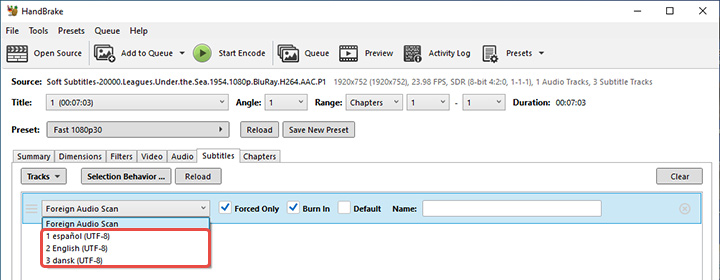
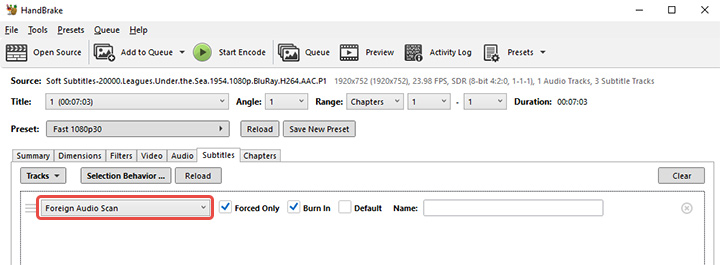
Step 5. (Optional) HandBrake subtitles foreign audio scan.
HandBrake can scan your source video and pick up a forced subtitle track that is only used sparingly, like foreign-language dialogue snippets appearing in only 10% or less of the runtime.
To do this, click "Tracks > Foreign Audio Search (Bitmap)" and check the "Forced" box. HandBrake will attempt to find and include the appropriate forced-only subtitles. Generally, leave Foreign Audio Scan disabled unless your source is a disc with foreign or forced sections.
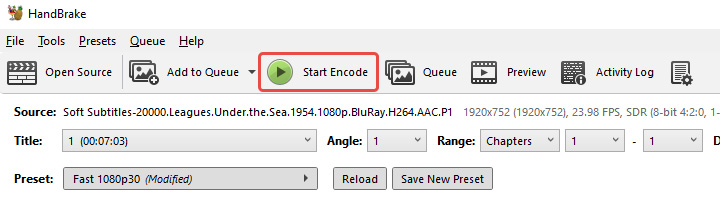
Step 6. Preview and choose an output format once you've configured the subtitles. Click "Start Encode" to produce the video with subtitles.
HandBrake Remove Subtitles
If you have a video file that contains unwanted subtitle tracks, you can remove them with HandBrake. Here's how to remove subtitles from a video.
Step 1. Load the source video in HandBrake and go to the Subtitles tab.
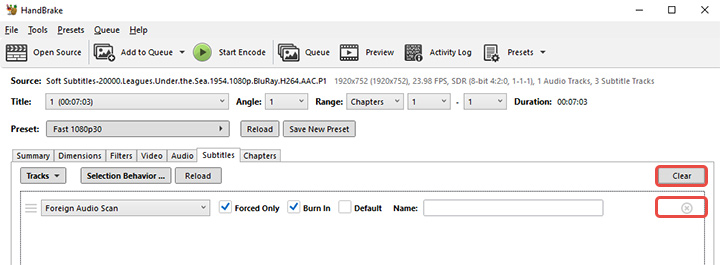
Step 2. To remove all subtitles, simply click the "Clear" button on the Subtitles tab. To remove certain tracks but keep others, use the "x" icon next to a specific track to delete it from the list.
Step 3. Select an output format and start a new encode.
Note: If subtitles were burned into the video originally, they have become part of the picture permanently. HandBrake cannot magically remove hardcoded subtitles from the video frames.
HandBrake Extract Subtitles
HandBrake cannot extract subtitle tracks from a video into a separate file. You can use HandBrake to either add or remove subtitles, but not extract and save them. If you have a video with subtitles and want to get those subtitles out as an .srt or .ass file, you'll need to use other subtitle extractors.
HandBrake Subtitles Troubleshooting Guide
1. Subtitles not showing up after encoding
If you encoded a video and the subtitles are missing during playback, likely the track wasn't added or flagged correctly. To solve this, you'll need to return to the Subtitle tab and ensure you see the track listed before encoding.
2. Greyed out Burn In option
This happens because HandBrake might not support the subtitle format for burning. For example, certain format tracks cannot be directly burned, or HandBrake may only burn one track at a time. If you need multiple languages burned in, you'd have to encode separate videos or merge subtitles into one track beforehand.
3. Subtitles out of sync with video
This could be due to frame rate differences or a delay in the subtitle file. To resolve the issue of video and subtitles being out of sync, you can use the Offset feature and fine-tune the timing shift globally. If the offset is not consistent or the subtitle file itself has drifting sync, you may need to edit the file in a dedicated subtitle editor.
4. Subtitles not showing in MP4 output
As discussed, MP4 is more limited in subtitle support. If you need broad compatibility, consider using the MKV container for subtitles. If MP4 is required, converting unsupported subtitles to SRT beforehand or burning in the subtitles might be the only solutions.
HandBrake Alternative for Subtitles
VideoProc Converter AI is a versatile video processing tool with subtitle capabilities. Unlike HandBrake's more technical Subtitles tab, VideoProc Converter AI has a visually intuitive, user-friendly interface without intricate jargons. It's super easy to use — check the box to add, uncheck to remove. For compatible container formats, toggle the icon H for hard-burned subtitles, S for soft subtitles.
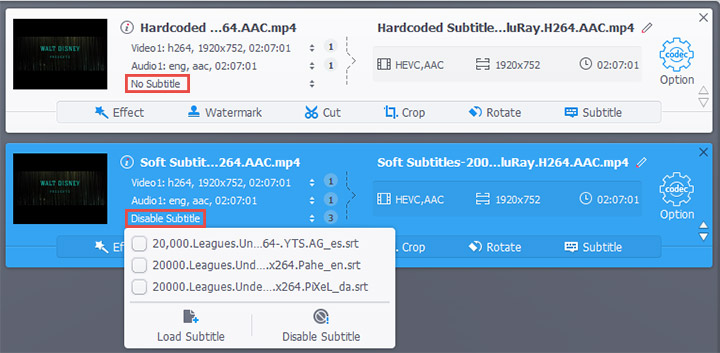
Even better, VideoProc Converter AI supports over 420 output formats and presets with GPU acceleration, allowing you to maintain high quality and process faster than many tools. In terms of output formats, VideoProc Converter AI offers more flexible options than HandBrake. This makes it versatile for different workflows.

VideoProc Converter AI - HandBrake Alternative for Subtitles
- Intuitive interface without intricate jargons; More output formats
- Pick an existing subtitle track to softcode or burn-in
- Add external subtitles, including SRT, ASS, SSA
- Remove soft subtitles automatically by default
- All-in-one: DVD ripping, editor, converter, compressor, AI enhancer, etc.



Conclusion
HandBrake Subtitles tab offers capabilities to handle subtitles in your video. The whole process involves understanding the difference between soft and hard subtitles, the limitations of your chosen container, and the various HandBrake subtitle settings.
By properly using HandBrake, you can ensure your videos have the subtitles you want — in the right format, properly synced, and delivered to your audience in the most convenient way.