
 Upgraded AI Performance in V8
YouTube is one of the biggest social media platforms, with 500 hours of video uploaded every minute worldwide. Every platform has a file limit, and YouTube is no exception. As a content creator, you'll have to make your video satisfy the YouTube uploading specifications. That is why you need to compress video before uploading to YouTube.
Here in this post, we'll show you how to compress video for YouTube with several best video compressors. This way, you can upload video faster in better quality, within the limits of YouTube upload encoding settings.
1. VideoProc Converter AI
VideoProc Converter AI is a trustworthy YouTube compressor for Windows and Mac users. It does not require you to understand all the in-depth knowledge behind video compression. VideoProc Converter AI offers rich presets to help novices compress video for YouTube in just one click, while experienced users can still tweak the parameters per their needs.
With the support of 420+ video formats and the Max-Quality Compression Engine of VideoProc Converter AI, you will be able to reduce video size markedly and make your video satisfy the YouTube upload specs faster with no perceivable quality loss.

VideoProc Converter AI - Video Compressor Free Download
- Automatically apply YouTube's recommended settings using pre-configured profiles
- Reduce video size by 90% without bringing any noticeable picture quality loss
- Flexible Compression: Set target size or adjust parameters (codec, bitrate, GOP, etc.)
- Compress videos up to 47x faster with full GPU acceleration, often using only 2% CPU
- Supports over 370 formats, ensuring compatibility with videos from virtually any source
- All-in-one: AI enhance (video/image/audio), download, convert, edit, and record

How to compress video for YouTube
To compress video files for YouTube, follow the steps below.
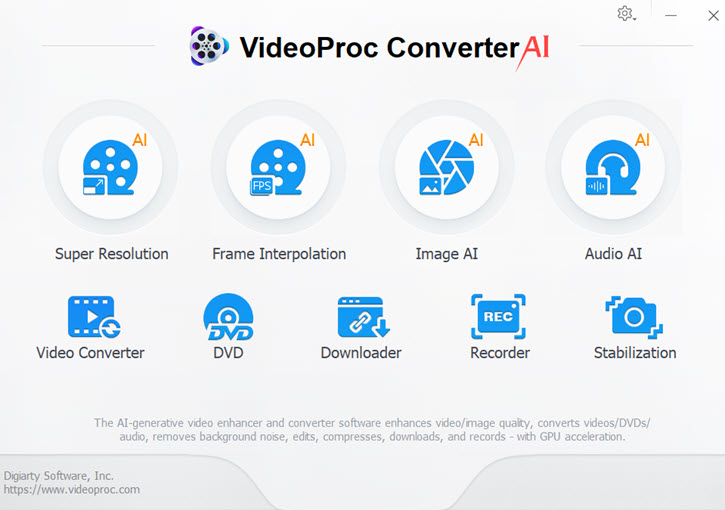
Step 1. Add the video to the program.
Launch VideoProc Converter AI and enable the Compressor tool from the welcome screen. Drag and drop the video into the program.
Step 2. Select YouTube compression settings.
Click the gear icon for the corresponding video to specify your desired file size. You can also adjust settings such as resolution and encoding format.

Step 3. Compress and export.
Click Done to save the changes. Then start compressing for YouTube by clicking the RUN button.
Pros:
- Novice-friendly rich presets for YouTube compression.
- High video compression ratio with various customizable settings.
- 47x faster compression speed with GPU Acceleration.
- Quality-oriented video compression with the Max-Quality Compression Engine.
- Batch compression supported.
Cons:
- Free unlimited use for videos under 5 minutes.
Pro Tips:
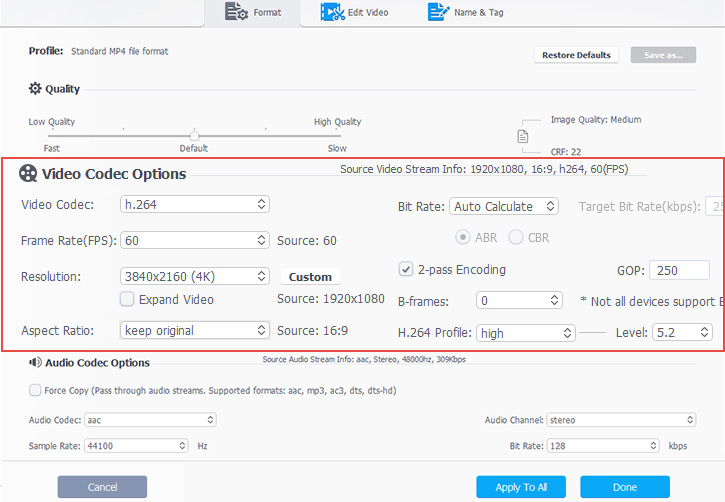
For more precise control, the Video Converter tool on the main interface allows you to adjust parameters such as bitrate, CRF value, bitrate mode (VBR), frame rate, and B-frames.
- Try MP4 with AV1 as the target format, as AV1 requires a lower bitrate for the same quality.
- Lower video bitrate by dragging the Quality slider to the left for a higher CRF number.
- Change video bitrate mode from Auto Calculate (VBR) to Manual, and choose ABR, 2-pass encoding.
- Increase GOP length by entering a bigger GOP size or use the default setting.
- Set video frame rate the same as the input video for a more natural visual.
- Keep the original resolution, or lower video resolution to reduce video size per your needs.
2. Compress Video for YouTube via HandBrake
HandBrake is one of the best programs for video compression on the market. It's free and open source. It integrates many audio and video libraries to process the most common multimedia files. Users can get quick results with various profiles optimized for different devices and platforms, including YouTube. It also offers many basic and advanced options for customizing precise encoding settings.
Follow the steps below to compress a video for YouTube using HandBrake.
- Open HandBrake on your device.
- Load your video file by clicking the Open Source button or drag and drop the file into the program.
- Select a preset for YouTube from the Web drop-down list in the Presets section.
- Go to the Dimensions tab to make sure the Width and Height are set as you want.
- Set FPS the same as source in the Video tab and choose Constant Framerate.
- Adjust quality by dragging the RF slider (optional).
- Set the file name and save path by clicking the Save As button. Manually revise the file extension to .mp4.
- Click the green Start Encode button to start the compression.

Pros:
- Free and open-source program.
- Various YouTube video compression presets.
- Precise compression settings are available with many basic and advanced parameters.
Cons:
- Novices may struggle with its interface.
- A little learning curve with the video encoding terminology.
- The preview function is not convenient enough.
- HandBrake outputs MP4 files with .m4v extensions by default, which need to be revised to .mp4 manually.
3. Compress Video for YouTube via VLC Media Player
VLC Media Player, a free and open-source cross-platform multimedia player, supports lots of audio and video compression methods and file formats. It's not just a media player but a tool that can be used to reduce video file size, making it easier to upload to YouTube without compromising much on quality.
Here's how to compress a video for YouTube with VLC media player.
- If you don't already have it installed, download and install VLC to your device.
- Open VLC and click Media > Convert/Save at the top left corner.
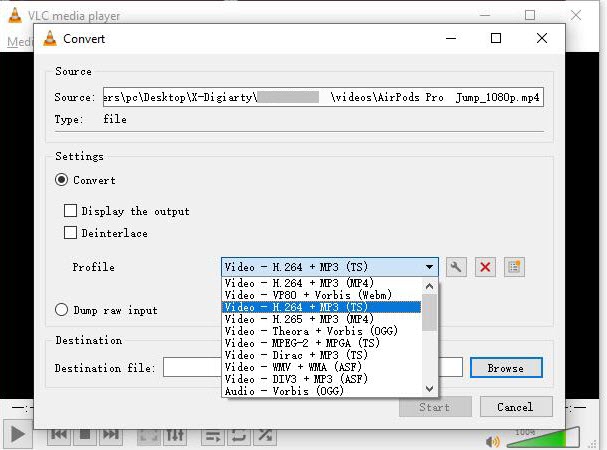
- Click the Add button to select the video file you want to compress. Then click Convert/Save at the bottom.
- Choose a profile and adjust the compression settings in the new window that appears. It's advised to choose H.264 + MP3 (MP4) for YouTube.
- Set the destination file. Then you can click the Start button to commence the video compression.
Pros:
- VLC is cross-platform and available for Windows, Mac, and Linux.
- VLC is a free tool and the steps to compress videos are quite straightforward.
Cons:
- Unlike dedicated video compressors, VLC has limited features in setting the video quality.
- Video quality may be reduced depending on the compression settings.
4. Compress Video for YouTube via Windows Movie Maker
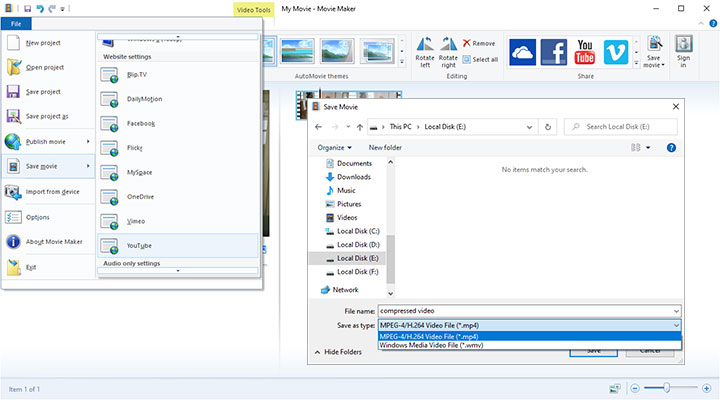
Windows Movie Maker is more of a video editing software rather than a video compressor. But in this case, since Windows Movie Maker provides an export setting for YouTube, you can also use Windows Movie Maker to compress your video for YouTube. Simply put, the whole process is to import your video into the program, then export it in YouTube format, as long as your system is Windows 7 or later, and you still have the program on your computer. In the meantime, you can also make some edits.
The following are the steps to compress video for YouTube with Windows Movie Maker.
- Download and install Windows Movie Maker if you don't have it. Then launch Windows Movie Maker.
- Import your video file by dragging and dropping them into the program.
- Go to File > Save movie from the top menu bar.
- Choose YouTube under the Website Settings section.
- Set file name and save path in the pop-up Save Movie window.
- Select MPEG-4/H.264 Video File (*.mp4) from the Save as type list.
- Click Save to start the process.
Pros:
- Free to use.
- Simple and user-friendly interface.
Cons:
- Only available for Windows users.
- No tech support since the program is officially discounted.
- No advanced compression adjustments are available.
- No support for batch compression.
- The compressed video is relatively large.
5. Compress Video for YouTube via Online Tool
Online video compressors are also great choices to compress video. Most of them are pretty simple to use with no complicated parameter settings. They are especially suitable for occasional uses if you don't want to install any software on your device. Apart from the fact that the compression speed may be affected by your network environment, online compressors work like a charm.
Follow the steps below to compress video online for YouTube with online compressor Clideo.
- Go to https://clideo.com/compress-video in your browser.
- Upload your video by clicking the Choose file button.
- Wait until the video is available for download.
- Save the compressed video to your device.

Pros:
- Web-based and compatible with almost all devices.
- Clean interface with no ads on the page.
- Support uploading from Google Drive and Dropbox.
- Auto compression with no additional operation required, only uploading and downloading.
Cons:
- Time-consuming uploading-downloading process.
- Limits on the file size of 500MB.
- No advanced video compression settings, even video file formats, and codecs.
- Watermark on the output file.
Compressing Video for YouTube: Understanding the Trade-off
When you compress a video to reduce its file size, it's important to understand that some degree of quality compromise is often involved. Compression works by reducing the amount of data, which can impact resolution, clarity, or color detail. This is especially true when aiming for very small files, like those needed for YouTube uploads. However, effective compression doesn't mean your video has to look bad.
The goal is to minimize that quality loss. Achieving a good balance requires using the right settings. Platforms like YouTube have specific recommended encoding settings designed to ensure your video looks its best after their processing. Following these guidelines is crucial for maintaining quality.
The table below outlines YouTube's recommended encoding settings for optimal video quality.
 Tips: Implementing all these settings manually can seem daunting, especially if you're short on time. This is where a tool like VideoProc Converter AI proves invaluable. VideoProc simplifies the process significantly. With preset output profiles specifically tailored for platforms like YouTube, you can simply import your video, choose the preset, and it automatically handles the recommended encoding settings and compression.
| Setting | Recommended Values | Why It's Important |
|---|---|---|
Container |
MP4 |
Widely supported, good quality/size balance for YouTube. |
Audio Codec |
AAC-LC |
High-quality with efficient compression. |
Audio Channels |
Stereo or Stereo + 5.1 |
Standard (Stereo) or better for surround (5.1). |
Sample Rate |
48 kHz or 96 kHz |
48 kHz is often sufficient. |
Audio Bitrate |
128 kbps Mono, 384 kbps Stereo, 512 kbps 5.1 |
Higher bitrate improves quality. |
Video Codec |
H.264 |
Good quality and high compression effeciency. |
Profile |
High Profile |
Best profile for maintaining quality. |
B Frames |
2 consecutive B frames |
Increases compression efficiency without significant quality impact. |
GOP Structure |
Closed GOP. GOP of half the frame rate |
Improves compression and stream stability. |
CABAC |
Enabled |
More efficient compression at lower bitrates. |
Frame Rate |
Same as original video (e.g., 24, 30, 60 FPS) |
Maintain original fps for smooth playback. |
Resolution |
4K, 2K, 1080p, 720p, etc. |
Based on desired quality and size limits. |
Bitrate (for SDR) |
8K: 80-160 Mbps, 4K: 35-45 Mbps, 1080p: 8 Mbps, etc. |
Match resolution/frame rate; higher bitrate preserves quality. |
Bitrate (for HDR) |
8K: 100-200 Mbps, 4K: 44-56 Mbps, 1080p: 10 Mbps, etc. |
Higher bitrates for HDR maintain dynamic range. |
Conclusion
VideoProc Converter AI is highly recommended compressing video for YouTube. It's novice-friendly with rich output presets. Users can finish the video compression process with only one click, while experienced users can still customize multiple parameters for a more precise video compression per their needs. Its Max-Quality Compression Engine will compress your video with the best visual effects.
Feel free to download and have a free trial on VideoProc Converter AI.
FAQ
How Do I Reduce the Size of a Video for YouTube?
There are various ways to reduce the video size. You can compress the video by changing its bitrate, codecs, bitrate mode, GOP size, frame rate, etc. Cutting off the unwanted parts by trimming or cropping the frames can also make the video size smaller.
What Compression Is Best for YouTube?
According to YouTube, the recommended upload encoding settings are H.264 video and AAC-LC audio with the MP4 container. Your video should be encoded in the same frame rate it was recorded. To get the highest quality for playing videos on a computer, the standard aspect ratio is 16:9.
Which Is the Best Video Compressor?
VideoProc Converter AI is the highly recommended video compressor overall, considering the compression speed and output video quality. It compresses your video at 47x real-time faster speed with GPU acceleration technology. Thanks to the Max-Quality Compression Engine, VideoProc Converter AI can reduce video size by about 80% with no visible quality loss.