
Accidentally deleted your videos or emptied the recycle bin before realizing it? Don't panic. This guide walks you through practical and proven methods for permanently recovering deleted videos, whether they're from your camera, phone, drone, or computer. As professionals who work extensively with video files and multimedia tools, we've tested reliable methods and software that can help you restore lost footage safely and effectively, with no deep data recovery expertise required.

What Happens When You Permanently Delete a Video on PC
First, let's clear something up: deleted doesn't always mean gone.
Even when it feels like there's no way to get a video back, there's a good chance the data is still there. You can't see it, but Windows hasn't actually scrubbed it off the drive. It's more like the system took the file's name off the table of contents but left the actual video pages in place.
That's because Windows treats "deleted" space as available, not zeroed-out. The file system just marks that space as open for new stuff. Until new data comes in and overwrites it, your old video is likely still intact.
Now here's where it gets tricky: how long that data sticks around depends on how the drive is used. If we're talking about a mechanical hard drive (HDD), the video might sit untouched for weeks or longer (again, it really depends on how actively the drive is used). The same goes for SD cards. Most digital cameras don't instantly destroy data when you delete a clip or format the card.
On a solid-state drive (SSD) with TRIM enabled, things work a little differently. The system may wipe that space clean almost immediately after deletion, so your chances of recovery drop.
What to Do First (to Give Yourself Better Chances)
The moment you realize a video is gone, stop using the storage where it lived. That means no new downloads, no installs, no copying files to it. Every new file puts your deleted video at risk of being overwritten.
Now, if you have already used the storage after deletion, recovery is still possible - it's just that your chances might be lower. We've seen plenty of cases where videos were still recoverable days (weeks) later.
But for the best odds, less is more. The less that drive's been touched, the cleaner the deleted video recovery will be.
How to Restore Deleted Videos with Data Recovery Software
Now let's get to the practical steps. We're jumping straight into video recovery software tools because, in our experience, most people already know to check the Recycle Bin. You've probably done that too, maybe more than once. So we won't spend time telling you to do the obvious:
- Open the Recycle Bin.
- Search your PC in File Explorer (the video may be misplaced, not deleted).
- Check the Videos and Downloads folders.
If you haven't checked those, definitely do that first.
But if those options turned up nothing, it's time to bring in the real tools. Video recovery software doesn't rely on your system's file index; it scans the raw storage for traces of deleted videos, even if they're not listed anywhere your OS can see. And in most cases, this is your best shot at getting the video back in one piece. Let's walk through what tools we trust.
Which Video Recovery Tool to Choose
Over the years, we've tested just about virtually every feasible recovery tool that claims to work with deleted videos. You've probably seen dozens of options on Google. Here are a few popular tools we've actually used and still recommend, along with a quick breakdown of how they stack up:
| Tool | Ease of Use | File Format Support | Preview Before Recovery | Best For | Notes |
|---|---|---|---|---|---|
Disk Drill |
★★★★★ |
Excellent (MP4, MOV, AVI, and many more) |
Yes |
Beginners & pros |
Clean UI, works with internal drives and SD cards, great previews and video recovery results |
Recuva |
★★★★☆ |
Good for basics |
Yes (limited) |
Quick recoveries from healthy PC drives |
Free, fast, but not always reliable with larger or fragmented video files |
PhotoRec |
★★★☆☆ |
Excellent (signature-based) |
No |
Advanced users, raw SD card scans |
Powerful, but no GUI, can feel clunky. Can recover from wiped or damaged media |
Stellar Data Recovery |
★★★★★ |
Solid coverage |
Yes |
Beginners |
Slower scans, pricier plans, but good results on damaged partitions |
R-Studio |
★★★☆☆ |
Extremely broad |
Yes |
Tech-savvy users |
Not for beginners, but can recover video files from tough cases (RAID, corrupted file systems) |
All of these tools can get the job done; each has strengths depending on the scenario. But for this walkthrough, we're going to use Disk Drill as the demo.
- First, it's super easy to use. The interface is clean, and it doesn't throw technical jargon at you.
- More importantly, it has reliable preview features, which is critical for video recovery. You want to see that the video plays before you restore it. And it makes that part smooth.
- It also consistently delivers solid recovery results in our tests.
- Plus, the optional Advanced Camera Recovery mode gives it an edge when working with media from digital cameras.
How to Use Video Recovery Software
So let's walk through how to use Disk Drill to recover deleted videos on PC:
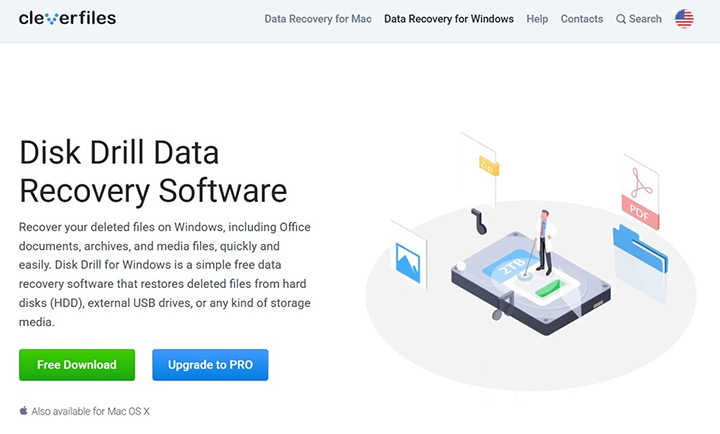
- Download Disk Drill from the official CleverFiles website. If you're on Windows 10 or 11, you should get the latest version (Disk Drill 6). If you use Windows 7, 8, or 8.1, scroll down to find version 4.5.
- Open the installer from your Downloads folder. When prompted, install Disk Drill to a drive other than the one that held your deleted videos. This avoids overwriting the files you're trying to bring back.
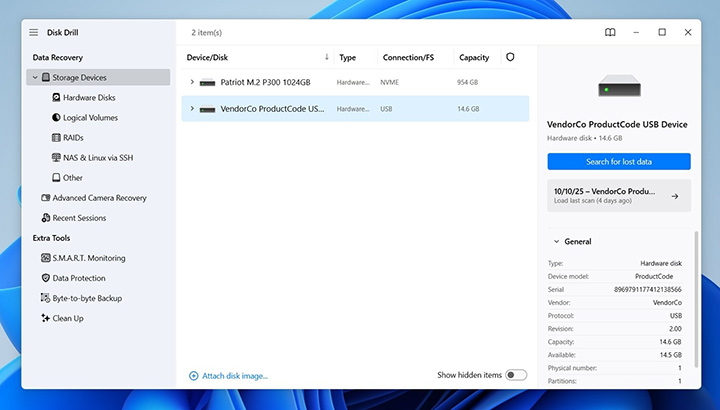
- Launch it. The main screen will show all your connected drives. Find the one where your video was before it got deleted and select it.
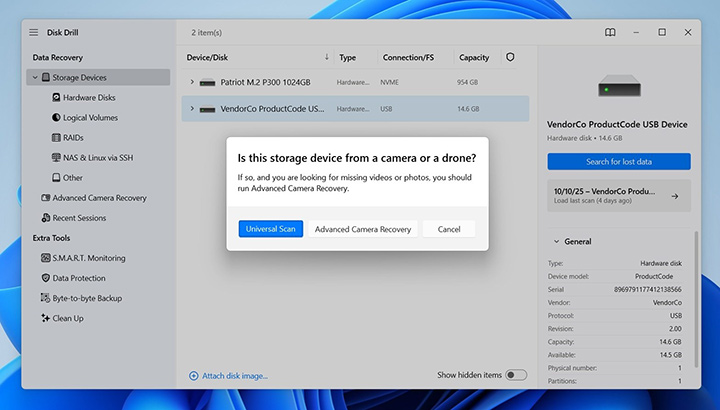
- Click "Search for lost data." Disk Drill will begin scanning the drive. If you selected an SD card or camera device, it might ask whether you want a Universal Scan or Advanced Camera Recovery. For typical PC drives, stick with Universal Scan. For camera SD cards, try Advanced Camera Recovery (it works better for large, fragmented files).
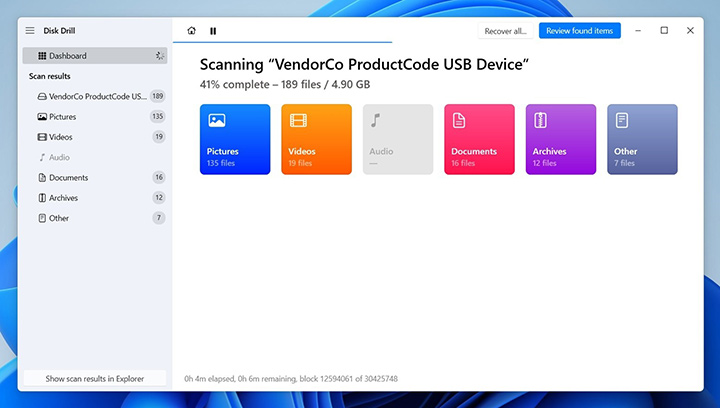
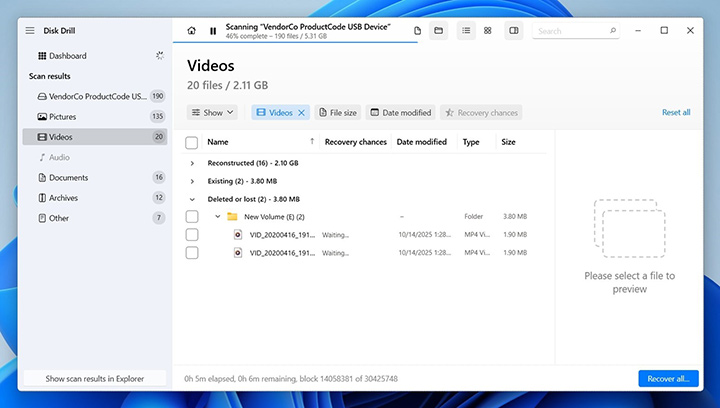
- As Disk Drill finds recoverable files, it organizes them by type. Click on Videos to see only video files. You can start browsing and previewing results while the scan runs.
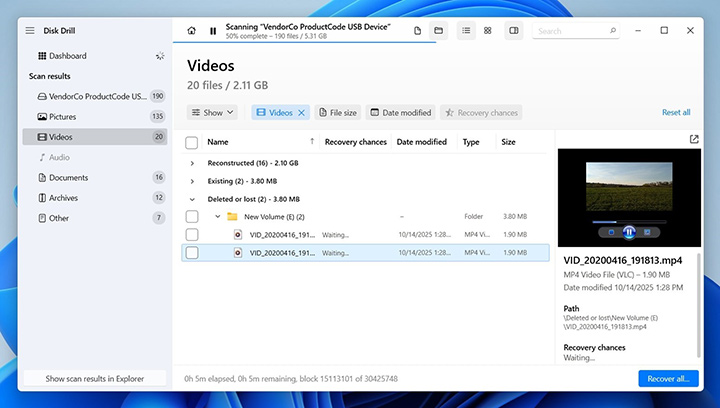
- From here, you can filter by video format (MP4, MOV, AVI), search by filename, and toggle between views. You'll see files labeled as "Deleted or Lost" and "Reconstructed." Both may contain usable deleted videos.
- Click on a filename to load the preview. If the video plays, that's a 100% sure sign the file is recoverable. The app also shows a recovery chance (High, Average, or Low) based on the file's condition.
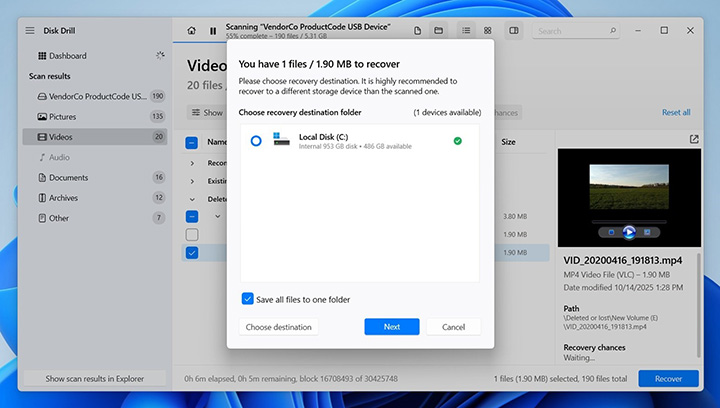
- Select the videos you want to recover and click "Recover."
- Choose a recovery destination on a different drive than the source. Never save recovered files back to the same drive you're recovering from. We repeat this again and again for a reason - it's one of the easiest ways to accidentally overwrite the very files you're trying to get back. Disk Drill's free version lets you recover up to 100 MB on Windows. That's usually enough for several short clips or a full-length video in standard quality. There's no limit on how many times you can scan or preview.
When recovery finishes, open the destination folder. Test each video to make sure playback works and nothing looks corrupted.
On computers that haven't been heavily used since the deletion, we often see good results. People regularly retrieve deleted videos they thought were long gone.
What About Built-in Video Recovery Tools?
Windows and macOS don't come with native video recovery tools. There's no built-in utility that lets you scan your drive and restore deleted videos the way you might expect.
Windows File Recover is the closest thing, but even that isn't built-in. It's a Microsoft-made tool you have to download from the Microsoft Store. And while it technically works, we don't usually recommend it.
Its recovery performance is, to put it mildly, modest. There's no visual interface, no previews, and it mostly works with NTFS drives and files that were deleted recently. If you're trying to bring back large, fragmented videos (or anything from an SD card) it's not the best choice. There are better tools out there.
How to Get Back Deleted Videos with Backup Features
Although Windows and macOS don't include built-in data recovery tools, there are a couple of built-in backup features that can help you get back deleted videos (only if they were enabled ahead of time).
In this section, we'll focus on two that often work in real life: File History on Windows and Google Drive. These don't dig through deleted fragments like recovery software, but they're often the simplest way to restore clean, working copies.
Method 1: Use File History
File History is a built-in backup feature that quietly saves copies of your personal files in the background. It first showed up in Windows 8 and remains one of the easiest ways to restore permanently deleted video files on Windows 10/11.
Now, there's one important catch: File History only works if it was turned on before you lost the video. If you never set it up, this method won't help. And even if it was running, by default it only backs up key folders like Desktop, Documents, Music, Pictures, and Videos (anything in your Libraries folder). So if you stored the video in some random folder on another drive, you had to manually include that location for File History to cover it.
How to restore deleted videos with File History:
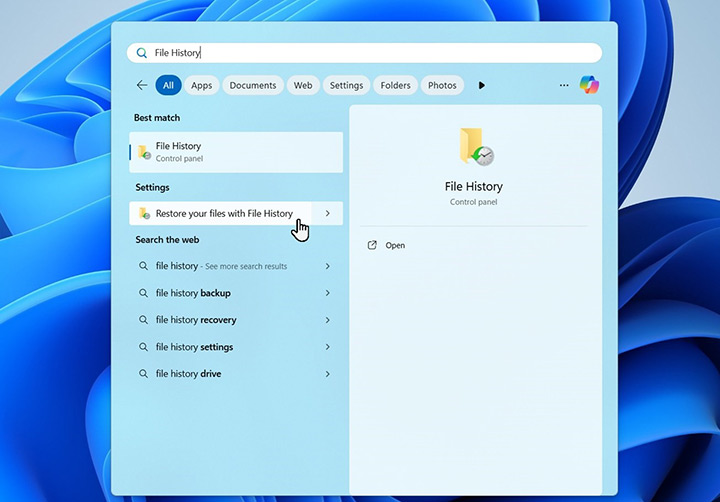
- Open the Start Menu and type File History.
- Select "Restore your files with File History."
- Browse through the backed-up folders. Navigate to where the video used to be.
- Select the file version you want, then click the green restore button at the bottom center.
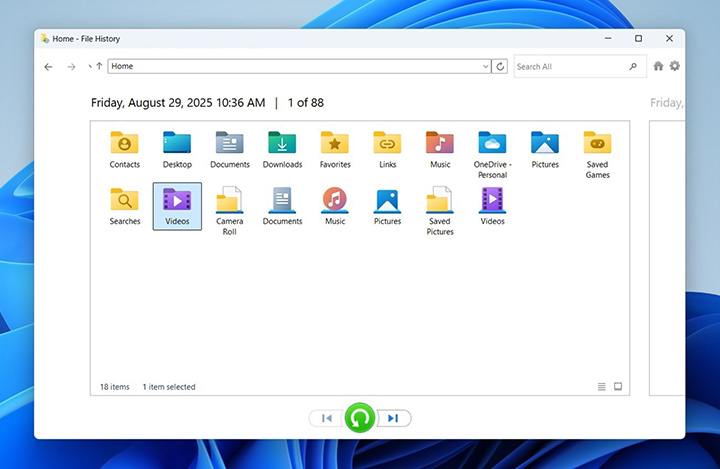
It saves multiple versions of your files. So you might recover an earlier version even if the most recent one's gone. If you had it running, File History can bring back deleted videos with zero effort. All usually happens with a single click.
Method 2: Restore from Cloud Backups (OneDrive, Google Drive, Dropbox)
If File History wasn't running, your next best bet might be the cloud (if your videos were in a synced folder).
Windows has built-in integration with OneDrive, and many people also use Google Drive or Dropbox without realizing they've got an extra safety net. These services often sync your files in the background, which means a deleted video might still exist in the cloud, even if it vanished from your PC.
This is especially true for Google Drive. Here's what tends to happen: If a video file was stored in a synced folder and you delete it permanently from your computer, it may simply get unsynced. The file disappears locally (even from the Recycle Bin), but it can still sit in the Google Drive Trash for up to 30 days before being auto-deleted.
How to find deleted videos in Google Drive Trash:
- Open Google Drive in your browser.
- In the left-hand sidebar, click on Trash (you may see it labeled as Bin depending on your region).
- Browse through the list or use the search bar to look for the deleted video by name or file type.
- Once you find the video, right-click on it.
- Select Restore.
- The file will be moved back to its original folder in your Google Drive.
- If your computer syncs with Drive, the restored video will reappear locally on your PC.
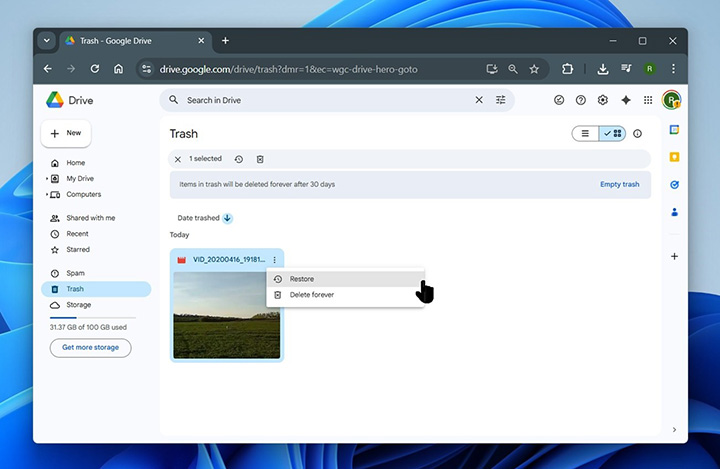
If you use any other cloud backup or sync service, it's absolutely worth checking those as well.
How to Restore Deleted Camera Videos
If we're talking about videos deleted straight from a digital camera, like a DSLR, action cam, drone, or camcorder, there's usually no backup unless you've set one up manually. Most cameras don't sync with the cloud unless you're using a model with built-in Wi-Fi and a connected backup service (some Canon models do this, for example). For everyone else, recovery depends on what's left on the memory card.
The first step is to remove the SD card (or microSD with adapter) and connect it to your PC. From there, you'll want to scan it using the same recovery steps we outlined earlier. Video recovery software will recognize the card as a separate drive.
But here's where things get interesting: many tools often fall short with camera video recovery, not because the files are gone, but because they're fragmented.
Why Typical Recovery Sometimes Fails with Camera Footage
Many recovery apps claim they support GoPro, drone, and camera video, but in practice, they only offer generic "undelete" tools. That's not enough.
Cameras like GoPro, DJI, Canon, Sony, and Blackmagic often record in fragmented chunks, especially with 4K footage, dual-resolution streams, GPS metadata, or when the recording spans multiple file segments. When you delete that footage, the fragments are still there, but most software doesn't know how to reassemble them.
You'll need something more targeted for this kind of case. That's why we mentioned Advanced Camera Recovery mode in Disk Drill. In our experience, it's one of the best features for video recovery. It's the first consumer-grade tool we've seen that can actually reconstruct fragmented multimedia files properly. ACR scans the full card, locates scattered video, audio, and metadata fragments, then rebuilds them in the correct order, even when the original file structure is severely broken.
If you already scanned for deleted videos using other tools or basic scan modes, definitely give this one a try next. It's built for exactly these tough camera recovery cases.
Wrapping Up
Everything we've covered above should be enough for 9 out of 10 recovery cases. As long as the storage wasn't heavily used after deletion and you used the right tools, there's a solid chance of getting that video back.
But before we wrap this up, we want to clear up a few things we hear all the time. Video recovery is full of misunderstandings, half-truths, and outdated advice, so let's take a minute to answer some common questions people ask us when trying to recover deleted videos.
FAQs
Does the format of my video matter for recovery?
It does, but probably not in the way you think. Some formats, like .mp4 or .mov, are more complex and can break easily if parts of the file go missing. If even a small chunk is overwritten, the entire video might not play. Others, like .avi, tend to be a bit more resilient in recovery.
The other factor is fragmentation. Footage from action cameras or drones often gets saved in pieces. Even if the format is supported, simpler recovery tools can't always stitch those fragments back together.
So yes, video format plays a role, but recovery depends more on how that video was saved and what's left on the drive after deletion.
What if I don't see a preview of my video in the recovery tool? Does that mean it can't be retrieved in working condition?
Not necessarily (but it's not a great sign). If the recovery software doesn't show a preview of the video, it usually means part of the file is missing or damaged. Most tools can only preview files that are structurally intact enough to play, even in a basic form.
Also, most recovery tools rely on your system's built-in video player or whatever third-party codecs you have installed. If your PC doesn't have the right software to play that specific format, you might not see a preview - even if the file is technically fine.
So before you give up:
- Recover the file anyway and try to play it in VLC Media Player (which supports more formats than most default players).
- If it won't play, try running it through a video repair tool or re-encode it.
No preview doesn't mean no hope.
What if I recovered a deleted video file, but now it won't play?
That happens often. If the video won't open or crashes your player, it usually means the recovery wasn't complete. Even if the filename and size look right, parts of the file might still be missing or corrupted, especially with large, high-resolution videos or footage saved in fragments (like from GoPro, DJI, or Canon cameras).
Here's what you can do:
- Try another recovery tool. If you used something like Recuva, switch to a more capable option like Disk Drill. Its Universal Scan is much more powerful than basic recovery tools, and if you're dealing with camera footage, the Advanced Camera Recovery mode is built specifically to reconstruct fragmented video that other tools miss.
- Use a video repair tool. Sometimes the header or metadata is broken, but the actual video data is there. You can try a free service like Clever Online Video Repair - it's browser-based, quick to test, and works well with MP4, MOV, and other common formats. Another option is to re-encode the file using VideoProc Converter AI, for example. It won't fix every issue, but in some cases, that's enough to make the video playable again.
Is it possible to restore files directly on my device, or do I always need to recover deleted videos on PC?
You might be able to recover videos directly on your mobile device, but don't count on it.
Most phones, tablets, and cameras don't support true recovery tools. You'll find plenty of mobile apps that claim to "recover deleted videos," but they're usually limited to cached thumbnails, recent deletions, or files still in a trash bin. To be truly effective, these apps need root access (on Android). And most people don't have rooted devices, and for good reason. Rooting comes with risks like security issues, voided warranties, and system instability.
If the videos were truly deleted - removed from a camera's SD card - you'll need a computer to scan that card directly. That's your best shot at recovery.
Can I restore deleted camera videos by simply connecting my camera to a computer with USB?
Usually not. When you connect your camera to a computer via USB, it often shows up as a media device (MTP), not a regular storage drive. That means recovery software can't access the card directly, so they can't scan it properly. You might not even see the drive letter needed to start a recovery.
For the best results, remove the SD/microSD card from the camera and connect it to your computer using a card reader. This gives the recovery tool full access to the storage. Some cameras do offer "mass storage" USB mode (like older Sony or Canon models), but it's now rare, and not always reliable.
Long story short: pull the card out and scan it directly. It's the best option.