
 Upgraded AI Performance in V8
Summary: This post walks you through how to convert MKV to MP4 using HandBrake, explains key settings, and helps you avoid common mistakes so you can use HandBrake to successfully convert your MKV files for smooth playback on any device.
Ever hit play on a downloaded movie or TV show, only to be met with a frustrating 'unsupported format' error on your phone, tablet, or TV? Chances are, that video is an MKV file. While MKV is a versatile container, its broad capabilities often mean it's not universally supported across all devices. That's precisely why converting MKV to MP4 is essential. MP4 is the widely compatible format that ensures your videos play smoothly on virtually any device you own. For this kind of job, HandBrake is a popular pick—it's free, open-source, and gets the job done well. This post will walk you through the detailed steps of converting MKV to MP4 using HandBrake.
- HandBrake is a free and open-source video transcoder that allows you to convert videos to MP4/WebM/MKV.
- HandBrake requires re-encoding the media streams when turning MKV to MP4, which always lead to quality loss.
- New users may face a steep learning curve and require some trial and error to achieve desired results with HandBrake's extensive settings.
- HandBrake conversions can be noticeably slow - particularly with 4K videos - cause it relies heavily on CPU processing.
- For an easier and quality-preserving solution that avoids re-encoding where possible, consider VideoProc Converter AI.
Understanding MKV and MP4: Why HandBrake Steps In
Before we dive into the conversion process, let's briefly understand what MKV and MP4 are and why converting between them is sometimes necessary.
MKV (Matroska Video): MKV is a flexible container format that can hold various video and audio codecs, as well as subtitles and other metadata. It's often used for high-quality video rips and is popular in the anime and fan-subbing communities.
MP4 (MPEG-4 Part 14): MP4 is a widely supported container format known for its efficient compression and compatibility across a vast range of devices, media players, and online platforms.
So, why convert with HandBrake?
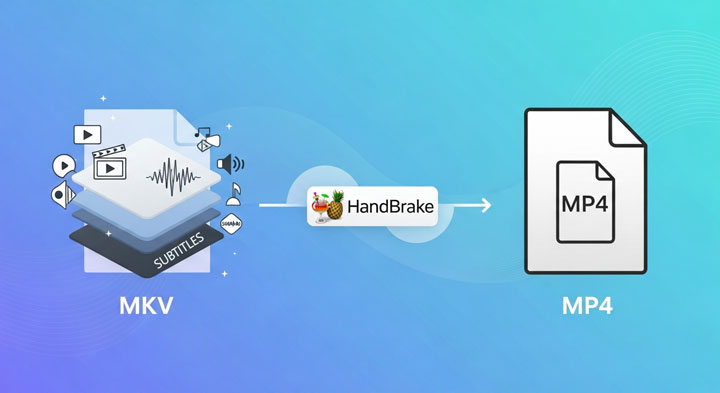
When your MKV files encounter playback issues due to their versatile but often unsupported internal codecs or container, HandBrake steps in. Its primary function is to re-encode the video and audio streams from your MKV file into new, more compatible formats (like H.264 video and AAC audio) and then place them into an MP4 container. This process ensures your videos achieve broad compatibility across devices, allows for optimized file sizes, and standardizes codecs for reliable playback, making your content accessible wherever you go.
Limitations of HandBrake for MKV to MP4 Conversion
While HandBrake is a go-to tool for many, its specific operational design presents critical limitations for MKV to MP4 conversions that often frustrate users, ranging from forced re-encoding to inconsistent quality presets.
1. No Simple Remuxing
The most fundamental limitation is that HandBrake cannot remux; it only re-encodes. This means it never performs a simple, lossless copy of the video and audio from the MKV container to an MP4. For users who simply want to change the container for compatibility—a process that should take seconds—HandBrake forces a full transcoding process. This is a deal-breaker for those who wish to preserve the original video and audio streams without any alteration.
2. Quality as a Moving Target
Achieving the desired video quality with HandBrake requires more than just selecting a preset. While the "1080p30" preset may work well in many cases, it can sometimes produce videos with noticeable stuttering, poor quality, or pixelation. Finding the optimal settings for each source file requires experimentation and a deeper understanding of video codecs and encoding technology, making it a challenge for users who expect consistent, reliable results from a simple preset.
3. Audio Sync Issues and Fidelity Loss
Audio problems are another frequent complaint. Source files with a variable frame rate (VFR) can cause the audio to drift out of sync in the final MP4. While HandBrake's "Constant Framerate" option is meant to fix this, it doesn't always work. Furthermore, users report that high-fidelity audio streams can lose a slight but perceptible degree of quality during the mandatory transcoding.
4. A Bottleneck in Performance
HandBrake's mandatory re-encoding often leads to a performance bottleneck, especially when modern hardware is capable of faster processing. Unlike HandBrake, VideoProc Converter AI leverages full Level-3 GPU hardware acceleration, enabling it to transcode files up to 47x faster while keeping CPU usage at just around 2%. This makes HandBrake feel slow, with long waits and poor use of your computer's power, often causing freezes during heavy conversions.
5. Lacks Modern Features
Compared to newer software, HandBrake is missing advanced capabilities. It lacks features that are becoming standard elsewhere, such as AI-powered video upscaling, sophisticated noise reduction, or integrated video editing tools, making it feel dated for more demanding tasks.

HandBrake's Limitations Holding You Back? Switch to VideoProc
- Losslessly remux MKV to MP4 in seconds (No forced re-encoding any more).
- Up to 47x faster transcoding, powered by the level-3 GPU acceleration tech.
- With a user-friendly UI and flexible customization, it suits all experience levels.
- Full control over subtitles: keep, extract, download, and add subtitles, etc.
- All-in-on: rip encrypted DVDs, AI enhance media quality, download videos…
 Excellent

How to Convert MKV to MP4 with HandBrake in Easy Steps
Despite its limitations, HandBrake remains a popular choice for many users. Here's how to convert MKV to MP4 using HandBrake:
Step 1. Install HandBrake
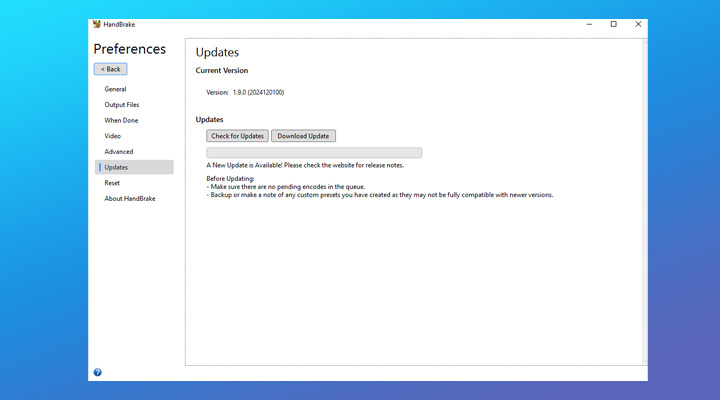
Download the latest version of HandBrake from the official website: https://handbrake.fr/. If you already have HandBrake installed, you can check for updates by clicking Preferences > Updates and then Check for Updates. If a newer version is available, click Download Update and follow the on-screen instructions to install it.
Step 2. Import Your MKV File
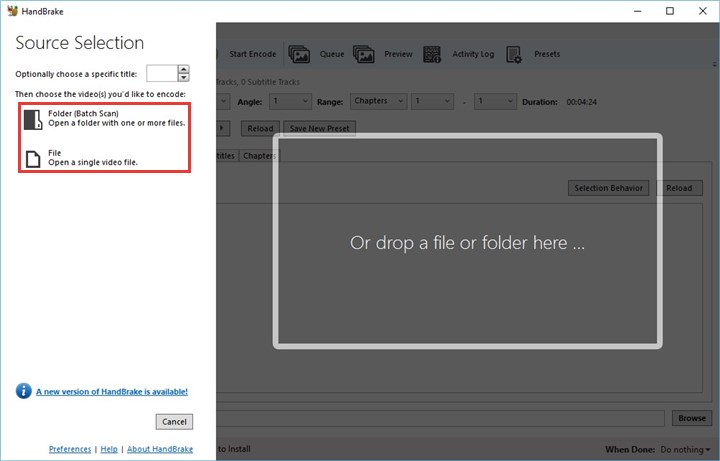
Launch HandBrake and click "Open Source" to select the MKV file you want to convert. Alternatively, you can drag and drop your sourece MKV file for adding to this free video converter.
Step 3. Configure the Conversion Settings
In the "Preset" panel, select an MP4 preset that suits your needs. If your original video is 1080P, the "Fast 1080p30" preset is a good starting point for most users. "Super HQ 1080p30 Surrounded" often brings better quality but results in a much slower conversion time.
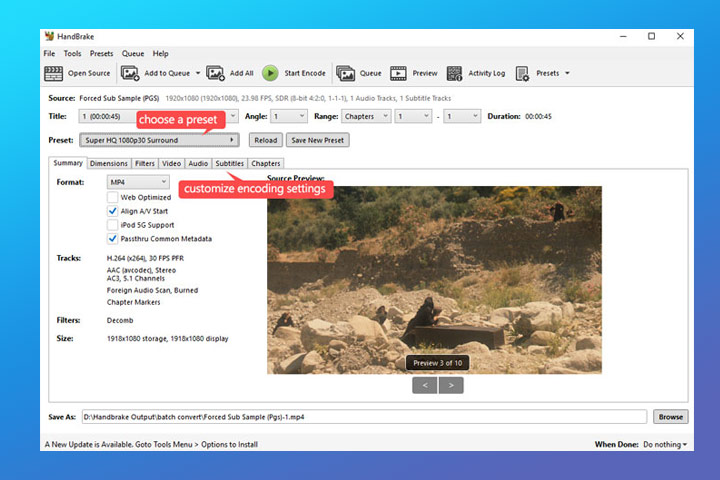
✍️ Tips: Customize the Encoding Settings:
- Codec: Ensure the video codec is set to H.264 (x264) for broad compatibility.
- Frame Rate: In the "Video" tab, it's generally best to keep the frame rate "Same as Source".
- Bitrate: In the "Video" tab, adjust the bitrate. Higher bitrates result in better quality but larger files.
- Audio: In the "Audio" tab, select an audio codec (AAC is recommended) and adjust the bitrate/sample rate.
Step 4. Start the Encoding Process
Click Browse and specify where you want to save the converted MP4 file. Click the "Start Encode" button to begin the conversion from MKV to MP4. The progress bar will show the estimated time remaining.
Bonus: Potential Issues and Troubleshooting Tips:
You might occasionally encounter issues during the MKV to MP4 conversion process via HandBrake. Here are some common problems and quick solutions to help you get back on track:
1. Audio Sync Problems
If the audio is out of sync, try adjusting the audio delay settings in the "Audio" tab.
2. Error Messages
Consult the HandBrake documentation or online forums for solutions to specific error messages.
3. Missing Subtitles
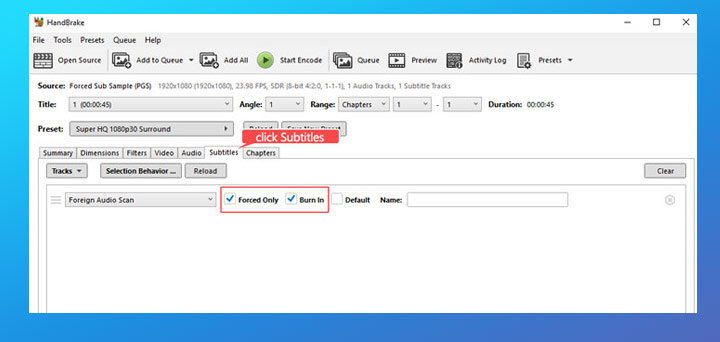
If the needed subtitle isn't kept, go to the "Subtitles" section and select the required subtitle track. For instance, if your original video comes with a PGS subtitle, ensure the PGS subtitle track is selected.
Try the Best HandBrake Alternative for MKV to MP4 Conversion
HandBrake is undoubtedly a powerful tool, especially considering it's free. However, its complexity and the time required to learn its intricacies can be a barrier for many users. Moreover, HandBrake doesn't support simply "remuxing" MKV to MP4 without re-encoding. This can lead to quality loss and significantly longer conversion times. For users who need an easier, higher-quality, and faster way to convert MKV to MP4, or more specifically, to remux MKV to MP4 with original quality, VideoProc Converter AI is a superior alternative.
Why Should You Use This Best Alternative to HandBrake for MKV to MP4 Conversion
- 1:1 Remux MKV to MP4 in seconds, keeping the original video and audio quality.
- Transcode even large 4K videos at up to 47x real-time speed using full GPU acceleration.
- With 370+ input and 420+ output formats, convert any video to any format you need.
- One-click presets for devices/platforms, or granular control for full customization.
- Built-in AI tools to upscale, stabilize, and enhance the quality of your videos.
- All-in-one: Also a capable media downloader, screen recorder, and DVD ripper, etc.
How to Convert MKV to MP4 with the Best HandBrake Alternative:
Step 1. Import Your MKV Files
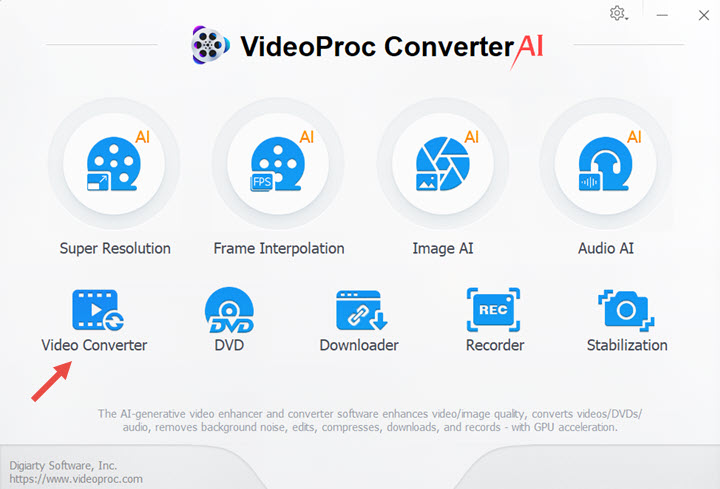
Download and install VideoProc Converter AI. Launch the application. Click "Video Converter" and then drag your source MKV files into the program.
Step 2. Choose the Output Format
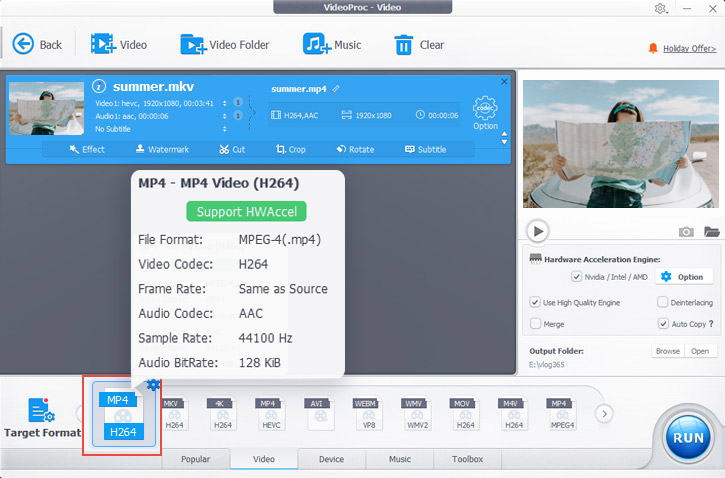
Go to the "Target Format" section, and choose an MP4 output option. MP4 H.264 and MP4 HEVC are two of the most recommended selections.
💡 Tips:
- Choose the subtitle track needed from the video bar.
- If needed, you can also select "Target Format" and choose other MP4 output options. You are also allowed to choose the target platform or devices; it can automatically convert your MKV file to the best format suitable for playing on the target places.
- If you need to customize the output encoding settings, click the "Codec" option, and then you can adjust the codec, resolution, and more.
Step 3. Turn MKV to MP4
Hit "RUN" to convert MKV to MP4 with original quality at lightning speed.
💡 Tips:
To remux MKV to MP4 without transcoding: Simply choose an output format with the same codec as the original. For example, if your original MKV is H.264 AAC, then choose MP4 H.264 AAC. After that, just check "Auto Copy", and click "RUN". VideoProc Converter AI will remux MKV to MP4 in seconds, with the original quality.
FAQs
1. How long does HandBrake take to convert MKV to MP4?
The conversion time depends on the file size and your system's performance. In my case, converting a 2-minute MKV video to MP4 using the "Super HQ 1080p30" preset took about 6 minutes. Generally, smaller files will convert faster, while larger files or more complex settings can increase the processing time.
2. Is HandBrake free to use for MKV to MP4 conversion?
Yes, HandBrake is completely free and open-source software. It allows you to convert MKV to MP4 without any hidden fees or limitations.
3. Does HandBrake preserve video quality when converting from MKV to MP4?
It's possible to convert MKV to MP4 with good quality, but it's not always easy to achieve. You need to understand settings like bitrate and resolution and make careful adjustments based on your priorities. By making informed trade-offs between file size and quality, you can improve the chances of maintaining a good balance during the conversion.