

Summary: This post explains how to download a Loom video directly with a Business plan or higher, as well as how to download any Loom video without a Loom subscription!
Ever wish you could download a Loom video for offline use, easy sharing, or editing? You've come to the right place. Loom is great for recording meetings and presentations, but sometimes you need more. Whether it's backing up important information, reviewing training materials, or avoiding data loss due to platform restrictions, downloading your videos gives you full control. In this guide, we'll show you how to quickly and easily download your Loom videos, so you can access and manage your content on your terms.
Is It Possible to Download Loom Videos Directly
Yes and no. Loom does have a built-in download function, but it's only available to paid plans. Only admins (who manage the workspace) and creators (who make the videos) can download them. Regular members, viewers, and users on free plans cannot download videos. If you're looking for a foolproof way to download any video on Loom, VideoProc Converter AI is the solution. This all-in-one video downloader and enhancer lets you download videos from 1,000+ sites, including Loom, Vimeo, BitChute, and YouTube.
Download Your Loom Video (Subscription Required)
Loom offers the ability to download videos as MP4 files, but this feature is only available on Business plans or higher. Yep, you heard that right. Even if you created the video, you can't download it without a Business plan or above. The Business plan costs $18 per month, or $15 per month if paid annually. Still pretty steep, right? But since this section is all about downloading Loom videos with Loom's built-in feature, let's dive into how you can do that.
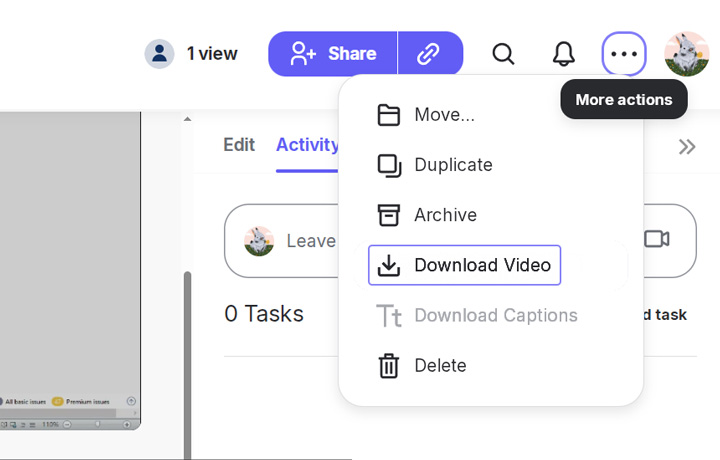
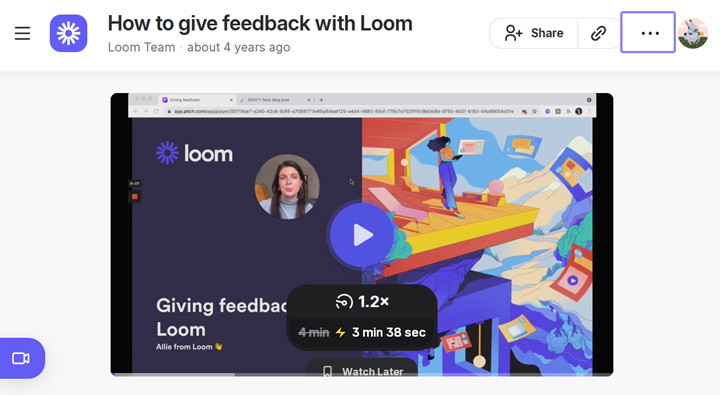
Step 1. Go to your Loom video in your Library and click the three dots (...) above the video.
Step 2. Select Download from the dropdown menu. Your browser may prompt you to choose a location to save the file. If not, it will automatically save to your default download folder.
Note:
If you see the message "Polishing pixels", it means the video is still being processed. Just give it a moment, and it'll be ready to download.
Download a Loom video Created by Others (Subscription Required)
Now, a quick reminder: Only Loom Business plan subscribers or higher can download videos. Even if you're on a paid plan, whether you can download depends on both your plan and your role within Loom. Here's a quick guide on who can download Loom videos using Loom's built-in feature:
- Business/Business+ AI Plan: Both admins and creators can download videos.
- Education Plan: Only admins have the ability to download videos.
- Enterprise Plan: Both admins and members can download videos.
Make sure you meet these requirements. If you do, follow these steps to download the Loom video. If not, you may need to try an alternative method.
Step 1. Enter the Loom link in your browser to open that Loom video. In the bottom-right corner of the video, look for the three stacked dots (⋮). Click on them to open the options menu.
Step 2. If the person who uploaded the video enabled downloading, you'll see the Download option in the menu. Click it.
Step 3. Depending on your browser settings, you may be asked where to save the file. Otherwise, it will be automatically saved to your default download folder.
How to Download Any Loom Video without a Loom Subscription
Want to download any Loom video you come across, including those from others who haven't enabled the download option? Or perhaps you want to know how to download Loom videos even when the download button is greyed out? The best solution is to use the free video downloader in VideoProc Converter AI, a multimedia toolkit recommended by trusted sites like Trusted Reviews, Tech Advisor, and TechRadar. VideoProc Converter AI allows you to download any Loom video you see, whether you're on a free or paid account. You can download videos from both your own content and others' content, regardless of your role.

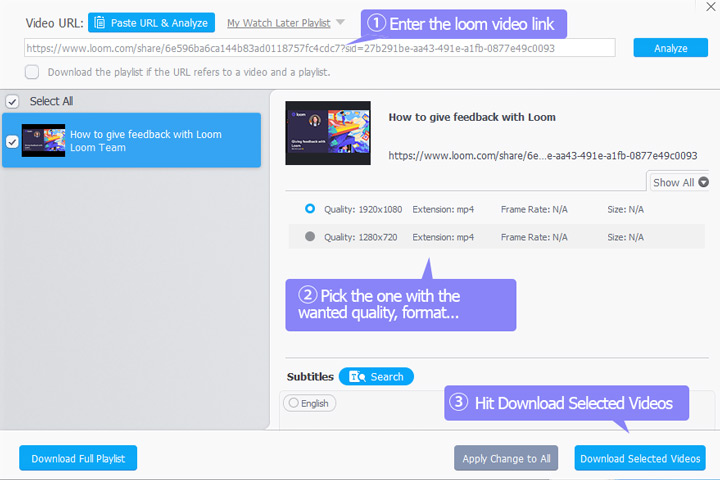
Step 1. Download and install VideoProc Converter AI. Click the Downloader icon to open the online video downloader.

Step 2. Paste the link of the Loom video onto the search bar. Click the Analyze button. This robust video downloader starts to fetch the Loom video from that link.
Step 3. VideoProc Converter AI can find all the downable version of that Loom video. You can choose the one with your favorite resolution, format, and size to download.
Step 4. Hit Download selected videos. And then hit Download now on the main interface to start downloading Loom videos.
Tips:
After downloading a Loom video, there's a lot you can do to take it to the next level. For instance, you can upscale and enhance the quality to 4K, make quick edits like trimming, cutting, cropping, or adjusting the playback speed, and even convert the video to over 420 different formats to suit various needs, whether that's reducing file size or improving compatibility.
Troubleshoot Download Loom Video Directly
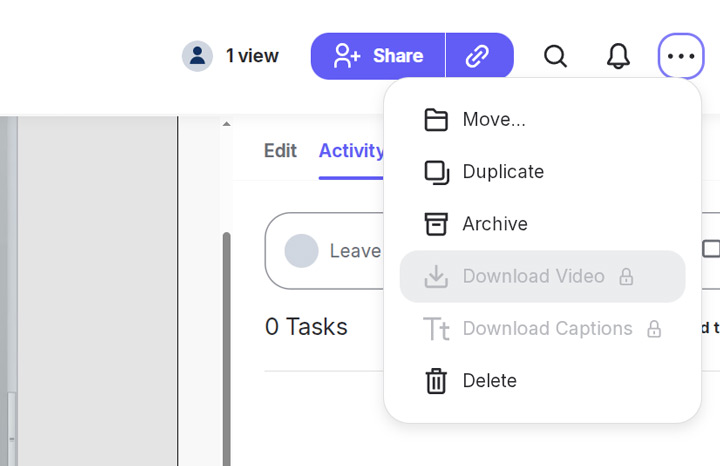
1. Download Button Is Greyed Out
If the download button is greyed out, it means you're not allowed to download that video through Loom. To use Loom's native download feature for your own recordings, you need to be on the Business plan or higher. Downloading videos created by others has more restrictions. Additionally, Loom doesn't allow downloads for videos over 20GB. If the download button is unavailable, you'll need to explore alternative methods.
2. Video Downloaded but Not Playing
Issue: After you've downloaded the video, it won't play.
Solution: This might be an issue with your video player. Try using a different player or updating your current one. VLC Media Player is a popular choice that supports a wide range of formats.
3. The Downloaded Video Look Stretched Out
Loom's native player automatically adjusts the video to a 16:9 aspect ratio (1280 x 800) for a proportional display. However, when you download the video, it retains the original aspect ratio it was recorded in. If the video was recorded in a non-standard aspect ratio, it may appear stretched. To avoid this, you'd better to set your screen resolution to a 16:9 ratio before recording.
FAQ
Can I Download All Loom Videos?
If you're using Loom's native download feature, the answer is no. Videos with variables can't be downloaded, and for Loom meeting recordings, only the meeting organizer can download the video. Additionally, videos over 20GB (about 3 hours recorded in 4K) can't be downloaded directly. For larger files, you'll need to contact Loom support for assistance.
However, if you're using a professional video downloader like VideoProc Converter AI, the answer is yes—you can download any video, including those that would normally be restricted.
Why Does My Downloaded Video Look Stretched Out?
Loom's web player adjusts videos to fit a 16:9 aspect ratio (1280 x 800), but the downloaded video will retain its original aspect ratio. If the video was recorded in a non-standard ratio, it may appear stretched. To avoid this, consider setting your screen resolution to a 16:9 ratio before recording.