
 Upgraded AI Performance in V8
For anyone diving into the world of digitizing physical media, MakeMKV and HandBrake are names you'll inevitably encounter. Deciding between these two powerful tools can be tricky, especially for beginners in DVD and Blu-ray ripping. Both tools are crucial for digitizing DVDs and converting video formats, and they share many common functions. However, their focus differs slightly, which can lead to some confusion for those unfamiliar with their specific strengths.
MakeMKV specializes in creating perfect digital copies of your DVDs and Blu-rays. It focuses on lossless ripping. HandBrake, however, is a versatile video transcoder that excels at compressing and converting media into various formats, making it ideal for optimizing files for different devices.
In this guide, we'll explain what each tool does best, how they fit into your media workflow, and help you decide which one suits your needs.
Looking for a Better Alternative to MakeMKV and HandBrake - Try VideoProc
Both MakeMKV and HandBrake have limitations. MakeMKV is a single-purpose tool that can't compress files or make DVDs smaller, and its licensing issue remains a headache (many users are stuck without a free beta key as of August 2025). HandBrake has more features but is still limited—it can only rip DVDs to MKV, WebM, or MP4, and can't handle DRM protection on its own. For a more powerful, user-friendly, and faster alternative, we recommend VideoProc Converter AI. It's a complete solution for DVD ripping, video conversion, and more.

VideoProc Converter AI - Best Alternative to MakeMKV/HandBrake
- DVD Decryption – Disney 99-titles, UOPs, ArccOS, and more advanced schemes.
- 5 Backup Mode – fast and 1:1 backup with all/selected chapters, subtitles, etc.
- Wide Compatible – Convert DVD and videos to AV1, HEVC, H.264, and 420+ formats.
- AI-enhanced Quality – Upscale videos to UHD 4K with better clarity and details.
- Rich Bonus Features – Compress, edit, convert, record, download videos, and more
- No Watermarks or Feature Limits – No beta key. No expiration.
 Excellent

What Is MakeMKV and HandBrake
At their core, MakeMKV copies disc content as-is, ensuring absolute fidelity and speed. HandBrake converts and optimizes video files, prioritizing efficiency, device compatibility, and manageable file sizes.
📌Overview of MakeMKV
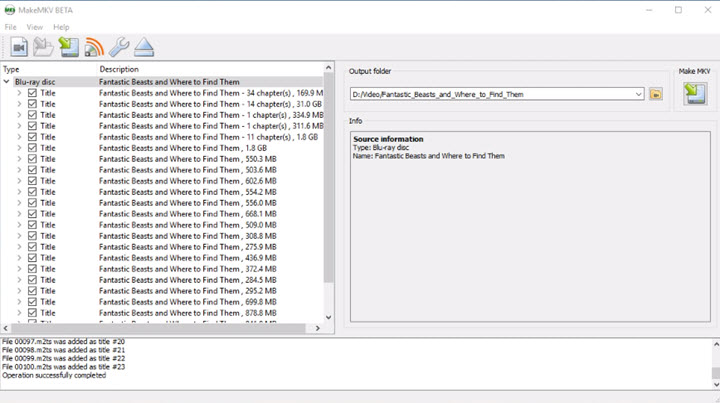
MakeMKV is a specialized lossless disc extractor. Its main function is converting proprietary disc formats (like DVDs and Blu-rays) into MKV files that can be played anywhere. This process, often called "remuxing," avoids re-encoding video or audio streams. Instead, MakeMKV repackages the original data into an MKV container, preserving all audio tracks, subtitles, and chapter markers without compression.
👍 Pros:
- No re-encoding means no quality loss from the source.
- Fast speeds, as it directly copies data from the disc.
- Simple, straightforward interface for ripping discs.
- Supports decrypting certain commercial DVDs and Blu-rays.
❌Cons:
- The output file size can be quite large, consuming significant storage space.
- The output format is limited to MKV, which is less universally supported than formats like MP4 or MOV.
- Beta licensing: While currently free, users must periodically update a temporary license key, which can disrupt functionality.
📌Overview of HandBrake
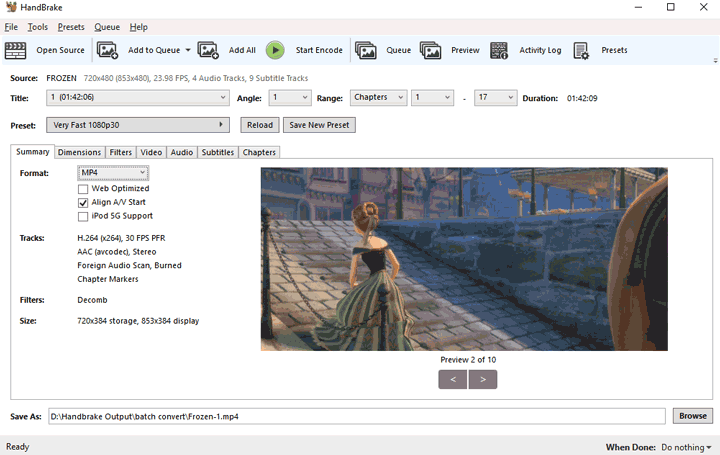
HandBrake is primarily known as a video transcoder. It converts videos from nearly any source format into modern, widely supported codecs (H.264, H.265, AV1) inside MP4, MKV, or WebM containers. HandBrake is built for video re-encoding and optimization, offering extensive settings to adjust resolution, bitrate, and audio tracks. This flexibility allows users to create files that are optimized for specific devices, streaming platforms, or to reduce file sizes while maintaining acceptable quality.
👍 Pros:
- Reduces video file size for easier storage, streaming, or sharing.
- Offers pre-configured output options for popular platforms and devices.
- Provides a wealth of granular settings for fine-tuning bitrate, codec, resolution, etc.
- Completely free and open-source, with no licensing requirements.
❌ Cons:
- The encoding process is more resource-intensive, leading to longer processing times.
- The range of settings can be overwhelming for new users.
- Cannot process protected commercial discs directly without external help.
MakeMKV vs HandBrake: A Feature Face-Off
Beyond their core identities, MakeMKV and HandBrake differentiate themselves significantly in their feature sets, particularly concerning input/output options, DRM handling, and the level of customization available.
MakeMKV vs HandBrake: Input & Output Flexibility
When it comes to input and output flexibility, MakeMKV and HandBrake cater to distinct needs. MakeMKV is a specialist, exclusively handling DVD and Blu-ray discs and outputting only to the MKV container for lossless preservation. HandBrake, however, is a generalist, accepting a wide array of video files and offering output in MP4, MKV, and WebM formats with support for modern codecs like HEVC and AV1, making it highly adaptable for various playback devices.
| Feature | MakeMKV | HandBrake |
|---|---|---|
Input Sources |
DVD, Blu-ray discs (proprietary formats) |
Various video files, unprotected/pre-ripped DVDs/Blu-rays |
Output Formats |
MKV (container only) |
MP4, MKV, WebM (containers) |
Output Codecs |
Original disc codecs (no re-encoding) |
H.264, H.265, VP9, MPEG-2, MPEG-4, etc. (re-encoding for better compatibility and smaller size) |
MakeMKV vs HandBrake: Copy Protection (DRM) Handling
A key strength of MakeMKV is its native ability to bypass most commercial DVD and Blu-ray copy protection schemes. This built-in functionality makes it a reliable and straightforward choice for creating personal backups of protected discs without needing additional software.
HandBrake, however, does not include built-in DRM decryption. To process protected discs, users must install third-party libraries, such as libdvdcss for DVDs. This adds an extra step and can introduce a layer of complexity for beginners, as it requires manual configuration outside of HandBrake itself.
MakeMKV vs HandBrake: Customization & Control
The level of control users have over their output files is a major differentiator. MakeMKV prioritizes simplicity, offering minimal customization focused on track selection for lossless extraction. HandBrake, conversely, provides extensive, granular control over nearly every aspect of the video and audio encoding process, catering to users who need to fine-tune their media for specific purposes or devices.
| Feature | MakeMKV | HandBrake |
|---|---|---|
Customization Level |
Limited (track selection) |
Extensive, granular control |
Video Settings |
None (lossless copy) |
Resolution, bitrate, frame rate, quality, filters (deinterlace, denoise, etc.) |
Audio Settings |
Track selection, basic language preference |
Track selection, codec, bitrate, mixdown, sample rate |
Subtitle Settings |
Track selection, forced subtitles |
Track selection, burn-in, foreign audio scan, offset |
Presets |
None |
Numerous built-in presets for devices, web, general use |
Complexity |
Low (point-and-click) |
Moderate to High (due to extensive options) |
MakeMKV vs HandBrake: Which to Pick
Choose MakeMKV When:
- Your primary goal is to create a perfect, uncompressed digital backup of your DVDs or Blu-rays, preserving every detail of the original source.
- You prioritize absolute fidelity and are not concerned about the resulting large file sizes, perhaps for a high-quality media server or future-proofing your collection.
- You need to bypass copy protection on commercial DVDs or Blu-rays to extract their content. MakeMKV handles most common DRM schemes natively.
- You want to quickly get the video and audio streams off a disc without any re-encoding, which is a much faster process than full video compression.
- You need to retain all original audio tracks (including high-definition formats like TrueHD or DTS-HD MA), subtitle streams, and chapter markers exactly as they are on the disc.
Choose HandBrake When:
- Your main objective is to compress video files to save storage space, make them easier to share, or fit them onto devices with limited capacity.
- You need to convert videos to widely compatible formats (like MP4 with H.264 or H.265 codecs) for playback on smartphones, tablets, smart TVs, game consoles, or online streaming services.
- You're working with video files from sources other than physical discs (e.g., downloaded videos, camera footage, or previously ripped MKVs) and need to convert or compress them.
- You require extensive control over video settings such as resolution, bitrate, codecs, frame rate, and the application of various filters (e.g., deinterlacing, denoise).
- You have multiple video files that need to be processed with the same settings, and you want to set up a queue for automated conversion.
- You need a powerful and versatile video conversion tool that is completely free to use, with no licensing requirements.
Bonus Tips: Best Alternatives to MakeMKV and HandBrake
While MakeMKV and HandBrake have long been reliable tools for media processing, today's digital demands call for a more integrated and powerful solution. VideoProc Converter AI steps in as the perfect alternative, combining the best features of both while overcoming their limitations. Think of it as your all-in-one media conversion tool — a swiss army knife for DVD ripping, format conversion, and beyond.
Whether you need a 1:1 backup of your DVDs or want to convert them to MP4 (or any of 420+ other formats) with smaller sizes and better quality, VideoProc Converter AI has you covered. It also shines at compressing video files by up to 90%, converting formats like AV1 and HEVC, and making quick edits. Plus, its AI-powered enhancements for video, image, and audio add that extra touch of polish. All of this comes in an intuitive, easy-to-use interface that's simpler than HandBrake and MakeMKV, ensuring a smoother experience.
Free download and install VideoProc Converter AI to unlock the full potential of your DVD and media files!
| Feature / Capability | MakeMKV | HandBrake | VideoProc Converter AI |
|---|---|---|---|
Primary Function |
Back Up DVD |
Convert Video Formats |
Rip/Back Up DVD; |
DRM Removal (Discs) |
|
|
|
1:1 DVD Backup Ripping |
|
|
|
Video Compression & Conversion |
|
|
|
AI-Powered Enhancements |
|
|
|
Speed |
|
|
|
Output Formats |
MKV |
MP4, MKV |
MP4, MKV, AVI, MOV, HEVC, VP9, etc. (420+ Formats) |
Ease of Use |
Simple |
Moderate |
Simple |
Best For |
Back up Blu-ray |
Transcode Video |
Complete Media solution: 1:1 Backup, Convert, Compress, AI-Enhance... |





Conclusion
Ultimately, your choice between MakeMKV and HandBrake hinges on your specific media management goals. MakeMKV excels at creating perfect, lossless digital archives of your DVDs and Blu-rays, prioritizing original quality and speed for disc extraction. HandBrake, on the other hand, is the ideal tool for compressing videos, optimizing them for various devices, and converting a wide range of video files into more manageable sizes and formats.
While each tool serves its purpose admirably, they also come with distinct limitations. For those who require a more versatile, faster, and user-friendly solution that combines robust DVD decryption with extensive video conversion capabilities and AI-powered enhancements, VideoProc Converter AI offers a compelling all-in-one alternative. By understanding the unique strengths of each, you can confidently select the software that best fits your digital media workflow.