
 Download Online Videos & AI Upscale to HD/4K!
YouTube-dl is a popular command-line tool for downloading videos and audio from YouTube and many other sites. Many content creators use YouTube-dl to back up their uploaded videos.
But in addition to videos, YouTube-dl also supports downloading only audio files. This guide will show you how to use YouTube-dl to download audio only so even if you are not tech-savvy, you can follow along easily.
Note: Downloading videos or audio from YouTube or other platforms may violate their terms of service or copyright laws if you do not have permission.
Prerequisite: Install YouTube-dl
Before downloading audio only, make sure YouTube-dl is installed and updated on your system. Installation steps differ slightly by operating system. And the YouTube-dl releases haven't been updated since 2021, so you'll need to download a nightly build release.
For Windows:
- Go to the official GitHub page.
- Download the standalone YouTube-dl.exe file.
- Place it in any location except for
%SYSTEMROOT%\System32.
For UNIX (Linux, macOS, etc.):
- Open the terminal.
- Run the following command to install:
sudo curl -L https://yt-dl.org/downloads/latest/YouTube-dl -o /usr/local/bin/YouTube-dl
sudo chmod a+rx /usr/local/bin/YouTube-dl
If you request an output format different from the source, ensure to install FFmpeg for format conversion. You can either add its /bin directory to your PATH or copy the ffmpeg.exe and related executables into the same folder as YouTube-dl.
Download Audio Only Using YouTube-dl
The basic way to download audio only using YouTube-dl is the -x option. From the official documentation, this option tells YouTube-dl to download the best available format and then post-process the download by extracting the audio stream and discarding the video. It requires ffmpeg/avconv and ffprobe/avprobe.
Personally, I prefer the -F and -f options. -F lists all available formats for the video, typically including audio-only .m4a streams with no playback issues for me. After knowing the format codes, I can use-f to pick exactly which stream to download. This format-selection route gives me more control and avoids format conversion.
Here's how:
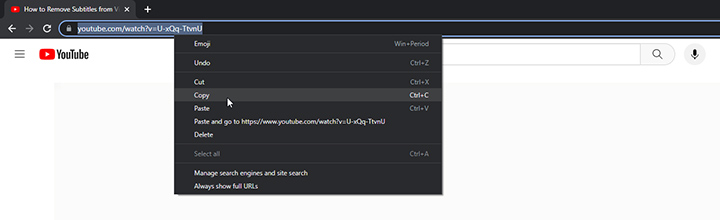
Step 1. Copy the video's address, and open a command-line window.
Step 2. Get a list of all available formats for your video using the following command:
youtube-dl -F <https://www.youtube.com/watch?v=VIDEO_ID>
Step 3. Wait and look for format codes labelled audio only in the returned formats.
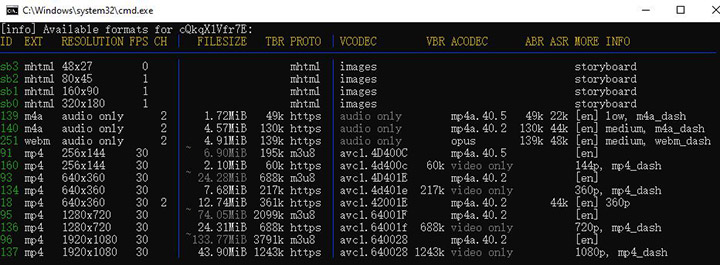
Step 4. Save the native audio-only stream:
youtube-dl -f 140 <https://www.youtube.com/watch?v=VIDEO_ID>
Step 5. Run the following command if you want to convert it to a specific format, such as MP3:
youtube-dl -f 140 --audio-format mp3 <https://www.youtube.com/watch?v=VIDEO_ID>
If you just want a quick audio file and don't care about the details, the -x option is the easiest. YouTube-dl will pick something reasonable and convert it for you.
youtube-dl -x <https://www.youtube.com/watch?v=VIDEO_ID>
You can also convert the extracted audio to a specific format of your choice with the --audio-format option, such as MP3 or AAC. This uses FFmpeg under the hood.
Download Playlists as Audio
One of YouTube-dl's powerful features is the ability to handle playlists. You can download an entire YouTube playlist's audio tracks in one go.
Follow the steps below to download an entire playlist's audio tracks using YouTube-dl.
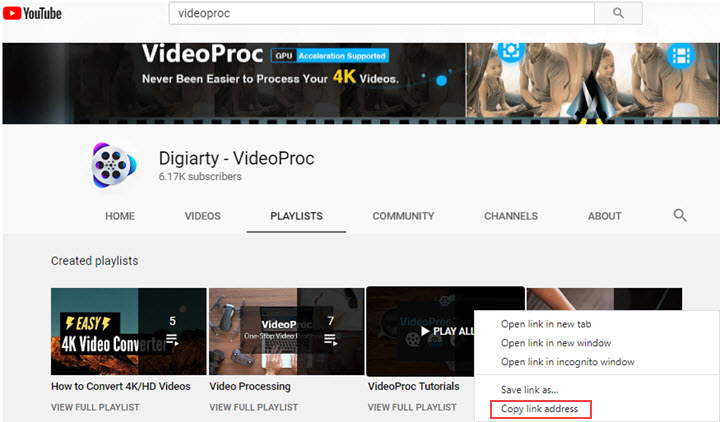
Step 1. Open the playlist and copy its URL. It will look like https://www.youtube.com/watch?v=VIDEO_ID&list=PLAYLIST_ID
Step 2. Run YouTube-dl with the following command:
For basic playlist-to-audio downloads:
youtube-dl -x <https://www.youtube.com/watch?v=VIDEO_ID>
Optional refinements:
--audio-format mp3to output MP3 files-o "%(title)s.%(ext)s"to ensure each file is named by its own title-o "/path/to/your/folder/%(title)s.%(ext)s"to set the output directory
Wait and YouTube-dl will sequentially download all items in the playlist.
Known Limitations and Tips
Here are some additional tips and caveats when using YouTube-dl for audio-only downloads.
1. Dependence on FFmpeg or avconv for format conversion
If you request an output format different from the source, YouTube-dl relies on FFmpeg or the similar avconv to do the conversion. If FFmpeg isn't installed or in the PATH, the conversion step will fail with an error. In such cases, YouTube-dl might leave you with the original file or nothing at all.
2. Command-line program with no GUI
This isn't a limitation if you are comfortable with command-line tools. However, it can feel too technical or awkward for novice users.
3. Infrequent updates and development
It's important to know that as of 2025, the original YouTube-dl project has slowed in development. The last stable release of YouTube-dl was in December 2021, and while there have been some commits and preview releases, the updates are infrequent. In fact, due to this stagnation, YouTube-dl often fails to download videos correctly, especially with today's frequent platform changes.

VideoProc Converter AI - Best YouTube-dl Alternative
- More beginner-friendly for non-technical users, GUI application
- Easier workflow for downloading audio only or videos
- More visible format selection, MP3, M4A, 1080p, 4K, up to 8K
- Faster batch download playlists, channels, multiple links in one step
- More frequent updates and maintenance for platform changes
- One-stop toolbox: DVD backup, recorder, compressor, AI tools, etc.
If you are uncomfortable with command-line tools, VideoProc Converter AI is a great YouTube-dl alternative for you. Its built-in downloader is designed for people who want the same power but with a clean, visual interface.