

Summary: This comprehensive guide helps you master yt-dlp, covering everything from installation to advanced video downloading. Learn how to use yt-dlp for online video downloads and troubleshoot common issues.
yt-dlp is definitely one of the most talked-about tools when it comes to online video downloading. Even if you haven't used it yourself, you've probably heard how powerful it is. However, it comes with a steep learning curve. Most tutorials out there are either too complex for beginners to follow or too basic, failing to cover advanced needs like specifying target size, format, or quality.
That's why I created this post. I want to help anyone who wants to use yt-dlp to download videos, whether you're just looking to grab a single video or want to explore more advanced features. And the best part? This how-to guide on how to use ytd-dl won't feel confusing or intimidating. I'm sure its enough for beginners to follow while still covering everything you need.
What Is YT-DLP
yt-dlp is a command-line tool for downloading videos and audio from online platforms, with YouTube being the most common. It is a fork of the older youtube-dl, actively maintained with frequent updates, bug fixes, and new features to handle modern streaming sites.
It gives you full control over video quality, format, and playlists. It can also handle advanced scenarios, such as downloading private or age-restricted videos if you provide login credentials or browser cookies. When paired with dependencies like FFmpeg, yt-dlp can do even more. It can merge separate audio and video streams, which is essential for high-quality YouTube videos, and perform various post-processing tasks such as converting video formats or splitting videos into multiple files.
Why People Want to Use YT-DLP
1. Wide Platform Support: yt-dlp works with a huge variety of websites, including YouTube, Vimeo, TikTok, Twitch, and hundreds of others. It's constantly updated to handle changes in these sites, which means downloads rarely break even when platforms update their systems.
2. Comprehensive Download and Management: yt-dlp lets you download videos and audio with full control over quality, resolution, bitrate, and codec, including 4K, 8K, and 60fps videos. It automatically merges separate audio and video streams when needed, and can extract audio-only tracks in popular formats like MP3 or M4A.
You can download entire playlists or full channels, filter for specific videos, and organize files with custom names and storage locations. Beyond downloading, yt-dlp also handles subtitles, thumbnails, and metadata, and supports automatic post-processing.
3. Private or Restricted Content: yt-dlp can handle videos that require login using cookies or credentials. This allows you to download age-restricted, region-restricted, or unlisted videos, as long as you have access to them through your account.
4. Automation and Scripting: Being fully command-line driven, yt-dlp can be integrated into scripts or batch processes. You can configure defaults in a .conf file to make repeated downloads fast and easy, which is especially useful for content creators or archivists.
5. Regular Updates: yt-dlp is actively maintained, with frequent updates to adapt to website changes and fix bugs. Its updates are faster and more consistent than older tools like youtube-dl, ensuring reliability over time.

The lack of a graphical interface makes YT-DLP less beginner-friendly, requiring command-line commands and often trial-and-error for desired settings. For an easier, 1-click solution that supports bulk downloads, quality/frame rate/format selection, proxy use, and audio or subtitle extraction, VideoProc Converter AI is a more versatile and user-friendly alternative.
How to Use YT-DLP: Download and Install
The downloading and installation steps are different, depending on your OS. Here, I'll show you how to download and install yt-dlp on Windows, Mac, and Linux.
💻 To Download and Install YT-DLP on Windows
Step 1. Download YT-DLP
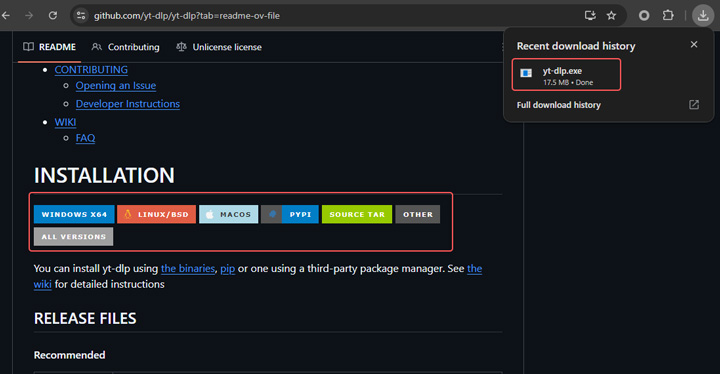
Open your browser and go to the official yt-dlp GitHub page: https://github.com/yt-dlp/yt-dlp. Scroll down to the Installation section. It lists all major operating systems here. Choose the file that matches your operating system.
💡 Tips:
If your OS is not listed here, you can click OTHERS to locate. In my case, I'm running Windows 64bit systems, so I just click Windows x64. The program file is then automatically downloaded.
Step 2. Install YT-DLP on Windows
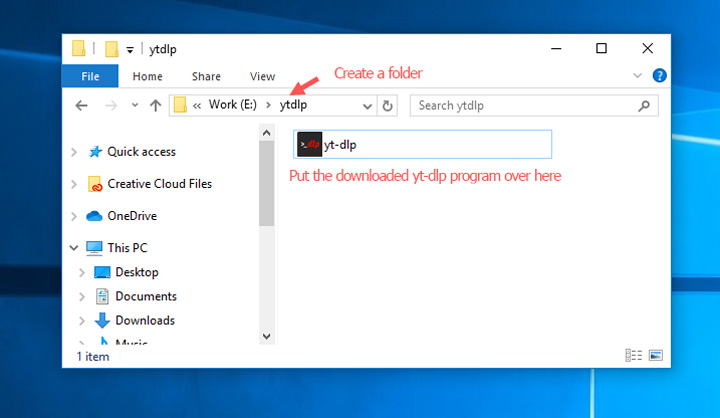
Create a folder, for example E:\ytdlp, and move yt-dlp.exe into that folder.
Step 3. Install YT-DLP Dependency
Go to https://github.com/yt-dlp/FFmpeg-Builds/wiki/Latest and find your OS and then click on that to download the custom build of FFmpeg on your computer. In my case, I choose win64-gl to download.
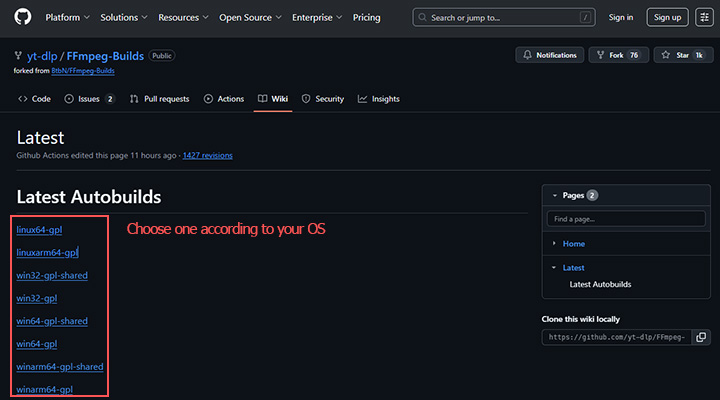
💡 Tips:
Why install FFmpeg and FFprobe: FFmpeg and FFprobe are essential for merging video and audio, converting formats, embedding thumbnails and metadata, and reading detailed media info. Without them, many advanced yt-dlp features won't work. Why use the custom-built FFmpeg from yt-dlp: Official FFmpeg has some bugs that can cause issues with yt-dlp. The custom builds provided by yt-dlp fix these problems, reducing errors and ensuring smoother downloads.
Step 4. Move the FFmpeg Bin
Unzip the downloaded custom FFmpeg file. You'll find the bin folder which include ffmpeg.exe, ffplay.exe, and ffprobe.exe. Copy this bin folder and paste onto the folder where you just created in Step 2 for holding the yt-dlp.exe file.
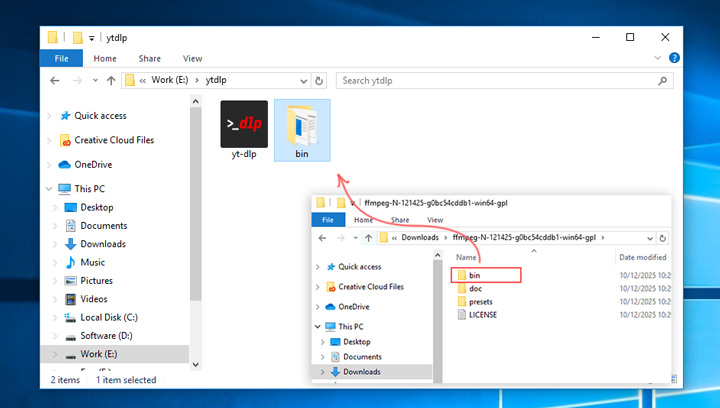
Step 5. Add YT-DLP to the System PATH
Click on the Windows search bar and enter Edit the system environment variables. Click on that on the search result. Click Environment Variables… to open the Environment Variables panel. Herein, double click the path button. On the pop-up panel, hit New, enter the path where you place the yt-dlp and bin holder. In my case, it should be E:ytdl. Thus, I entered this. Click OK > Ok > Ok to confirm.
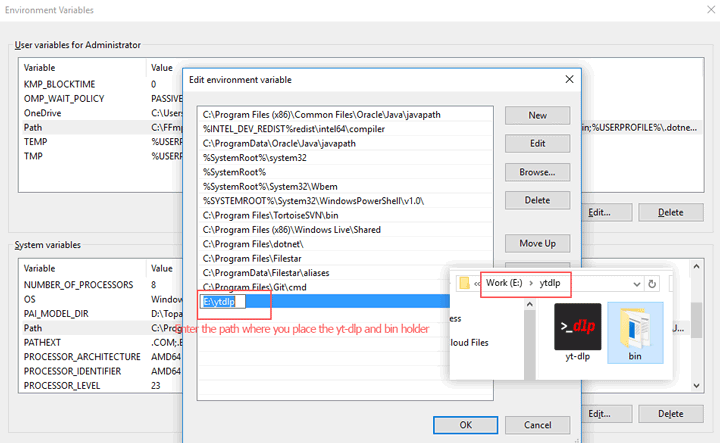
💡 Tips:
This Windows utility allows you to modify the environment variables that are used by the operating system and applications running on your computer. The PATH environment variable we will define next specifies a list of directories that the operating system should search when looking for executable files. To put more simply for beginners, if you already set E:\ytdlp in your PATH, then you can run yt-dlp from any directory without navigating there. Otherwise, you have to firstly navigate to the folder where yt-dlp is located.
🍎 To Download and Install YT-DLP on Mac
Step 1. Install Homebrew on Mac
The easiest way to install yt-dl on Mac is using Homebrew. Thus, install Homebrew, if you don't have it yet. Press Command + Space, type Terminal, and hit Enter to open the terminal page. Run:
/bin/bash -c "$(curl -fsSL https://raw.githubusercontent.com/Homebrew/install/HEAD/install.sh)"
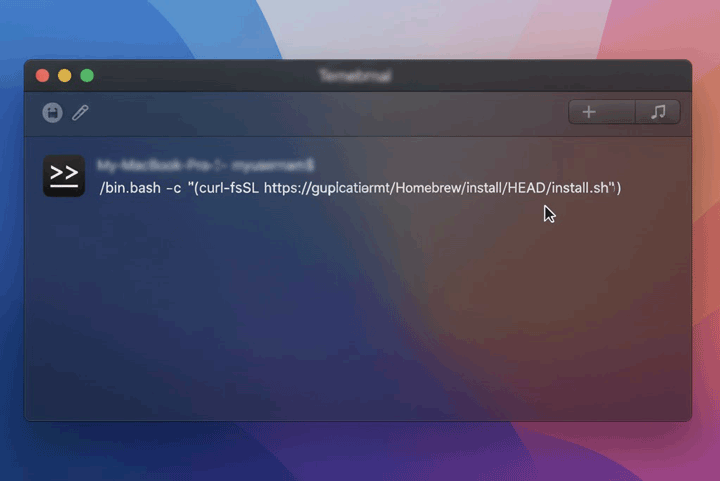
Step 2. Install YT-DLP via Homebrew
Enter the below command. This automatically puts yt-dlp in your PATH, so you can use it from any directory.
brew install yt-dlp
Step 3. Install FFmpeg on Mac
Open Terminal and type:
brew install ffmpeg
This will install FFmpeg on your Mac. Then, verify the installation by running each of the following commands:
yt-dlp --version
ffmpeg -version
ffprobe -version
If all return version numbers, installation is complete.
🐧 To Download and Install YT-DLP on Linux
Step 1. Open a Terminal
Open the terminal, depending on your Linux distro:
- Ubuntu / Debian / Pop!_OS: Press Ctrl + Alt + T
- Fedora / CentOS / RHEL: Press Super (Windows key) + T or search for “Terminal” in the applications menu
- Arch Linux / Manjaro: Press Super + T or search for “Terminal” in the app menu
Step 2. Download YT-DLP
Type the following command on the terminal you just open up and press Enter. sudo lets you run the command as an administrator. curl -L URL -o /usr/local/bin/yt-dlp downloads yt-dlp to the system-wide folder so you can run it anywhere.
sudo curl -L https://github.com/yt-dlp/yt-dlp/releases/latest/download/yt-dlp -o /usr/local/bin/yt-dlp
Step 3. Make yt-dlp Executable
Type to command below to give permission to run yt-dlp from anywhere in the terminal.
sudo chmod a+rx /usr/local/bin/yt-dlp
Step 4. Install FFmpeg
FFmpeg is needed to merge audio and video and perform other advanced tasks. Install it using your package manager:
Ubuntu / Debian:
sudo apt update
sudo apt install ffmpeg
Fedora:
sudo dnf install ffmpeg
Arch Linux / Manjaro:
sudo pacman -S ffmpeg
How to Use YT-DLP: Verify the Installation
Open Command Prompt (Windows) or Terminal (Linux and Mac). Type:
• yt-dlp --version
• ffmpeg -version
• ffprobe -version
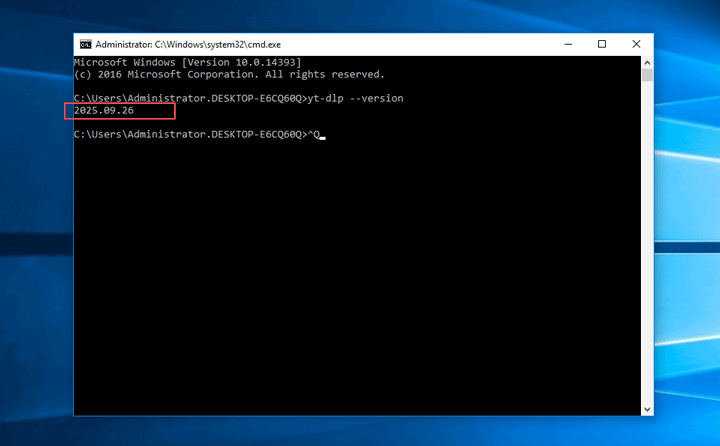
If all commands return version numbers, your installation of yt-dlp and the needed dependencies is successful.
How to Use ytd-dl to Download Videos (Basic)
If you simply want to download a video with one command, without any additional options, this command will automatically grab the best available quality and save it to your current folder. You won't need to worry about formats, merging, or subtitles. Use the command below — it's the one most beginners will ever need.
yt-dlp <video_url>
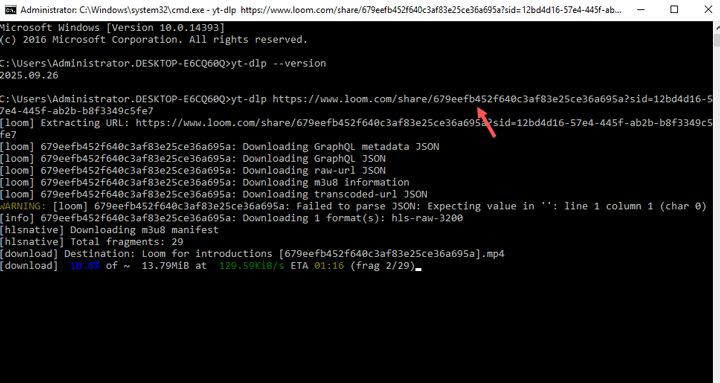
How to Use ytd-dl to Download Videos (More Controls)
Once you're comfortable, you can explore advanced options like choosing formats, saving to a specific folder, downloading subtitles, using proxies, or batch downloading. When downloading videos, it's smart to first check what formats are available, then choose the format you want with a fallback so that yt-dlp will still download something if your exact preference doesn't exist.
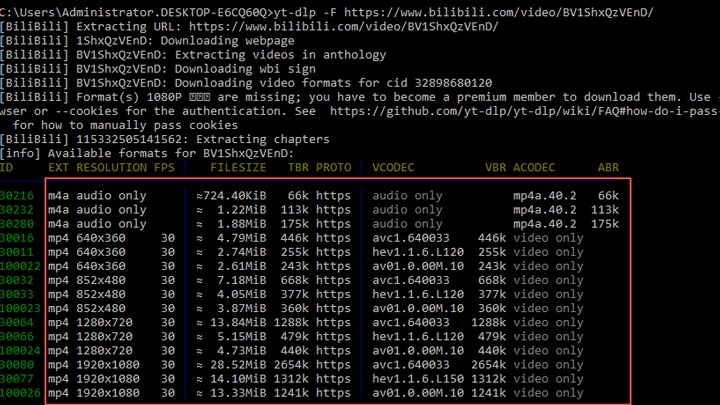
Step 1. Check available formats
Enter the command below. yt-dlp will then list all available video/audio streams with IDs. This can help you pick the right combination (video + audio).
yt-dlp -F <video_url>
Step 2. Safe download (best quality fallback)
Enter the below command to download the best quality video and audio from the given URL:
yt-dlp -f bestvideo+bestaudio/best -o "E:\Videos\%(title)s.%(ext)s" <video_url>
Step 3. Advanced options
Your can further specify resolution, codec, and audio format, download subtitles, and more.
Command-Line Table for Common yt-dlp Features
| Feature | Command Example | Explanation |
|---|---|---|
List available formats |
yt-dlp -F <video_url> |
Shows all video/audio streams with IDs for selection |
Download best quality (auto merge) |
yt-dlp -f bestvideo+bestaudio/best -o "E:\Videos\%(title)s.%(ext)s" <video_url> |
Downloads the best video and audio, merges them, fallback included |
Download specific resolution & codec |
yt-dlp -f "bestvideo[height<=1080][vcodec*=avc1]+bestaudio[acodec*=mp4a]/best" -o "E:\Videos\%(title)s.%(ext)s" <video_url> |
Downloads up to 1080p H.264 video + AAC audio; fallback included |
Download subtitles |
yt-dlp --write-subs --sub-lang en,zh-Hans --convert-subs srt <video_url> |
Download English + Simplified Chinese subtitles and convert to SRT |
Custom output path |
yt-dlp -o "E:\MyVideos\%(uploader)s\%(title)s.%(ext)s" <video_url> |
Organize downloads by uploader, file named with video title |
Batch download |
yt-dlp -a urls.txt -o "E:\Videos\%(title)s.%(ext)s" |
Download multiple videos listed in urls.txt |
Resume interrupted download |
yt-dlp -c <video_url> |
Continue an interrupted download from where it stopped |
Use proxy |
yt-dlp --proxy "socks5://127.0.0.1:1080" <video_url> |
Use SOCKS5 proxy (replace with your proxy) |
Example: Complete Download with Fallback, Subtitles, and Custom Folder
Now that you've mastered the basics of the command line, let's see a real-world example of using yt-dlp.
yt-dlp -f "bestvideo[height<=1080]+bestaudio/best" --write-subs --sub-lang en,de-Hans -o "E:\MyVideos\%(uploader)s\%(title)s.%(ext)s" <video_url>
This command downloads a video in your preferred quality, automatically merges the audio and video streams, fetches subtitles, and saves the file in a custom folder. It also includes a fallback in case your preferred format isn't available:
- Attempts 1080p H.264 + AAC audio first
- Falls back to the best available format if 1080p isn't found
- Downloads English and Germany subtitles
- Saves files organized by uploader
How to Use YT-DLP to Download Videos (Advanced Workflows)
For users who download videos often or in bulk, yt-dlp offers ways to streamline your workflow, automate repetitive tasks, and handle large media libraries efficiently.
1. Use a Configuration File
Instead of typing long commands every time, you can create a yt-dlp.conf file with your preferred defaults. For example, you can set your preferred format, output folder, subtitle options, and post-processing tasks. On Linux, place it in /etc/yt-dlp.conf or ~/.config/yt-dlp/config. On Windows, use %APPDATA%\yt-dlp\config.txt. Once configured, every command will automatically follow your preset rules.
2. Create Aliases or Shortcuts
Shell aliases or PowerShell functions can save you from typing long commands repeatedly. For example:
# Linux/macOS (.bashrc or .zshrc)
alias ydlmp4='yt-dlp -f "bestvideo[ext=mp4]+bestaudio[ext=m4a]/best[ext=mp4]"'
After reloading the shell (source ~/.bashrc), typing ydlmp4 <url> downloads videos in your preferred MP4 format instantly. Windows PowerShell users can create similar functions in their profile scripts.
3. Automated Updates
Frequent downloaders benefit from keeping yt-dlp updated to maintain compatibility with changing websites. You can use:
yt-dlp -U
or schedule a script to update it regularly.
4. Remote Downloads and Seedboxes
For large collections, consider using a VPS or seedbox. You can run yt-dlp remotely, download videos at high speed, and even stream directly to media servers like Plex or Kodi. This setup allows heavy downloads without overloading your local machine.
5. Error Handling and Logging
For bulk downloads, you can configure retry limits, fallback formats, and logging to ensure failed downloads are automatically retried:
yt-dlp --retries 10 --download-archive archive.txt --write-info-json <url>
This keeps track of already downloaded videos and minimizes interruptions.
6. Scripting and Automation
Combine yt-dlp commands with scripts to schedule downloads, organize files, or trigger automatic conversions. For example, a daily cron job or Windows Task Scheduler script can download all new videos from your favorite channels and sort them automatically.
Troubleshoot While ytd-dl Download, Install, and Usage
Based on my own experience installing yt-dlp, as well as feedback from users across communities like Reddit, YouTube, and GitHub, here are some common issues and their solutions:
❌ Error 1. YT-DLP File Is Not There
Ytd-lp file is not there. For example, you just receive error message, like:
'yt-dlp' is not recognized as an internal or external command, operable program or batch file.
In this case, that error means Windows still can't find your yt-dlp.exe, even though you think you've added it to the PATH.
Step 1. Locate yt-dlp.exe
Open File Explorer and find where you saved yt-dlp.exe. For example, you might have: E:\ytdlp\yt-dlp.exe Your path may be different — note down your own folder path. If it's inside a subfolder like E:\ytdlp\bin\yt-dlp.exe, you'll need to use that exact folder path instead.
Step 2. Add the Folder to PATH
Press Win + S and search Environment Variables. Click Edit the system environment variables and hit Environment Variables… After that, go to System variables (or User variables), click Path > Edit > New. Paste your folder path that contains yt-dlp.exe. Click OK on all windows to save. Note: Do not include yt-dlp.exe itself. You should only enter the folder path.
Step 3. Restart Command Prompt
Close any open Command Prompt windows and open a new one. Then run:
yt-dlp –version
If everything's set correctly, you'll see something like: 2025.10.12
Step 4. (Optional) Test with Full Path
If the command still fails, try using your full path directly:
<your_folder_path>\yt-dlp.exe" --version
For example:
"E:\ytdlp\yt-dlp.exe" –version
If that works, the PATH variable needs to be adjusted.
❌ Error 2: YT-DLP Download Failure Error
Many users have been experiencing errors with YT-DLP, such as the "Precondition check failed" message, which happens when YouTube updates its API. Another common issue is the "HTTP Error 400: Bad Request," often caused by outdated YT-DLP versions. There's also the "nsig extraction failed" warning, which is related to changes in YouTube's encryption. These errors can prevent successful downloads, even with the latest version of YT-DLP.
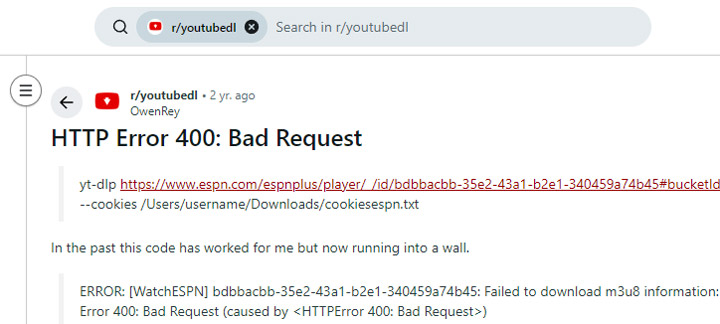
Step 1. Check YT-DLP Version
Run yt-dlp --version to check your current version. If it's outdated, update it with yt-dlp -U. If the issue persists, update to the nightly build with yt-dlp --update-to nightly, or use python3 -m pip install -U --pre "yt-dlp[default]".
yt-dlp --version
yt-dlp -U
yt-dlp --update-to nightly
python3 -m pip install -U --pre "yt-dlp[default]"
Step 2. Check for Multiple Installations
Run where yt-dlp to locate all installations. Ensure your terminal is using the latest version.
where yt-dlp
Step 3. Clear Cache
Run yt-dlp --rm-cache-dir to clear any cached data.
yt-dlp --rm-cache-dir
Step 4. Use Nightly Build for API Changes
If the "Precondition check failed" error occurs, try using the nightly build. This may fix issues related to recent API changes.
Step 5. Try Different Formats or Resolutions
Use yt-dlp -f bestvideo+bestaudio or specify a resolution, e.g., yt-dlp -f 'bestvideo[height<=1080]+bestaudio'.
yt-dlp -f bestvideo+bestaudio
yt-dlp -f 'bestvideo[height<=1080]+bestaudio'
Step 6. Check Network or Proxy Settings
Disable any proxies or VPNs temporarily. Ensure your network/firewall allows access to YouTube.
Step 7. Check GitHub for Open Issues
Visit the YT-DLP GitHub Issues page to see if others have the same issue or post a new issue.
Step 8. Debug with Verbose Mode
Run yt-dlp --verbose <video URL> for detailed logs to help identify the issue.
yt-dlp --verbose <video URL>
Try The Best Alternative to ytd-dl: Easier and More Versatile
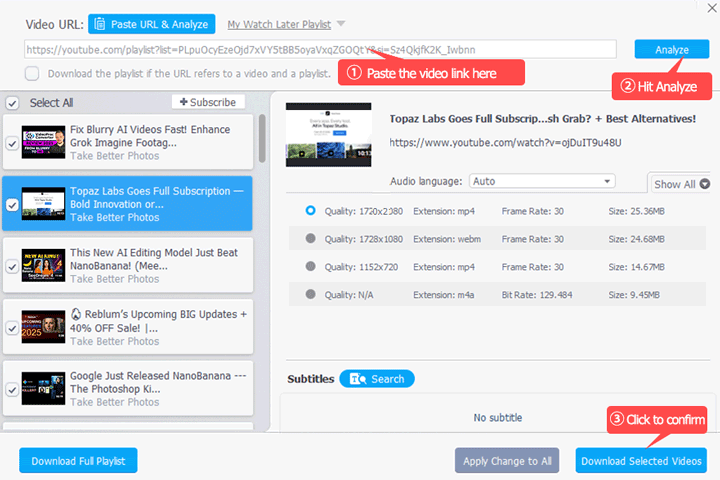
For beginners, using yt-dlp can feel chaotic—from installation to actually downloading videos. Fortunately, there's a more user-friendly way to get the job done: VideoProc Converter AI. This all-in-one media enhancer and converter comes with a powerful built-in downloader, allowing you to download videos, audio, and subtitles from over 1,000 UGC sites and 2,000+ niche platforms with just a click. It's also highly versatile. VideoProc Converter AI automatically detects all available download options, so you can choose your preferred resolution, frame rate, format, file size, and languages—as long as they are available from the source. You can even download selected videos or an entire playlist.
- 1-Click to download video, audio, and subtitles.
- Support YTB, Vimeo, and 1000+ UGC sites and 2000+ niche sites.
- Option to choose format, size, fps, subtitles, and more to download.
- Offer 4K screen recorder to save DRM-protected videos locally.
- Allow easy proxy setting for bypassing geo-restriction.
- Stable and fast downloads, even for large 4K/8K files.
- Compress, convert, and edit your downloads easily
- AI-upscale and enhance low-resolution videos to 4K.
- Strong privacy protection with no data collection or bundled software.

YT-DLP vs VideoProc Converter AI
Below is a side-by-side comparison of yt-dlp and VideoProc Converter AI to help you see the difference at a glance.
| Feature / Function | yt-dlp | VideoProc Converter AI |
|---|---|---|
Installation |
Complex: Python, FFmpeg, PATH setup |
Simple: Download and run |
Operation |
Command-line |
GUI + one-click |
Supported Sites |
Thousands, requires updates |
1000+ UGC & 2000+ niche sites |
Video Format / Resolution |
Must specify via command-line |
1-click selection |
Subtitle Download |
Multiple languages via command-line |
1-click to select |
Playlist / Bulk Download |
Command-line support |
1-click to download |
Proxy Settings |
Command-line support |
1-click to set |
Automation / Advanced Features |
Scripts, config files |
Built-in conversion, trimming, compression; AI upscale to 4K; AI stabilize; AI frame interpolation; etc. |