
Looking for how to use JDownloader 2? You've come to the right place. JDownloader 2 is a free, open-source download manager that let us download groups of files from different hosting sites. It can handle batch downloads, run several tasks at the same time, resume broken downloads, recognize CAPTCHAs, and even extract archives for you.
The problem is that there is no clear, official user guide. Most of the help you can find is scattered across forums and Reddit, and a lot of it is either outdated or missing the kind of screenshots and explanations beginners actually need.
That is why I decided to put this guide together. I want it to be a simple, step-by-step walkthrough that shows you everything you need to use JDownloader 2. You will learn how to install JDownloader 2 safely, follow an easy five step workflow to download videos and any files online, and use a few advanced settings to automate the whole process. My goal is to make the learning curve as smooth as possible so you can start using JDownloader 2 without confusion.
- What Is JDownloader 2
- What JDownloader 2 Does Best
- Download and Install JDownloader 2
- A Quick Tour of the Interface
- How to Use JDownloader (A Basic File Downloads Workflow)
- How to Download Game Repacks from Multi-Hosters
- How to Download Online Videos (from TikTok/YouTube)
- Add a Premium Account for Full Speed
- Advanced Settings for Better Control
- The Easiest JDownloader Alternative
What Is JDownloader 2
JDownloader 2 is a widely used, cross-platform download manager created by a German open-source community. It is designed to make downloading large numbers of files much simpler and less time-consuming. Running on Java, it came out as the successor to the original JDownloader and quickly became the go-to tool for handling bulk downloads, decrypting links, and fetching files from different hosters. Instead of manually clicking through pages or managing each download in your browser, JDownloader 2 does all the work for you. It detects links automatically, organizes your downloads, and keeps everything running smoothly, which makes downloading large collections or files from multiple sources a lot easier.
JDownloader 2's Core Strengths: What It Does Best
JDownloader 2 specializes in solving the four major pain points of downloading files:
- Batch Downloads: It supports queuing, managing, and downloading groups of files simultaneously. You simply feed it a long list of links, and JDownloader handles the entire queue, including pausing and resuming transfers.
- Eliminates Restrictions: JDownloader 2 automates the hurdles set by file hosting sites. It features built-in support for bypassing CAPTCHAs, handling waiting times, and decrypting complex link containers (like .DLC files).
- End-to-End File Handling: It integrates post-download cleanup. Its core feature is Auto-Extraction, which automatically unzips or unrars multi-part files and manages passwords once all parts are successfully downloaded.
- Universal Media Grabber: Beyond hosters, JDownloader 2 can automatically analyze pages from platforms like YouTube, allowing you to download full video playlists or channels and select your preferred quality/format.

While powerful for bulk file-hosting downloads, JDownloader 2 can be complex and overwhelming for beginners. If you mainly need to download videos and music from online sites, a more straightforward media downloader like VideoProc Converter AI offers a much smoother, 1-click experience with a clean interface and no complicated setup.
How to Download, Install, and Set Up Jdownloader 2
Step 1. Visit the Official Download Page
Go to the official download page: https://jdownloader.org/download/
Step 2. Choose Your Operating System
JDownloader supports Windows, macOS, Linux, and several other platforms. On the download page, simply pick the version that matches your system.
I'm running Jdownload on Windows, so I choose Windows. It brings me two options. "Download Installer (x86, Java 1.8) with optional software offers to support the project" and "Download Alternative Installer (x86, Java 1.8) without any optional software offers". It is strongly recommended to choose the one without any optional offers to ensure a clean installation.
Note:
If you're on macOS, the site provides several system-specific versions, such as:
- Catalina, Big Sur, Monterey, Ventura, Sonoma, Sequoia, Tahoe
- High Sierra, Mojave
- Lion (10.7) or higher
- Snow Leopard (10.6)
Step 3. Run the JDownloader 2 Installer
Once the file finishes downloading, open it and follow the on-screen instructions to complete the setup of JDownloader 2.
How to Use JDownloader: Interface Walkthrough
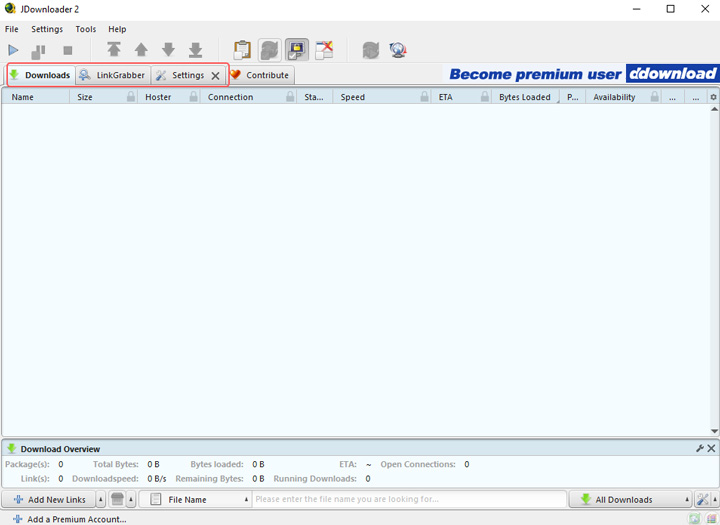
JDownloader's interface is organized into three main tabs, each serving a specific purpose:
1. Downloads Tab
This tab shows your active download queue. Files here may be downloading, paused, waiting, or already completed. You can manage priorities, resume downloads, or remove items directly from this list.
2. LinkGrabber Tab
This is your temporary holding area. Whenever you copy a link, JDownloader automatically detects it and places it here. The program then analyzes each link (online/offline status, file size, and availability) and groups them into Packages for better organization.
3. Settings Tab
This is where you customize how JDownloader behaves. You can adjust speed limits, set automation rules, manage premium accounts, configure plugins, and tweak advanced features to match your workflow.
How to Use JDownloader 2 to Download Files (A Quick Start Guide)
JDownloader 2 is one of the most powerful tools for automating downloads, especially when dealing with speed limits, CAPTCHAs, or large batches of files. If you have a link, JDownloader 2 can almost always download it. While different file types may have slight variations, most users can follow this simple 3-step workflow to get started right away.
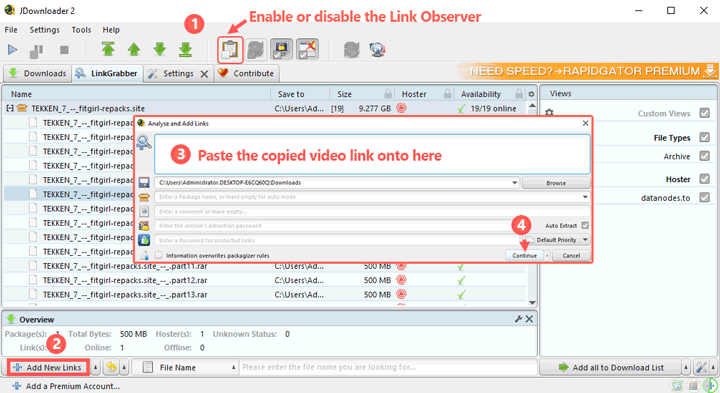
Step 1. Copy the Link to the LinkGrabber
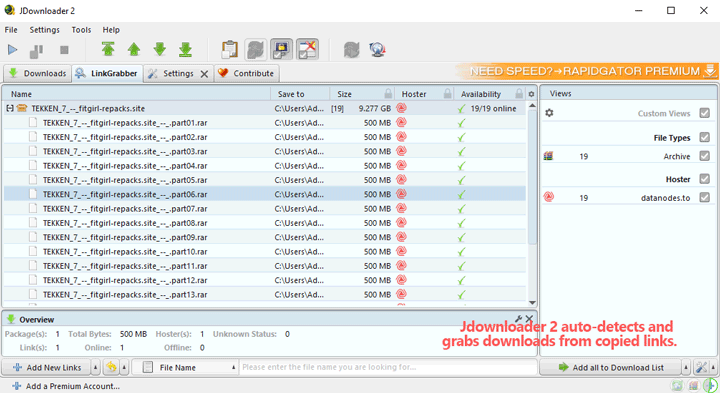
Open JDownloader 2 and ensure the Clipboard Observer is active (the icon should be highlighted). Then go to your browser or document and copy the URL(s) you want to download. The links will instantly appear in the LinkGrabber tab, where JDownloader analyzes their status and organizes them into packages.
Tips:
- You can copy one link or a whole list, and JDownloader 2 will import them all automatically.
- If you prefer not to automatically analyze copied links, turn off Clipboard Observer. In this case, you need to click Add New Links and manually paste the URL(s) you want JDownloader to fetch.
Step 2. Select the Needed File for Download(s)
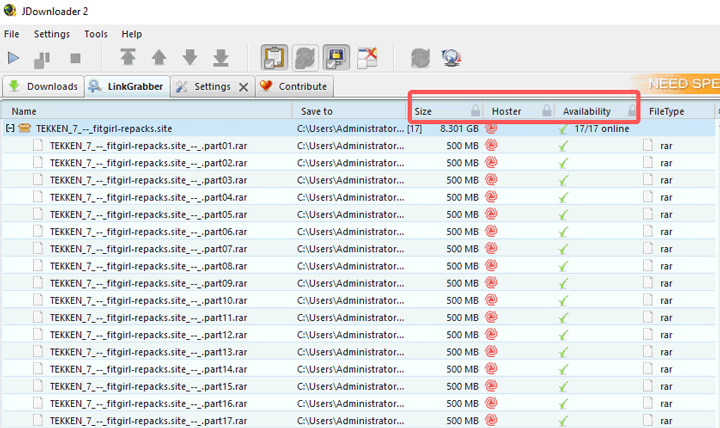
JDownloader will display all available files from the link(s). Check the Status column to confirm the files are "Online" and showing the correct size. Then select the exact files you want to download.
Note:
What you see depends on the type of content. For example,
- YouTube links: JDownloader usually detects video, audio, subtitles, thumbnail images, and even comments/descriptions. You can choose from different formats, video qualities, and codecs. (See our detailed guide in the next section.)
- FitGirl Repacks or similar sites: It typically shows the .rar archive. If a file is hosted on multiple mirrors, you can choose your preferred host. As long as the host provides the file, it's the same content.
Step 3. Set Save Location
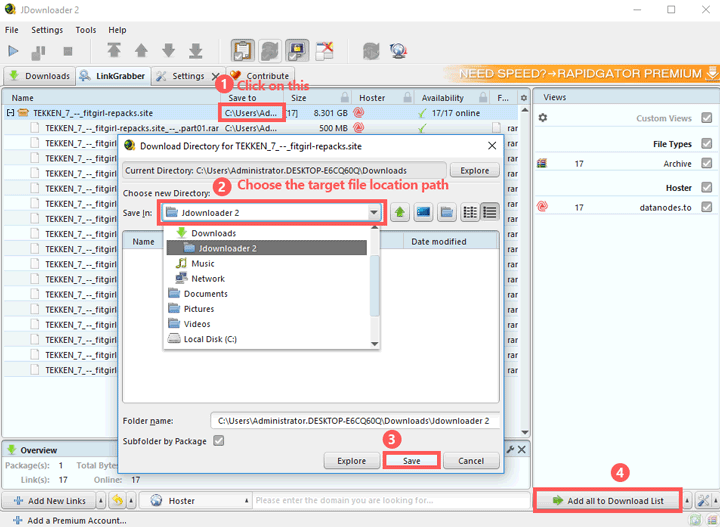
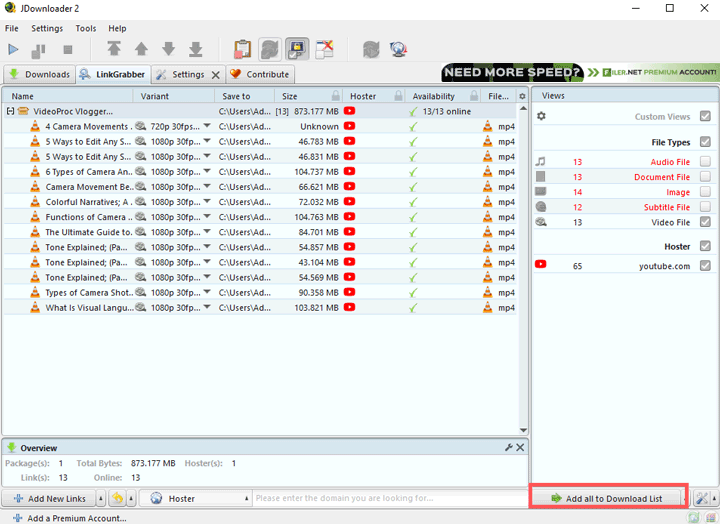
Right-click the package name and select Set Download Directory. Choose the folder where you want the final files to be saved. After that, hit Save. Click on Add all to Download List to proceed.
Step 4. Start the Download
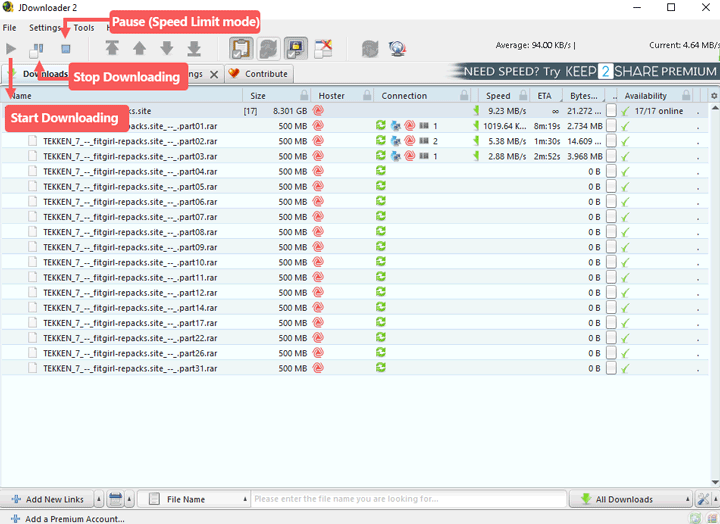
The files are now moved from LinkGrabber to the Downloads tab and begin downloading. Use the large Play, Pause, and Stop buttons on the toolbar to control your entire queue.
How to Use JDownloader 2 to Download Multi-Hoster Links
If you copy a list of links where the same file is offered by multiple hosts (e.g., Part 1 on Mega, Part 1 on RapidGator), JDownloader 2 helps you choose the best one. Below, I'm using the steps to download files from FitPacks as an example.
Step 1. Find the MultiUpload links of your game. Click on that to find and copy all the links.
Step 2. Open JDownloader. As long as ClipObserver is turned on, it will instantly pick up the links you copied and show all detected files in the LinkGrabber tab.
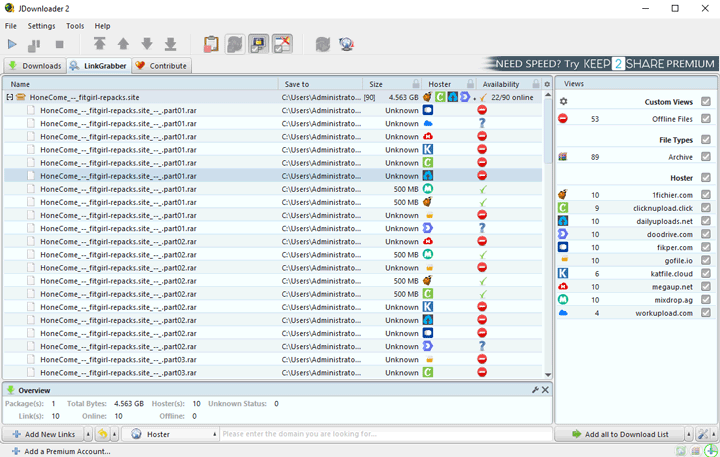
Step 3. In the Views section, go to Hosters. Uncheck every host except the one you want to use. Some hosts may only provide part of the full file set. For example, you might need 10 files, but a host only has 4 available. In that case, simply switch to another host. All hosts are essentially the same unless you have a membership with a specific one.
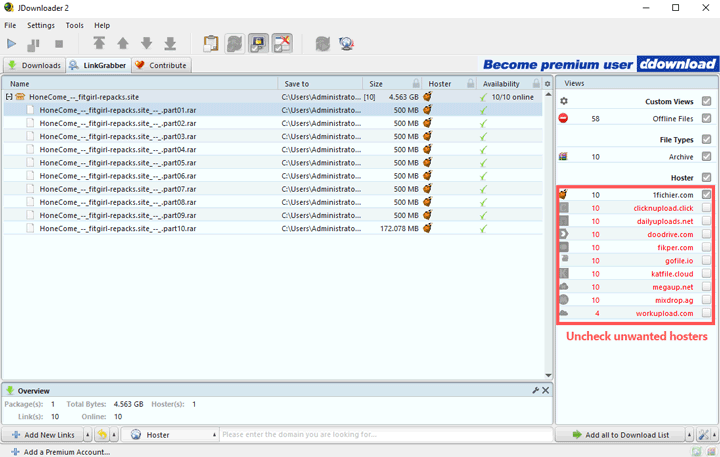
Step 4. Click Add all to Download List, then start downloading by clicking on the Start downloading icon. JDownloader will begin fetching all the files to your computer.
How to Use JDownloader to Download Videos Online
Step 1. Find the video or playlist link and copy it.
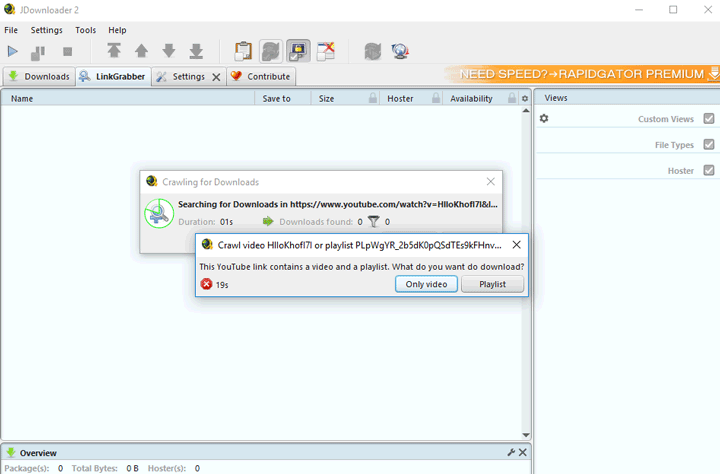
Step 2. Open JDownloader. It will automatically start crawling the links you added. If you're adding a playlist link, JDownloader will ask whether you want to download a single video or the entire playlist. Choose the option that fits your needs. In this demo, I select Playlist, so JDownloader will detect all downloadable videos from that playlist.
Step 3. Select the file types you want. For example, if you only need the video file, check the Video File option. In the Variant column, you'll see expand icons that let you choose the version of each video. Some videos come with multiple formats, resolutions, or codecs. You can click to change them if needed, but in most cases, the default settings work fine.
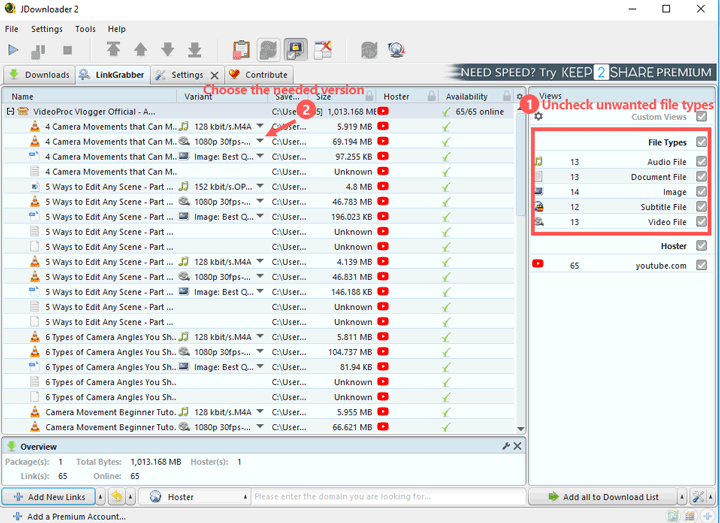
Step 4. Click Add all to Download list. And then hit All Downloads to start downloading videos files on our computer.
Note:
JDownloader doesn't support embedding subtitle files into the video. Currently, you can only create a script for subtitle embedding to get that job done, which is difficult for most people who don't know coding.
How to Add a Premium Account for Full Speed in JDownloader
To bypass speed limits and captchas on a paid hoster, add your account details:
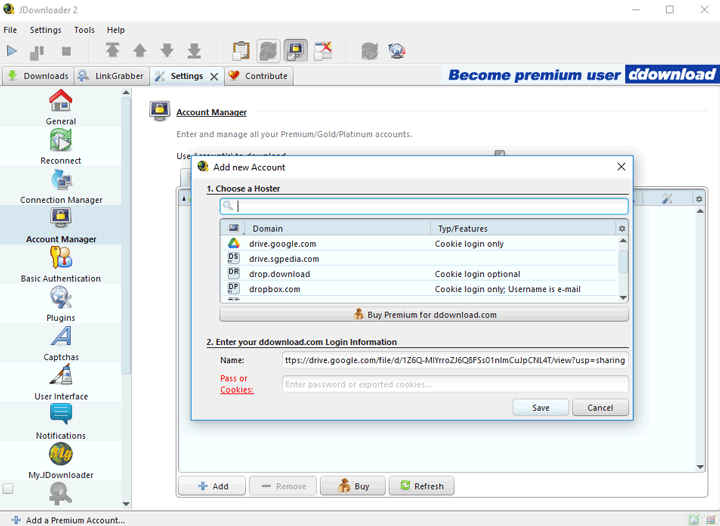
Step 1. Go to the Settings tab. Click on Account Manager.
Step 2. Click the Add button and select your file hoster, for example, Uploaded and NitroFlare.
Step 3. Enter your Username and Password. JDownloader2 will verify the account and use it automatically for all applicable links, ensuring max speed and unlimited downloads.
Advanced Settings to Optimize the Downloading Workflow in JDownloader
To turn JDownloader 2 into a true "set-it-and-forget-it" tool, you need to adjust some of its advanced settings. These options control your bandwidth usage, download logic, and user experience.
1. Control Download Speed and Bandwidth
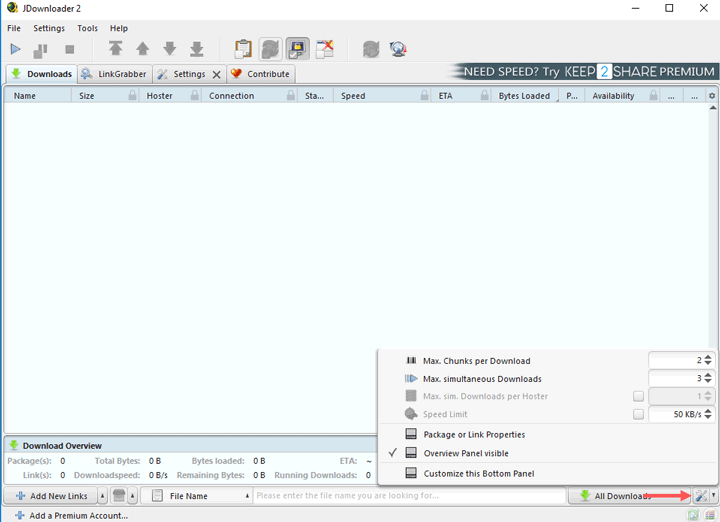
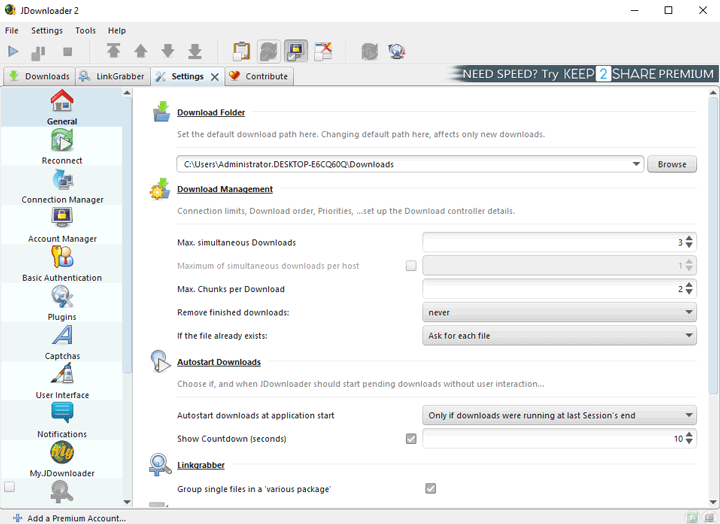
You can fine-tune how aggressively JDownloader 2 downloads files, ensuring you maximize speed without consuming all your internet bandwidth. All of these settings can be found by clicking the editing icon located in the lower right corner of the Downloads interface. Alternatively, you can find them in the Download Management section found by clicking Settings > Download Management.
Max. Simultaneous Downloads: This controls the number of files JDownloader 2 can download at the same time. While a higher number (e.g., 10-15) can speed up batch downloading, keep it moderate to prevent your connection from being overloaded.
Max. Chunks per download: This determines how many parts a single file is split into for parallel downloading. Increasing this value to 2 to 4 can significantly boost speed on a single file, but be cautious as setting it too high might trigger hosters' security limits.
Speed Limit: This helps when you need to reserve bandwidth for streaming or browsing. For example, set a maximum transfer rate (e.g., 500 KB/s or 5 MB/s) to throttle JDownloader 2 and save bandwidth for your other applications.
2. Automating File Naming and Sorting
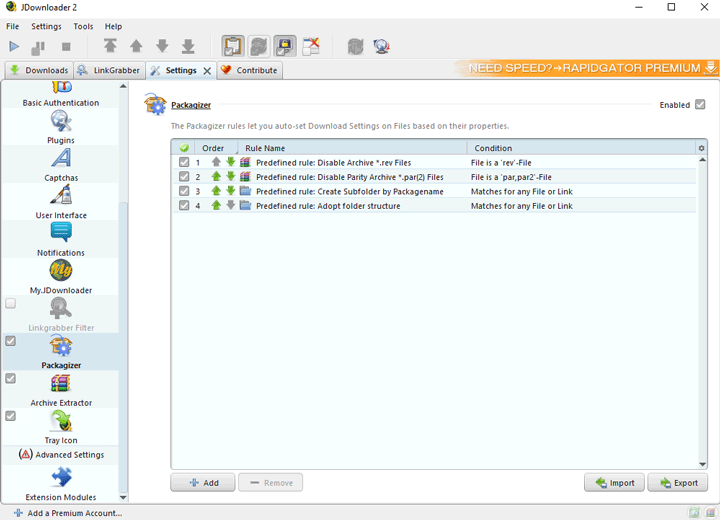
The Packagizer is an essential feature found under Settings > Packagizer. It allows you to create rules that automatically modify parameters (like the filename or download folder) for newly added links based on existing information.
How it Works: The Packagizer lets you define a condition (e.g., "If the download URL contains 'YouTube'") and an action (e.g., "Then set the download folder to '/Videos/YouTube/").
Common Use Cases:
- Automated Folder Sorting: Automatically send all links from a specific website (Hoster) to a specific folder (e.g., all Mega downloads go to C:\Downloads\MegaFiles).
- Cleaning up Filenames: Use wildcards or regular expressions to remove unwanted tags, timestamps, or repeated text from file names as soon as they hit the LinkGrabber.
- Adding Metadata: Insert dynamic placeholders (like <jd:simpledate:ddMMyyyy>) to automatically append the current date to a file name or package name.
3. Automating Download, Cleanup and Post-Processing
JDownloader 2 can automatically handle files once the download is finished, saving you manual clean-up time. Go to Settings > General.
Download Folder: It's there you can choose the output folder path for holding the downloaded files. Hit Browser and set the target output folder.
Autostart Download: This means when JDownloader can auto start downloading without user interaction. I like to keep this as default settings. The Show countdown settings lets you set the countdown seconds before the auto download starts, so you have enough time to cancel.
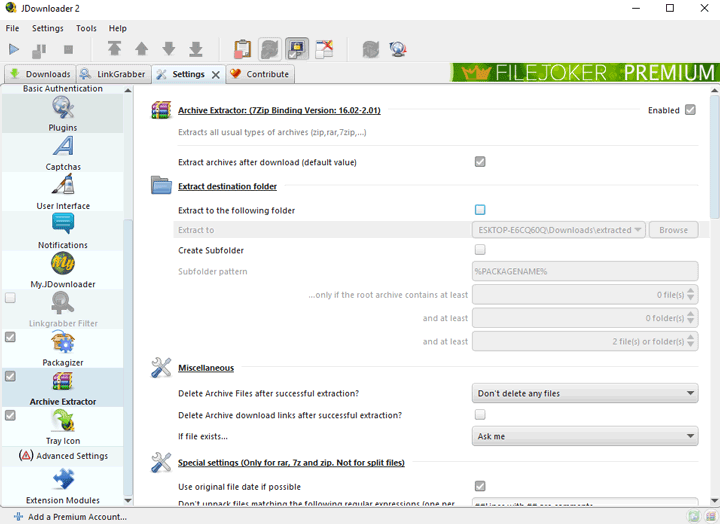
Archive Extraction: The Archive Extractor setting helps your multi-part files are merged, unzipped/unrared, and placed in the final folder, requiring no manual action from you. It can be found by clicking Settings and scrolling down to find Archive Extractor.
Archive Extractor: Ensure it's enabled to extract all usual types of archives (zip, rar, 7zip and more).
Extract archives after downloads should be enabled as well.
Extract destination folder: It decides where the extracted file will be held. To use it, check the Enable button of Extract to the following folder. Click Browse to choose the output folder. You're also allowed to create a subfolder.
Auto Delete Archive Files: You can enable the automatic deleting of the archived files or download links after the successful extraction. Just tick the corresponding option.
The Easiest JDownloader Alternative: VideoProc Converter AI
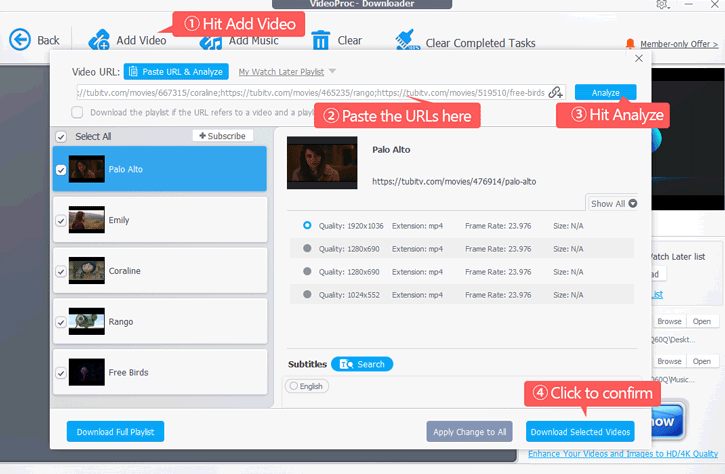
As this guide demonstrates, while JDownloader 2 is incredibly powerful, its complexity, steep learning curve, and reliance on outdated or fragmented learning sources can still be challenging for beginners. If your primary goal is to simply download videos, music, and subtitles, I recommend you to use VideoProc Converter AI. It is designed for ease-of-use, allowing you to download media files from over 1000 UGC sites and 2000+ niche sites with a single click. Check some of the highlight features of this capable JDownloader 2 alternative:
- 1-Click to download all or selected videos from multiple URLs (support playlists)
- Allow you to choose from all available resolutions, formats, fps, and subtitles, etc.
- Support downloading subtitles and easily hardcode subtitles into the video.
- Download videos in the original quality 2K/4K; AI upscale low-quality videos to 4K.
- Feature-rich: AI-enhance videos/audio/images; convert/compress/edit videos...
- Features an intuitive, regularly updated interface, and is free of bundled software.
Free download and install VideoProc Converter AI to download videos/audio/subtitles from 1000+ sites!